
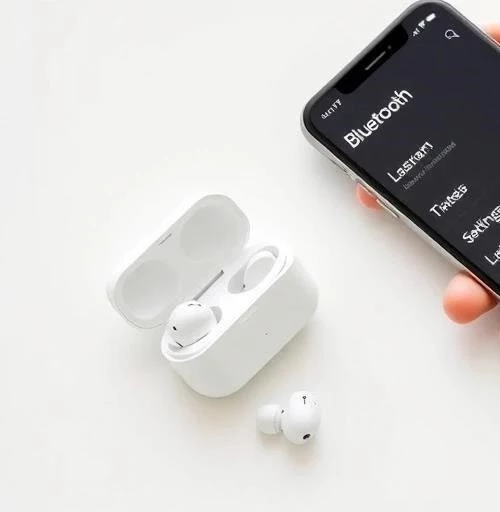
Connecting the HUAWEI FreeBuds 6i should take less time than choosing what to listen to. The trick is knowing where the pairing button is, what the indicator light is telling you, and what to try if your phone does not notice the earbuds straight away. Follow the steps below to connect them to an Android phone, an iPhone, a computer, or another Bluetooth device.
The quick version: Put both earbuds in the charging case, open its lid, and press and hold the case’s function button for about two seconds until the indicator flashes white. On your device, open Bluetooth settings, select HUAWEI FreeBuds 6i, and confirm the connection if prompted.
Before you begin: prepare the earbuds
- Check the charge. Make sure the case and earbuds have some battery. If the indicator does not light up or the earbuds seem unresponsive, connect the case to power for a while and try again.
- Place both earbuds in the case. Check that they are seated correctly in their charging slots. Keep the lid open while pairing.
- Keep the case close to your device. A short distance helps Bluetooth discover the earbuds more reliably;
- Turn on Bluetooth on your phone, tablet, laptop, or other device. If Bluetooth is already on, briefly switching it off and back on can sometimes help refresh the device list.
Pair FreeBuds 6i with an Android phone
Method 1: Pair through Bluetooth settings
- Place the earbuds in the open case.
- Press and hold the function button on the charging case for about two seconds. Wait for the indicator to flash white, which signals that the earbuds are ready to pair.
- On your Android phone, open Settings, then go to Bluetooth or Connected devices. The exact menu names vary by phone.
- Turn Bluetooth on and choose Pair new device or Scan if your phone does not search automatically.
- Tap HUAWEI FreeBuds 6i when it appears. Accept any pairing request to finish.
Once connected, the earbuds should appear as a saved Bluetooth device. The next time you use them, opening the case near the phone may reconnect them automatically, provided Bluetooth is enabled and they are not already connected elsewhere.
Method 2: Use a nearby-device pop-up
Some Huawei phones can show a connection card when you open the case near the phone. If a prompt appears, follow its on-screen instructions. If it does not appear, nothing is broken: use the Bluetooth-settings method above. Pop-up availability can depend on the phone model, software version, and installed Huawei services.
Pair FreeBuds 6i with an iPhone or iPad
- Put both earbuds in the case and leave the lid open.
- Hold the case’s function button for about two seconds, until the indicator flashes white.
- On the Apple device, open Settings > Bluetooth and make sure Bluetooth is switched on.
- Wait for HUAWEI FreeBuds 6i to appear under the available devices, then tap its name.
- If a confirmation appears, accept it. When the earbuds show as connected, you are ready to listen.
Basic Bluetooth audio does not require a Huawei phone. Some extra settings or firmware tools may depend on the HUAWEI AI Life app, which is separate from the initial pairing process. App availability and installation options can vary by region and device.
Connect to a Windows laptop or Mac
The case-button step is the same: put the earbuds inside, open the lid, and hold the function button until the indicator flashes white. Then open the computer’s Bluetooth controls.
- Windows: Open Settings > Bluetooth & devices, switch Bluetooth on, choose Add device, select Bluetooth, and click HUAWEI FreeBuds 6i.
- Mac: Open System Settings > Bluetooth, find the earbuds in the nearby-device list, and select Connect.
Menu labels may differ slightly between operating-system versions. If your computer offers separate entries for audio output and microphone input, select FreeBuds 6i as the audio device you want to use. For calls, check the app’s own speaker and microphone settings as well.
What the indicator is telling you
Think of the case light as a tiny traffic signal. A flashing white light generally indicates that the earbuds are in pairing mode and waiting to be discovered. If the light does not start flashing, check that the lid is open, the earbuds are properly seated, and you are holding the case button long enough. Indicator behavior can vary with the case’s battery level and current state, so consult the product’s user guide if the light pattern is unclear.
Already paired? Reconnect or switch devices
If FreeBuds 6i were paired with your phone before, you may not need to repeat the setup. Turn on Bluetooth, open the case, and look for the earbuds in the saved-device list. Tap their name if they do not reconnect automatically.
If they connect to a tablet or laptop instead, disconnect them from that device first, or switch off Bluetooth on it temporarily. Bluetooth earbuds commonly reconnect to a device they remember, which can make it look as though your phone has stopped seeing them. The earbuds also support connection with more than one device in supported configurations; available controls and behavior can depend on software and settings. If you are setting up a second device, put the earbuds into pairing mode again and select them from that device’s Bluetooth list.
HUAWEI AI Life: optional, but useful
You can listen over Bluetooth without installing an app. HUAWEI AI Life may provide access to additional earbud settings, device information, or firmware features, depending on your region, phone, and app version. If you want to use it, obtain the app from an official Huawei distribution channel available for your device and follow the app’s prompts to add the earbuds. Avoid unofficial download sites: a pairing problem is not worth inviting a security problem.
If FreeBuds 6i do not appear
Pairing is usually a small timing issue, not a dramatic hardware mystery. Try this sequence in order:
- Confirm pairing mode. Keep the case open and hold the function button for about two seconds. Wait for the white indicator to flash before searching on your phone.
- Move closer; Keep the case next to the device and away from other active Bluetooth accessories while you pair.
- Refresh Bluetooth. Turn Bluetooth off and back on, then reopen the available-devices list.
- Check existing connections. A phone, tablet, or computer that the earbuds have used before may reconnect first. Disconnect the earbuds there or temporarily disable Bluetooth on that device.
- Charge and reseat. Put both earbuds back in their slots, check that they sit properly, and give the case time to charge if its battery is low.
- Forget an old entry. If your device already lists FreeBuds 6i but connection fails, open the device’s Bluetooth settings, choose the earbuds, and select Forget or Unpair. Then put the earbuds back into pairing mode and set them up again.
- Restart your phone or computer. This can clear a stuck Bluetooth scan or connection without changing the earbuds’ settings.
Last resort: reset the earbuds
If ordinary troubleshooting does not help, a reset can clear a troublesome pairing state. Place both earbuds in the case and leave the lid open. Press and hold the case’s function button for around ten seconds, watching for the indicator’s reset signal. On many Huawei earbud cases, the light flashes red during the reset process; release the button when the reset indication occurs. The earbuds may then enter pairing mode, or you may need to hold the button again until the indicator flashes white. Because light patterns can vary, check the FreeBuds 6i user guide for the exact reset sequence for your unit.
A reset may remove existing pairings, so you will need to select HUAWEI FreeBuds 6i again from the Bluetooth menu on each device you want to use.
Connected, but there is no sound?
- Check the device’s volume and make sure audio is routed to HUAWEI FreeBuds 6i, not the phone or computer speaker.
- Pause and resume playback, or try a different audio app to see whether the issue belongs to one app.
- For computer calls, check the meeting app’s selected speaker and microphone; its choices can differ from the system’s general audio output.
- Put the earbuds in the case, close it briefly, then open it and reconnect.
- If sound remains uneven or absent, remove the earbuds from the Bluetooth list, reset them if needed, and pair again.
Quick checklist
- Both earbuds are in the case.
- The case lid is open.
- The function button is held until the indicator flashes white.
- Bluetooth is on and the device list has been refreshed.
- HUAWEI FreeBuds 6i is selected from the correct device’s Bluetooth menu.
That is the whole journey: open the case, invite the white light, and choose the earbuds from your device’s Bluetooth list. If the first attempt misses, forget the old connection, check for another device holding on to the earbuds, and try once more. Soon the case can close, the room can fade into the background, and your playlist can take over.


2 Comments. Оставить новый
This guide turns Bluetooth pairing into a tiny, well-lit runway: open the case, watch for the white signal, and let the device land. The practical troubleshooting notes make it feel reassuring rather than robotic.
A useful little map through the maze of settings menus. I especially like the reminder that menu names vary across Android phones—it saves readers from thinking they took a wrong turn when the labels simply changed.