
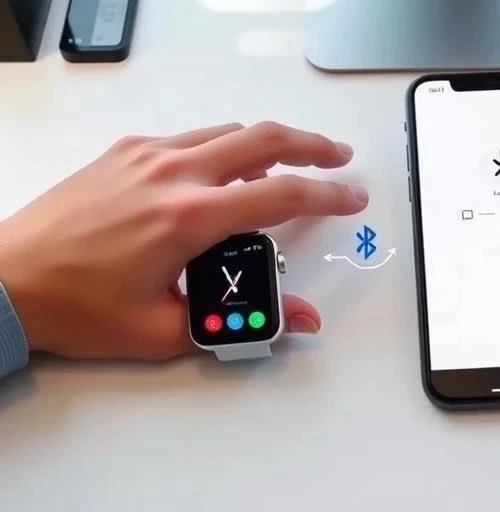
The T800 Ultra is commonly sold in several versions, and the companion app can vary by manufacturer or seller. The steps below cover the usual setup. Check the watch’s QR code, manual, or product listing for the app recommended for your specific device.
Before you start
- Charge the watch and switch it on.
- Turn on Bluetooth on your iPhone or Android phone. Keep the devices close together.
- Connect the phone to the internet so you can download the app and complete setup.
- If the watch was previously paired, remove its old connection from the phone’s Bluetooth settings and, if necessary, reset the watch.
Pair the watch in its companion app
- Find the correct app. Open the QR code displayed on the watch, scan the code in its manual, or follow the seller’s instructions. Install the suggested app from the App Store or Google Play. App names may differ between T800 Ultra versions; do not assume that an app used for another model will work.
- Open the app and grant permissions. Create an account if requested, then allow the access needed to find and connect to the watch. Depending on your phone and app, this may include Bluetooth or nearby-device access, location, and notifications. On Android, location permission may be required for Bluetooth scanning even if you do not use location features.
- Add the device. In the app, choose an option such as Add device, Bind device, or Search. Select the T800 Ultra or the matching device name when it appears. Confirm the pairing request on both screens if prompted.
- Wait for synchronization. Keep the app open until it reports that the watch is connected. Set the time, units, health permissions, and notification preferences in the app.
For initial setup, pairing through the companion app is usually preferable to selecting the watch directly in the phone’s Bluetooth menu. If the app cannot find it, check that Bluetooth is on, the watch is awake, and it is not connected to another phone.
Enable calls and notifications
Some versions use a second Bluetooth connection for calls and audio. If call audio does not work after app pairing, open the phone’s Bluetooth settings and look for a second entry associated with the watch, such as a name containing “Call” or “Audio.” Select it and accept the pairing request. Not every version supports this feature.
To receive alerts, enable the desired apps in the companion app and allow notification access in the phone’s settings. On iPhone, also check Bluetooth permissions and notification settings. On Android, allow background activity if the connection regularly drops. Menu names vary by operating-system version.
If connection fails
- Restart the watch and phone, then try the app’s device search again.
- Remove any old T800 Ultra entry from Bluetooth settings and disconnect it from other phones.
- Check app permissions, update the app, and keep the watch near the phone during pairing.
- If needed, use the watch’s reset option and repeat setup from the beginning.
Resetting may erase locally stored settings or data. The exact menus and available functions vary across T800 Ultra versions, so consult the instructions supplied with the watch if these steps do not match its screen.
1 Comment. Оставить новый
The setup steps are clear, especially the reminder that the correct companion app can vary by device version. Checking the watch’s QR code or manual first should help avoid pairing issues.