
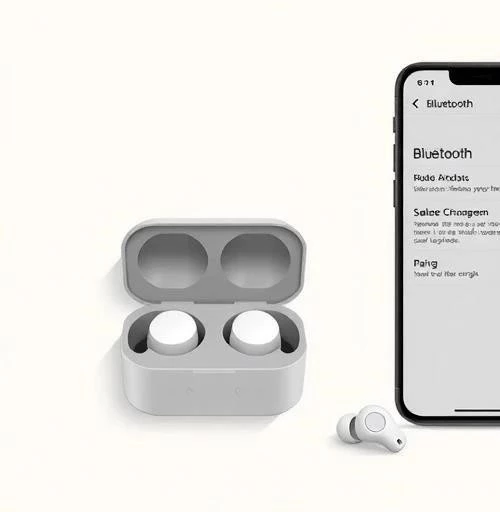
Xiaomi AirDots are wireless Bluetooth earbuds that can connect to a phone, tablet, or computer. The names and controls vary slightly between models, but the basic setup is similar. Charge the earbuds and their case first, then follow the steps below.
Pair AirDots with a phone
- Take both earbuds out of the charging case. Remove any protective film covering the charging contacts if the earbuds are new. Make sure both earbuds have power.
- Wait for the earbuds to synchronize. They usually connect to each other automatically. A light may flash on one earbud while the other stops flashing; this is normal. Keep them close together during this step.
- Open Bluetooth settings on your phone. On Android, go to Settings > Bluetooth or Connected devices. On an iPhone, open Settings > Bluetooth. Turn Bluetooth on and keep the settings screen open.
- Select the AirDots in the available-device list; The listing may appear as “Redmi AirDots,” “Mi True Wireless Earbuds,” or a similar name. On some versions, the phone displays separate left and right entries during initial setup. Choose the main or right-earbud entry if prompted.
- Confirm the connection. Tap Pair if your phone asks for permission. When the device shows as connected, play audio to check that sound comes through both earbuds.
After the first successful pairing, AirDots should reconnect to that phone automatically when you take them out of the case, provided Bluetooth is on and they are not already connected to another device. To disconnect, put them back in the case or turn Bluetooth off on the connected device.
Connect to a computer or another device
Put the earbuds into pairing mode as described above, then open the computer’s Bluetooth settings and choose Add device or Pair new device. Select the AirDots when they appear. The same process works with most Bluetooth-enabled tablets and televisions. If they do not show up, disconnect them from the phone first; AirDots models may not support connecting to two devices at once.
If the earbuds do not appear or connect
- Check power and distance. Charge the case and earbuds, keep them near the phone, and make sure Bluetooth is enabled.
- Remove an old pairing. In Bluetooth settings, tap the AirDots and choose Forget or Unpair. Then try pairing again.
- Restart Bluetooth. Switch Bluetooth off and on, or restart the phone. Also check that the earbuds are not connected to a nearby device.
- Try a reset. Reset instructions differ by AirDots version. On many button-controlled Redmi AirDots, take both earbuds out, press and hold their buttons until the indicator flashes in the reset pattern, then return them to the case. For touch-control or newer models, use the reset procedure in that model’s manual. After resetting, remove the old Bluetooth entry and pair again.
- Check each earbud. If only one side plays, place both earbuds in the case, confirm that they are charging, and repeat the synchronization and pairing steps. Dirty charging contacts can prevent an earbud from powering on; clean them gently with a dry, soft cloth.
Do not rely on a single indicator-light pattern for every model: AirDots generations use different buttons, gestures, names, and reset sequences. If the steps above do not match your earbuds, check the exact model number printed on the case or packaging and follow its manual. Avoid holding buttons while the earbuds are wet, and do not use sharp objects on the charging contacts.
Quick checklist
Charge the earbuds; remove them from the case; allow the pair to synchronize; open Bluetooth settings; select the correct AirDots name; and confirm pairing. If setup fails, forget the saved device, reset the earbuds using the instructions for your specific version, and start again.


2 Comments. Оставить новый
Helpful troubleshooting advice about disconnecting the earbuds from another device. Since AirDots models can differ, a note to check the model-specific manual for pairing mode would make the guidance even more useful.
The pairing instructions are clear and easy to follow, especially the note that the earbuds may briefly appear as separate entries. Including both Android and iPhone steps makes the guide useful for a wide range of readers.