
A missing remote can make a smart TV feel like a very expensive black mirror. Fortunately, your Xiaomi may still have a few ways to wake up and take orders: a physical button, a phone, or another device already connected to it. Try the simplest route first, then move on to the cleverer ones.
Find the TV’s hidden button
Most Xiaomi TVs have a power or control button on the underside, along the lower edge, or near the back of the screen. Feel gently around the central area and corners; the button may be small and easy to miss. Press it once to turn the TV on. On some models, a press opens a small control menu, while a longer press switches the TV off or on.
If a menu appears, use the same button—or a small joystick-style control—to move through options and select one. The exact layout varies by model, so don’t force anything. Avoid pressing a pin into holes marked “Reset”: that can trigger a reset rather than ordinary control.
Turn your phone into a remote
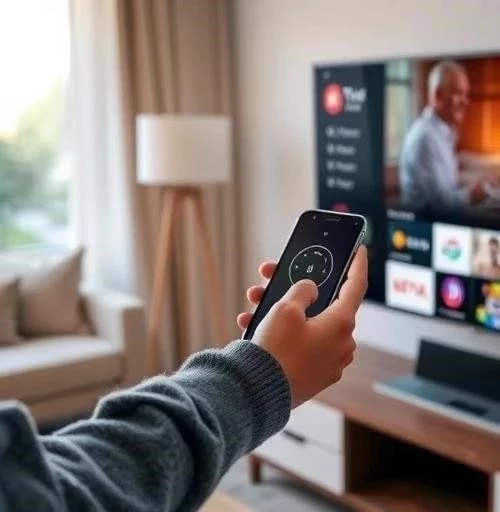
For Android TV or Google TV: install or open the Google TV app on your phone. Connect the phone to the same Wi-Fi network as the television, choose the remote-control icon, select your TV, and enter the pairing code shown on screen. The phone then becomes a touchpad and keyboard, handy for navigating menus or typing passwords.
You can also try Google Home: select the TV or streaming device in the app and look for its remote controls. App menus differ by version and region, so the remote button may not appear on every device. If the TV is off, disconnected from Wi-Fi, or not yet paired, the phone app may not be able to find it.
Mi Remote is another option. It can control compatible Xiaomi and Android TVs over a network. Some Xiaomi and Redmi phones also have an infrared (IR) emitter. If yours does, open Mi Remote, add a television, choose Xiaomi or the appropriate brand, and test the suggested buttons while pointing the phone at the TV. IR works like a traditional remote and does not require Wi-Fi, but the phone must actually contain an IR emitter.
Solve the Wi-Fi catch
Network control usually works only when the phone and TV are on the same local network. If you changed your router, Wi-Fi password, or network name, the TV may still be stranded on the old connection. Use the physical button to open settings if possible, or connect a USB mouse or keyboard to navigate and reconnect.
If your Xiaomi screen is paired with a separate streaming box, control the box—not necessarily the television—with its matching phone app. The box and phone should share Wi-Fi. HDMI-CEC may also let one device’s controls operate another, but this feature must be supported and enabled on both devices.
Use a wired or universal backup
A USB mouse or keyboard can be a surprisingly useful stand-in: plug it into the TV and try the arrow keys, Enter, and Escape. For a longer-term fix, buy a compatible replacement or universal remote. Check your TV’s model number before ordering; “Xiaomi remote” is not a guarantee that every remote will pair with every model.
When nothing responds
Start with the TV’s own button, then try a phone app, an IR phone, and USB input. Confirm power and Wi-Fi, and restart the TV only if you can do so safely. Don’t factory-reset it as a first move—you could erase settings and still have no way to complete setup. Once you regain control, pair a phone remote or keep a compatible spare nearby. The best emergency remote is the one you prepare before the next disappearing-act performance.



1 Comment. Оставить новый
A missing remote turns the living room into a tiny escape room, and this guide hands you the clues in the right order. The warning about reset holes is especially useful—one misplaced poke could turn a simple puzzle into a factory-reset saga.