
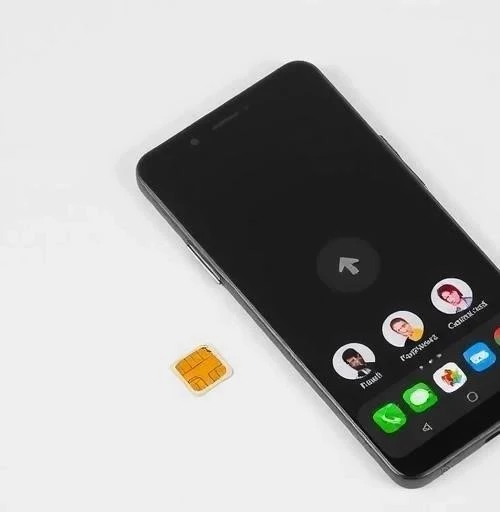
Copying contacts from a Xiaomi Redmi 8 to a SIM card can be useful if you are moving to a basic phone, lending your phone to someone else, or want a copy that can be used without signing in to a Google account. The process is usually available through the phone’s Contacts app, but the exact menu names depend on the MIUI version and which Contacts app is installed. There is also an important limitation: a SIM card stores far less information than a phone or Google account. For that reason, it is sensible to copy contacts to the SIM for convenience, but not to treat the SIM as your only backup.
Before you start: understand what a SIM can store
A SIM card is designed to hold basic contact details, not a complete address book. Depending on the SIM and mobile carrier, it may have space for only a few hundred contacts, and the actual number can be lower. A SIM entry generally supports a name and one phone number. It may not preserve email addresses, postal addresses, contact photos, notes, birthdays, several phone numbers, or custom labels such as “work” and “mobile.” Long names can also be shortened to fit the SIM’s character limit.
This matters because exporting contacts to a SIM is not always a full transfer. If a contact has several numbers, the export tool may ask which number to use, save only one, or create separate entries. If a contact has no phone number, it may be skipped. So, if you need to preserve every detail, keep the original contacts in the phone or back them up to Google before exporting. The SIM copy is best understood as a compact, practical version of your address book.
First, insert the SIM card that you want to use in the Redmi 8 and make sure the phone recognizes it. If the phone has two SIM slots or two active SIMs, check which card you intend to write to. The export menu may identify the destination as SIM 1 or SIM 2. A wrong selection could put contacts on a card you are not planning to move.
Method 1: Export contacts using the Xiaomi Contacts app
On many Redmi 8 phones running MIUI, the built-in Contacts app includes an option to export entries directly to a SIM card. Try these steps first:
- Unlock the Redmi 8 and open the Contacts app. You can also open the Phone app and tap its Contacts tab.
- Tap the menu icon. Depending on the app version, this may be three dots in the upper-right corner, a three-line menu, or a small gear icon.
- Choose Settings, Manage contacts, or Import/export contacts. The wording differs between versions of MIUI.
- Tap Export or Export to SIM card. If the phone offers several destinations, select the SIM card you want to use.
- Review the contact list. Select individual entries, or choose Select all if you want to copy every eligible contact.
- If prompted, choose which phone number to export for contacts that have more than one number. Check the selection carefully, because the SIM may not support all numbers for one person.
- Tap Export, OK, or Confirm, and wait for the operation to finish. Avoid removing the SIM or restarting the phone while it is working.
Afterward, return to the Contacts app and look for a setting such as Contacts to display, Customize view, or Display preferences. Select the SIM as a contact source. This can help you confirm that entries were saved. Some versions show SIM contacts alongside Google and phone contacts by default, while others hide them until you change the display filter.
Menu names differ between MIUI versions
Redmi 8 models may have different MIUI updates, regional firmware, or versions of the Contacts app. Consequently, there is no single menu path that is guaranteed to appear on every device. One version may show Contacts > Settings > Import/Export contacts; another may place the same function under Manage contacts. If the steps above do not match your screen, open Contacts and inspect its settings rather than changing unrelated phone settings.
You can also use the Settings search box. Open the phone’s Settings app and search for terms such as contacts, import, or export. Search results may lead to the contacts management screen. Do not assume that a menu is missing just because its name differs from this guide. The important requirement is an option that explicitly exports contacts to a SIM card. An option labelled only Export to storage usually creates a file on the phone; it does not write entries to the SIM.
What if there is no “Export to SIM” option?
Some Redmi 8 phones use Google Contacts or a newer Contacts app that does not offer direct SIM export. In that case, the absence of the option is a limitation of the installed app or software version, not necessarily a fault with the SIM. Check whether Xiaomi’s system Contacts app is available on the phone, and look for a built-in import/export tool in the phone’s contact settings. Menu availability can vary by region and software update.
If no trusted built-in tool can write contacts to the SIM, do not install an unknown “SIM contacts” app simply because it promises a one-tap transfer. Contacts contain personal information, and an app with access to them could expose that data. If you consider a third-party app, check its developer, permissions, reviews, and privacy information. Avoid granting access that is not necessary, and uninstall the app when you are finished if you no longer need it.
Another safe option is to export contacts to a .vcf file as a backup. In Contacts, look for Export to storage or a similar command. Save the file somewhere you can find it, such as the phone’s internal storage, and copy it to a computer or secure cloud account if appropriate. A VCF file can preserve more contact information than a SIM, although the details retained depend on the app and export settings. It is a backup format, not a method of writing entries onto the SIM. If you specifically need SIM contacts and the Redmi’s software cannot create them, a different phone or a trusted contact-management tool with SIM-writing support may be required.
How to check that the transfer worked
Do not rely only on a brief success message. Open the Contacts app, change the displayed account or source to the SIM, and check several entries. Include contacts with different names and numbers, and check any entries that had multiple numbers before export. If the phone has a second SIM, confirm that you are viewing the intended card.
If possible, power the phone off and insert the SIM into the other compatible phone. Open that phone’s contacts and set it to display contacts from the SIM. This provides a more reliable check than viewing the card on the device that performed the export. Some phones hide SIM entries until the user selects the SIM as a source, so an empty-looking address book does not always mean the transfer failed. Consult the other phone’s contact-display settings before repeating the export.
Common problems and practical fixes
- The SIM does not appear as an export destination. Check that it is seated correctly and recognized by the Redmi 8. Restart the phone if the card was inserted while the device was on. If it still does not appear, the Contacts app may not support SIM export, or the SIM may be damaged or restricted.
- Some contacts are missing. The entries may be stored in a Google account or another account that was not included in the selection. Reopen the export screen and check the source or account filter. Contacts without a phone number, or contacts with unsupported details, may also be excluded.
- Only one of several numbers was copied. This is a normal SIM limitation. Export the number you need most, or create separate SIM entries if the software allows it. Keep a phone or Google backup for the remaining numbers.
- Names are cut off or changed. SIM cards have short name fields and may support fewer characters than the phone’s contact database. Shorten names only if necessary, and keep the full versions in the phone or in a backup.
- Contacts appear twice. The same person may exist in the phone, Google account, and SIM. Change the display filter to show only one source when checking. Do not delete duplicates until you have confirmed which copy contains the correct information.
- The export is interrupted or fails. Make sure the SIM is recognized and that it has available contact space. Try exporting a small group first, then export the remaining entries. If a particular contact causes the operation to stop, check whether it has unusual characters or several numbers.
Copying is safer than moving
When the phone offers both Copy and Move, choose Copy unless you have a specific reason to remove the original entries. Copying leaves the contacts in their current account and creates SIM versions; moving may remove or relocate the originals, depending on the app. Because SIM cards cannot keep all contact fields, moving everything to a SIM can cause information to disappear. Confirm that the exported entries are present before deleting any phone or Google contacts.
If your goal is to give away or sell the Redmi 8, exporting contacts is not the same as erasing personal data. First verify that important contacts are backed up, then remove your Google account and reset the phone using the proper factory-reset procedure. If you are keeping the phone and simply changing SIM cards, remember that contacts stored in Google or the phone will remain available independently of the old SIM, while entries saved only on that SIM will travel with it.
Recommended backup before exporting
For a more complete safeguard, make sure contact synchronization is enabled for the Google account that contains your address book. On the Redmi 8, open Settings, find Accounts or Passwords & accounts, select the relevant Google account, and check that Contacts synchronization is on. The menu names may vary. You can also export a VCF file and store it in a safe location. These backups are valuable because a lost or damaged SIM can take its limited contact list with it, and SIM storage is not a substitute for a complete, recoverable address book.
In brief
To transfer contacts from a Xiaomi Redmi 8 to a SIM card, open Contacts, find its import/export or contact-management settings, select Export to SIM card, choose the destination SIM, select the entries, and confirm. Then display SIM contacts or test the card in another phone. If the export option is unavailable, check the installed Contacts app and MIUI menus; the feature is not offered by every app version. Since a SIM preserves only basic details and may store just one number per person, copy rather than move your contacts and keep a Google or VCF backup for the complete address book.
6 Comments. Оставить новый
The article sets realistic expectations about what a SIM can preserve instead of presenting the export as a full transfer. Its advice to keep another copy of important contacts is sensible and makes the guidance more reliable.
The explanation of the SIM card’s storage limits is especially helpful. It makes clear that exporting contacts is not the same as creating a complete backup, which is an important distinction for readers to understand before they begin.
This is a practical introduction because it explains why someone might want to copy contacts to a SIM while also noting the drawbacks. The warning about losing details such as email addresses and extra phone numbers helps readers make an informed choice.
I appreciate the reminder to check which SIM is selected, particularly for a dual-SIM phone. That small precaution could prevent a frustrating mistake, and the article appropriately points out that menu labels may vary by software version.
This is clear and useful for readers who may not know that SIM contacts generally support only basic information. The examples of details that might be lost make the limitation easy to understand without overcomplicating the explanation.
The opening gives helpful context about when a SIM copy might be useful, while carefully distinguishing convenience from dependable backup. It would be valuable for readers to follow the later steps with the right expectations about contact capacity and formatting.