
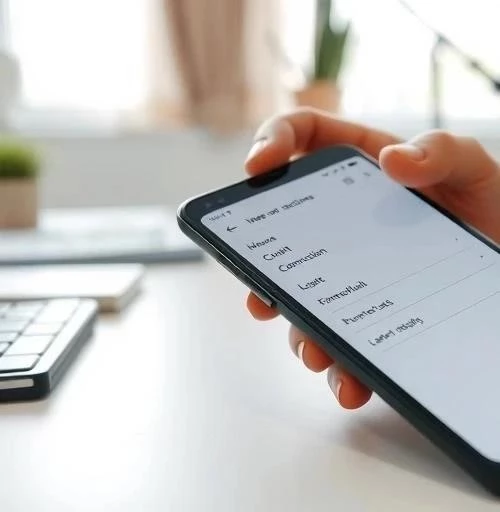
A Google Account lets you use Gmail‚ Google Play‚ YouTube‚ Google Drive‚ Photos‚ and other Google services. You can create one directly on a Xiaomi phone running Android‚ whether its software is called MIUI or HyperOS. Menu names can vary slightly by model and software version‚ but the general steps are the same.
Before you begin
Connect your Xiaomi to a reliable Wi-Fi network or mobile data‚ and make sure the date and time are set automatically. Have access to a phone number or recovery email if Google asks you to verify your identity. You do not need to create a Gmail address if you prefer to register with an existing email address from another provider.
If you already have a Google Account‚ you can add it to the phone instead of creating another one. A new account is useful when you want a separate inbox‚ Play Store profile‚ or account for a different person.
Option 1: Create an account in Xiaomi Settings
- Open Settings on your Xiaomi phone.
- Find Accounts & sync‚ Passwords & accounts‚ or a similarly named section. On some versions‚ account settings may be under Additional settings.
- Tap Add account‚ then choose Google. Confirm your screen lock or enter your device password if requested.
- When the Google sign-in screen appears‚ tap Create account. Choose For my personal use unless you are setting up an account for a child or a business.
- Enter your first and last name‚ then provide your date of birth and other requested details. Use accurate information‚ since Google may use it for account security and age-related settings.
- Choose a suggested Gmail address or tap the option to create your own. If the name is already taken‚ try a different combination. You may also be offered the option to use an existing email address instead.
- Create a strong password that you do not use on other websites. Enter it again to confirm‚ then follow any prompts to add and verify a phone number or recovery email.
- Review Google’s privacy and terms information. If you agree‚ accept the terms to finish creating the account.
Once setup is complete‚ the account should appear in your phone’s account list. Google may ask whether to turn on syncing for services such as Gmail‚ Contacts‚ Calendar‚ and Drive. Choose the settings that suit you; you can change them later.
Option 2: Create an account through a Google app
You can also start in the Play Store or Gmail app. Open the app‚ choose the option to sign in or add an account‚ select Google‚ and tap Create account. Follow the same registration steps. If Play Store is already signed in with another account‚ tap the profile picture and open the account menu to add or manage accounts.
Option 3: Use a web browser
Open Chrome or another browser and visit accounts.google.com/signup; Complete the requested details and verify the account if prompted. After registration‚ return to Settings and use Add account > Google to connect it to your Xiaomi. Signing up in a browser creates the account‚ but adding it to Android is what makes it available to system apps and device syncing.
After you create the account
Open the Play Store and check the profile icon to confirm that the new account is selected. You can switch accounts from that menu. In Settings‚ tap the Google account to choose which information syncs. To use Gmail‚ open the Gmail app and allow notifications if you want to receive new-mail alerts. Google Photos and Drive may also offer backup settings; review these before enabling uploads‚ especially if you have limited mobile data or storage.
If account creation does not work
- The Google option is missing: Check that your phone has Google services and update system apps where available. Menu labels differ across Xiaomi models and software versions.
- The page will not load: Check your internet connection‚ restart the phone‚ and try again in a browser. If a sign-up screen is stuck‚ close and reopen the app.
- Your chosen address is unavailable: Select another suggested address or try a distinctive variation. An address already registered cannot be claimed by someone else.
- Verification fails: Recheck the number‚ use a number you can access‚ and follow the on-screen instructions. Google may not offer the same verification options to every user.
- You see an age or supervision message: Enter your correct date of birth. Depending on local requirements‚ a younger user may need a parent or guardian to set up supervision.
Avoid repeatedly submitting forms or using unofficial sign-up apps. If Google displays a temporary error‚ wait and try again later. For account-specific problems‚ use Google’s official help pages rather than sharing passwords or verification codes with anyone.
Keep your new account secure
Add a recovery phone number or email address that you control‚ use a unique password‚ and enable two-step verification if available. Never tell anyone a one-time verification code. If the Xiaomi phone is shared‚ use a separate Android user profile where supported‚ or sign out of the account when appropriate. You can manage personal details‚ security‚ and connected devices from your Google Account settings at any time.



4 Comments. Оставить новый
The distinction between creating a new account and adding an existing one is helpful for first-time Xiaomi users.
Good reminder to use a strong password and keep recovery details current. The steps are easy to follow.
Clear, practical instructions. I especially appreciate the note that menu names can differ between MIUI and HyperOS.
Useful guide that explains the setup without assuming everyone wants a new Gmail address.