
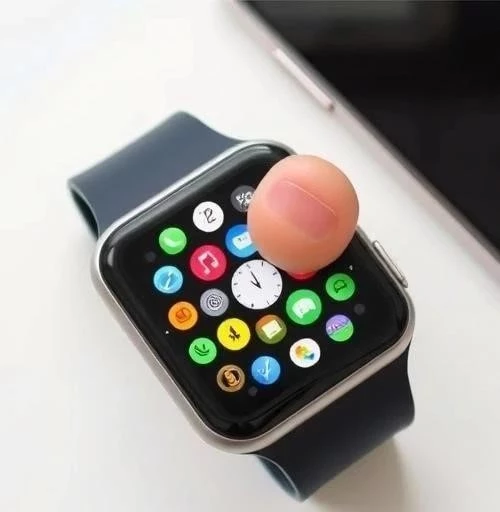
Removing apps you no longer use can make an Apple Watch easier to navigate and reduce clutter on its Home Screen. The exact options depend on the app: many downloaded apps can be deleted, while some Apple apps cannot be removed. You can manage apps directly on the watch or use the paired iPhone.
Remove an app from Apple Watch
The quickest method is to use the watch itself:
- Press the Digital Crown to open the Home Screen.
- If apps appear in a grid, touch and hold an app icon until the icons begin to move. If they appear in a list, swipe left on the app you want to remove.
- In grid view, tap the delete button on the app, then tap Delete App to confirm. In list view, tap the trash button and confirm.
- Press the Digital Crown to finish.
Not every icon has a delete button or a trash option. If the option is missing, the app may be built into watchOS or otherwise not removable from the watch. You can still be able to hide it from view, depending on the app and watchOS version.
Delete apps using the iPhone Watch app
You can also manage compatible apps from the iPhone paired with your watch:
- Open the Watch app on the iPhone.
- Tap My Watch and scroll to the section listing apps installed on the watch.
- Tap the app you want to remove.
- Turn off Show App on Apple Watch, or choose the available removal option. The wording and controls can vary by app and software version.
Turning off Show App on Apple Watch removes the watch version of a compatible app but does not necessarily delete its iPhone version. To remove the iPhone app as well, delete it from the iPhone Home Screen or App Library. That is a separate action and may affect app data or access on the phone.
Stop iPhone apps from installing automatically
Apple Watch can automatically install watch versions of eligible iPhone apps. To prevent new ones from appearing, open the Watch app on the iPhone, tap My Watch, then General, and turn off Automatic App Install. You can still install compatible apps manually from the Watch app or the App Store on the watch.
Hide apps without deleting them
If you want to keep an app but reduce Home Screen clutter, use list view or arrange the grid. Press the Digital Crown to open the Home Screen, touch and hold the display, then select List View or Grid View, if offered. Grid view lets you reposition icons; list view presents apps in an alphabetical list. These choices change how apps are displayed rather than uninstalling them.
Some watchOS versions also let you choose which apps appear in the Dock. Open the Watch app on the iPhone, select My Watch, then Dock, and manage the displayed apps. The Dock is separate from the Home Screen, so removing an app from the Dock does not delete it.
What happens to app data?
Deleting an app from the watch removes its watch component. Whether its settings or information remain available depends on how the app stores and synchronizes data. If the app uses an account or cloud synchronization, data may remain associated with that service. Before removing an app that stores important information, check the developer’s guidance and make sure anything you need is synchronized or backed up.
Removing a companion app from the iPhone can have wider effects than removing only its watch version. It may stop notifications, synchronization, or other features; If you only want fewer icons on your watch, remove or hide the watch app rather than deleting the phone app.
If you cannot remove an app
- Check for a delete control. If no delete option appears on the watch or in the Watch app, that app may not be removable in your current configuration.
- Check Screen Time restrictions. Restrictions on the iPhone may prevent deleting apps. Review Screen Time settings and any family or device-management controls that apply.
- Confirm the watch is paired. Some app-management settings are available only through the paired iPhone’s Watch app.
- Restart and update if needed. If an app appears stuck or settings do not change, restart both devices and check for available software updates.
Reinstall an app later
Many removed apps can be installed again. On the iPhone, open the Watch app, go to My Watch, and scroll to available apps, or use the App Store on the watch. Search for the app and install it if it is still compatible and available. You may need to sign in or adjust permissions again after reinstalling.
Quick summary
To remove an unwanted watch app, delete it from the watch Home Screen or turn off its installation in the paired iPhone’s Watch app. Disable automatic app installation to prevent eligible phone apps from appearing in the future. If an app has no removal control, it may be part of watchOS or restricted. Choose display and Dock settings when you only want to reduce clutter without uninstalling anything.

1 Comment. Оставить новый
The instructions clearly distinguish removing an app from the Apple Watch from deleting its iPhone version, which helps avoid confusion. The steps may vary slightly by watchOS version, so checking the available options on the device is useful.