
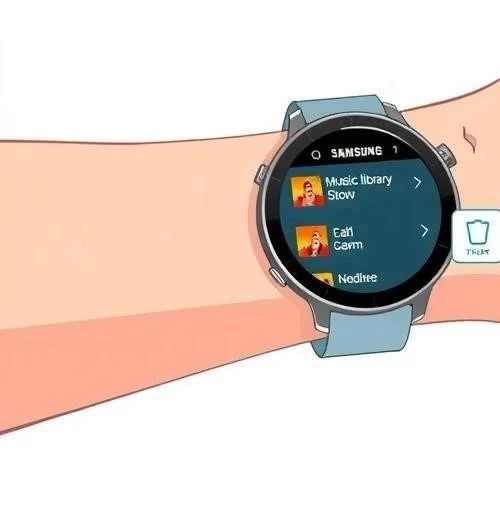
Your Galaxy Watch can be a tiny concert hall on your wrist—but even a concert hall needs room to breathe․ If old albums, duplicate tracks, or playlists you no longer listen to are taking up storage, you can remove them without wiping the watch or disturbing the music on your phone․ The exact labels vary a little by watch model and software version, but these routes cover the usual cases․
First, identify where the music lives
Music may be stored directly on the watch, controlled through the Galaxy Wearable app, or downloaded inside a streaming app such as Spotify․ The distinction matters: deleting a track from the watch’s music library is not the same as deleting it from your phone or removing a streaming download․ If you are unsure, start with the watch’s own music app and look for its library or storage controls․
Method 1: Delete tracks on the watch
- Wake the watch and open the app screen․ Tap the Music app—the icon often looks like a musical note․
- Open the library․ Depending on the model, tap the library, tracks, albums, or playlists control․ You may need to swipe up or tap the small phone/watch selector and choose the watch․
- Find the item you want to remove․ Browse by song, album, or playlist; some versions also provide a search option․
- Open the track’s options․ Tap the three-dot menu, then choose Delete, Remove from watch, or a similarly worded command․ Confirm if asked․
On some versions, a long press on a song opens its options․ If you do not see a delete command, check the library’s menu or try the phone method below․ A playback screen may offer controls for skipping and pausing but not for managing stored files․
Method 2: Remove music with Galaxy Wearable
The phone app is often the easiest place to tidy a large collection․ Keep the watch connected to your phone, then:
- Open Galaxy Wearable․
- Tap Watch settings, then look for Manage content, Add content to your watch, or Music․ The wording and location depend on your model and software․
- Choose the section for music on the watch․ Select the songs, albums, or playlists you want to remove․
- Tap Delete or the trash icon and confirm․ Leave the devices connected while the change syncs․
Some versions show a list of music already on the watch; others mainly provide controls for sending music to it․ If the screen only offers adding tracks, look for a selection or management tab, update Galaxy Wearable, or use the watch’s Music app instead․ Do not remove a phone-library track unless you actually want it gone from the phone too․
Method 3: Delete downloads in a music app
Spotify and other supported services can store offline music separately from the watch’s regular music library․ Open the service’s app on the watch, find the downloaded album, playlist, or episode, and use its menu to remove the download․ A command such as Remove download usually frees watch storage while leaving the item in your online library․ If the app’s controls are limited on the watch, manage its downloads from the companion phone app and let the watch sync․
What if the music will not disappear?
- Check the selected device․ The library may be showing your phone rather than the watch․ Switch to the watch before deleting․
- Allow syncing to finish․ Keep Bluetooth on, the devices nearby, and Galaxy Wearable open for a moment․ A disappearing progress indicator is a good sign that the cleanup reached the watch․
- Restart both devices․ If a removed track still appears, restart the watch and phone, reconnect, and check again․
- Update the software․ Update Galaxy Wearable and the watch when convenient; menu names and music controls can differ across generations․
- Check storage settings․ On the watch, open Settings and look for Battery and device care, Storage, or a similar section․ This can show whether music actually freed space․
Keep your playlists; clear only the copies
Deleting a downloaded copy from the watch normally does not erase the original file on your phone or remove a playlist from a streaming account․ Still, read the confirmation carefully: Delete from watch and Delete from library are very different doors․ If a song matters, make sure another copy exists before removing it․
There is usually no need to factory-reset the watch just to make space․ Remove a few large albums or offline playlists, check storage again, and keep the tracks you actually want for runs, commutes, and quiet moments away from your phone․ Your watch will be lighter on data—and ready for its next encore․


1 Comment. Оставить новый
A useful reminder that “delete” can mean very different things depending on where the music is stored. The watch-versus-phone distinction is the quiet hero here; it turns a potentially expensive cleanup mistake into a few careful taps. Think of it as clearing a tiny backstage, not canceling the concert.