
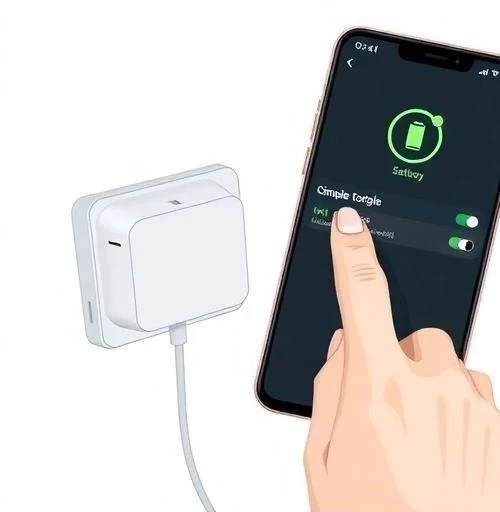
Your Xiaomi may be capable of charging at remarkable speed—but there is no universal “turbo” switch that can make every model do it. Fast charging depends on a three-part handshake: the phone, a compatible power adapter, and a cable that can carry the required power. On some Xiaomi phones, a setting can remove a software limit or enable a boost. On others, the phone handles charging automatically, and the right accessories are the real key.
Think of the charger as a well-rehearsed dance partner: if either side misses the steps, the music continues, but the pace slows. Use the guide below to check what your device supports, enable any available option, and troubleshoot safely.
Check whether your model supports ultra-fast charging
Charging speeds differ across Xiaomi, Redmi, and POCO models—even within the same product family. Look up the exact model name and its official specifications, including the maximum wired charging power. The figure on a charger is its potential output, not a promise that your phone will accept that much power. A phone rated for a lower speed will not charge faster just because a higher-wattage adapter is connected.
Also check the phone’s original packaging, user guide, or Xiaomi support information for the recommended adapter and cable. Some models support Xiaomi’s proprietary charging technology, while others use different supported standards or have a lower maximum. Availability can vary by region and by the specific phone version.
Look for a charging-speed setting
- Open Settings.
- Tap Battery, Battery & performance, or a similarly named section. The wording depends on your model and whether it runs HyperOS or MIUI.
- Look for options such as Charging options, Additional features, Boost charging speed, or Speed up charging.
- If a charging-boost option is available, read its description and switch it on if you want the phone to prioritize faster charging.
Menu names and features change between software versions, and some phones do not include a manual fast-charging toggle at all. If you cannot find one, use the search box in Settings and try charging or boost. No result usually means the option is not offered on your current software or model. Do not install unofficial apps or change hidden system settings in an attempt to force a feature your phone does not support.
Some devices may also offer battery-protection features, optimized charging, or charging limits. These are designed to reduce battery wear, and may deliberately slow or pause charging in certain situations. Check the feature’s explanation before changing it. A protection setting is not necessarily a fault, and disabling it is not automatically a good trade for a small speed increase.
Use a compatible adapter and cable
For the highest supported speed, start with the Xiaomi adapter and cable supplied for your phone, if available. Xiaomi’s fastest charging modes may rely on a particular combination of adapter, cable, and phone. A generic USB charger can still work, but it may negotiate a different charging standard and deliver less power. Even a cable that looks identical may not support the current required for a particular high-speed mode.
If you need a replacement, choose a reputable accessory that explicitly supports the charging standard and power level required by your exact model. Check the specifications rather than relying on a large wattage printed on the box. Avoid damaged, uncertified, or suspiciously cheap adapters and cables. Do not assume that a laptop charger, a car adapter, or a charger from another phone will trigger Xiaomi’s top speed; compatibility matters as much as the headline number.
Connect the adapter directly to a suitable wall outlet and the cable securely to the phone. If the phone has more than one USB-C port accessory or adapter involved, remove unnecessary hubs or extensions while testing. A loose connector, lint in the port, or a worn cable can interrupt the charging handshake. If you see debris, do not scrape the port with metal tools; get safe cleaning advice from a qualified repair provider.
Give the phone conditions that help it charge quickly
- Keep it cool. High temperatures can make the phone reduce charging power to protect the battery. Charge in a cool, ventilated place, away from direct sunlight, heaters, and hot car interiors.
- Pause demanding tasks. Gaming, navigation, video recording, and other heavy workloads use power and generate heat. A locked screen—or a powered-off phone, if convenient—can make charging more efficient.
- Remove a heat-trapping case. If the phone feels unusually warm, take off a thick case and let it cool naturally. Do not put it in a refrigerator or freezer; sudden condensation and temperature changes can cause damage.
- Check the battery level. Charging is often fastest when the battery is relatively low. As it fills, the phone may reduce power to manage heat and protect long-term battery health. This tapering is normal.
- Allow the software to settle. After an update or restart, give the device a moment to finish background tasks before comparing charging times.
Confirm that fast charging is actually active
Plug in the phone and look at the lock screen, charging animation, or battery page. Depending on the model and software, you may see a fast-charging label or animation. The exact wording is not standardized, and its appearance does not guarantee that the phone is receiving its maximum possible power every second. Charging speed can change with battery level, temperature, screen use, and the adapter’s negotiated output.
For a fair test, use the recommended charger and cable, begin at a similar battery percentage, keep the phone idle, and repeat the test in a cool room. Comparing a nearly full phone in a warm room with a nearly empty phone under different conditions will not tell you much. Avoid judging performance from a brief glance at the percentage: battery indicators update in steps, and charging is not perfectly linear.
If it still charges slowly
- Restart the phone. A restart can clear a temporary software issue. Then reconnect the charger and check for the charging label or animation.
- Inspect the accessories. Try the original or a known-compatible adapter and cable. If possible, test one replacement at a time so you can identify the cause.
- Check for heat or cold. Let the phone return to a comfortable room temperature before trying again. Charging may be limited outside the device’s safe operating range.
- Review battery settings. Look for optimized charging, protection, or charging-limit features that could explain a pause or slower rate.
- Update through official channels. If the issue began after a software change, check for an available official update. Do not install unknown firmware to chase a charging feature.
- Seek service if the problem persists. A damaged port, failing cable, adapter fault, or battery issue may need inspection by Xiaomi support or a qualified technician.
Important safety notes
Stop using an adapter or cable that is frayed, cracked, unusually hot, buzzing, or giving off an odor. Disconnect the phone if it becomes abnormally hot, shows a battery warning, or behaves unexpectedly. Do not cover the charger, charge beneath bedding, or use a damaged accessory. If the battery looks swollen, stop charging and arrange professional service; do not press, puncture, or attempt to remove it yourself.
Fast charging is designed to operate within the phone’s own limits. The phone and compatible charger negotiate power, while the device monitors conditions and may slow down when needed. You do not need a secret dial code, a battery “booster” app, or a risky setting change. In fact, apps cannot safely override the hardware and thermal protections that govern charging.
The short version
To enable ultra-fast charging on a Xiaomi, first confirm that your exact model supports it. Then use the compatible Xiaomi adapter and cable, and look in Settings → Battery for an optional charging-boost switch. If there is no switch, the phone may activate its supported fast-charging mode automatically when the correct accessories and conditions are present. Keep the device cool, verify the charging indicator, and remember: the fastest safe charge is the one your phone is designed to accept—not the biggest number printed on a charger.




2 Comments. Оставить новый
This guide treats fast charging like a small engineering mystery, then hands readers a sensible magnifying glass: check the model, match the accessories, and inspect the settings. A useful, refreshingly cautious approach in a world that loves to promise speed with one magic toggle.
The “three-part handshake” is a neat way to make charging technology feel less like a spec-sheet maze. I especially appreciate the reminder that a powerful adapter cannot persuade a phone to exceed its own limits—electricity, it seems, also respects boundaries.