
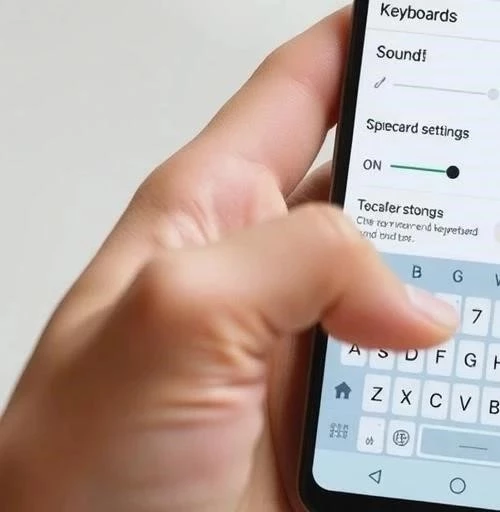
If your Xiaomi phone is silent while you type, you can usually enable a sound in your keyboard app’s settings. Many Xiaomi devices use Gboard by default, though the keyboard and menu names can differ between MIUI and HyperOS versions. The steps below cover the most common setup, how to adjust the volume, and what to check if the sound still does not play.
Enable sound in Gboard
- Open Settings on your Xiaomi phone.
- Go to Additional settings and tap Languages & input. On some versions, this section is called Language & input or is listed under System.
- Tap Manage keyboards or Current keyboard, then choose Gboard. You can also open Gboard’s settings directly from the keyboard: tap the gear icon in its toolbar. If you cannot see the gear, tap the four-square or menu icon first.
- In Gboard settings, open Preferences.
- Find the Key press section and switch on Sound on keypress.
Open a messaging app and type a few characters to test the change. The sound is generally a short, subtle click each time you press a key. If you want to change how loud it is, look in the same Preferences screen for Volume on keypress or a similar option. Depending on the Gboard version, the volume may be controlled by a slider or by the phone’s system volume instead.
Find the setting from the keyboard
This is often the quickest method. Bring up the keyboard in any app, such as Messages or Notes, and tap the gear icon. Choose Preferences, then enable Sound on keypress. If the settings icon is missing, tap the small arrow at the top of the keyboard or open its menu. You can also search Settings for “Gboard” or “keyboard” to find the relevant controls.
If you use a different keyboard
The sound switch belongs to the keyboard app, so Gboard instructions will not necessarily apply to another keyboard. To check which one is active, open Settings > Additional settings > Languages & input > Current keyboard. Select the keyboard you use, open its own settings, and look for a section called Sound, Typing, Preferences, or Key feedback. Enable key sounds there and adjust their level if the app offers that option.
If you have more than one keyboard installed, you may need to switch to the one whose settings you changed. Tap a text field, then use the keyboard-switcher icon or the notification-area input selector to choose it. Menu labels and locations vary by phone model, Android version, and keyboard update, so a setting may be named slightly differently.
Check volume and silent settings
Keyboard clicks can be controlled separately from ringtone volume. Press a volume button and expand the volume panel, then check the media or system sound level. On some Xiaomi models, key sounds follow the system sound setting; on others, Gboard has its own keypress volume control. Raise the relevant level a little and test again.
- Turn off Silent mode or Do Not Disturb temporarily while testing.
- Check that the phone is not connected to Bluetooth headphones or a speaker that is playing the sound elsewhere.
- In Settings > Sound & vibration, review system sound options. Names and available switches vary across MIUI and HyperOS.
- Return to Gboard’s Preferences and confirm that Sound on keypress is still enabled.
Do not confuse keyboard sounds with dial-pad tones. The latter are heard when you press numbers in the Phone app and may have a separate switch in Settings > Sound & vibration, or in the Phone app’s own settings. Enabling dial-pad tones does not necessarily enable typing sounds in messages or other apps.
Troubleshooting when there is still no sound
First, test in a different app. If clicks work in one app but not another, the app may handle sound or text input differently. Next, close and reopen the keyboard app, or restart the phone. Check the Play Store for a Gboard update, then revisit its preferences. If the sound stopped after changing settings, switch the option off and on again.
You can also clear the keyboard app’s cache: open Settings > Apps > Manage apps, select Gboard, tap Storage, and choose Clear cache. Avoid Clear data unless necessary, because it can reset keyboard preferences and learned suggestions. The exact menu path may differ by software version.
If the keyboard itself has no sound option, install or update a trusted keyboard that supports keypress audio, then make it the current keyboard and configure its sound settings. Download keyboard apps only from a reliable store, and review their privacy permissions before use.
Turn the sound off again
To return to silent typing, open Gboard > Preferences and switch off Sound on keypress. This changes keyboard feedback without disabling ringtone or notification sounds. If you only want quieter clicks, keep the option enabled and lower its keypress volume instead.
In short: open Gboard’s preferences, enable Sound on keypress, and check the appropriate system or keyboard volume. If the menus on your Xiaomi look different, search Settings for the active keyboard and change the feedback option in that keyboard’s own settings.


5 Comments. Оставить новый
The instructions are clear and easy to follow, especially the reminder that menu names can vary between MIUI and HyperOS.
A practical, well-organized guide with useful alternatives for finding the keyboard settings on a Xiaomi phone.
The volume advice is helpful. It explains why the keypress sound might still be quiet even after enabling it.
I appreciate the note that keyboard settings differ by app. That should prevent confusion for people who do not use Gboard.
Including both the Settings route and the shortcut from the keyboard makes this guide useful for different users.