
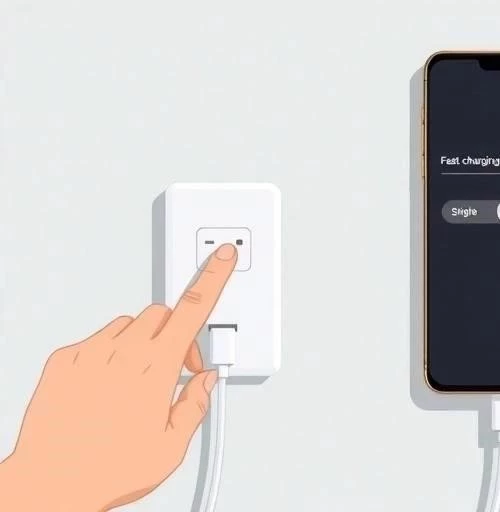
Xiaomi, Redmi and POCO phones can charge at impressive speeds, but the advertised wattage is not a setting that every model can reach. The phone, charger, cable and temperature controls all affect charging speed. Start with the built-in option, then check the equipment before trying hidden features.
Enable maximum wired charging speed
- Open Settings and tap Battery.
- Open Charging options or Additional charging settings. Names and locations vary by HyperOS version and device.
- Tap Wired charging mode and select Maximum speed, if the option is available.
- Connect the phone to a compatible charger and check whether the charging animation indicates fast or turbo charging.
This is the safest first step because it uses a supported system setting rather than an unofficial workaround. If you cannot find the menu, your model or software version may not offer it; update the phone and search Settings for “charging” before assuming something is wrong.
Try Boost Charging Speed, if available
Some HyperOS builds include an extra option called Boost Charging Speed. Swipe down on the home screen to open the relevant shortcuts or hidden-settings page, find that option, and enable Increase charging speed. These labels and menus are not present on every Xiaomi device. Do not install unknown apps or change service menus just to imitate a feature your phone does not support.
Check the charger and conditions
- Use the original Xiaomi charger and cable, or accessories explicitly rated as compatible with your phone’s charging standard. A high-wattage USB charger alone does not guarantee maximum speed.
- Plug directly into a reliable wall outlet. A computer USB port, weak adapter or damaged cable can reduce power.
- Keep the phone cool and pause demanding games or navigation while charging. Heat can make the phone lower charging power to protect the battery.
- Expect charging to slow as the battery approaches full. This is normal battery protection, not proof that the setting failed.
What to expect
Maximum speeds, including figures such as 120 W, apply only to specific models and compatible accessories under suitable conditions. They are peak ratings, not a promise that the phone will charge at that rate throughout the session. If charging remains slow, restart the phone, inspect the port and cable, and confirm the model’s supported charging power in its specifications. Never use a damaged charger or try to bypass temperature safeguards: a modest speed gain is not worth risking the battery or personal safety.
8 Comments. Оставить новый
The article makes a useful distinction between a phone’s advertised charging wattage and the speed it can actually achieve. That helps set realistic expectations and avoids treating slower charging as a fault.
The reminder to use a compatible cable is important. People often focus on the charger’s wattage, but the article correctly explains that the cable and charging standard also affect the result.
I appreciate that the advice starts with supported settings rather than unofficial workarounds. Checking the phone’s own menus is a sensible first step, especially since HyperOS options vary by model.
The note that fast-charging features are not available on every device makes the instructions more trustworthy. It prevents readers from assuming their phone is broken when a particular menu is missing.
The article appropriately points out that charging speed naturally decreases near a full battery. That clarification can save users from misdiagnosing normal battery behavior as a settings problem.
The temperature advice is practical and grounded in battery protection. Explaining why a phone may slow down when it gets warm is more helpful than simply promising faster charging.
The troubleshooting steps are easy to follow and cover the main variables without overcomplicating the topic. Searching Settings for charging options is a particularly useful suggestion when menu names differ.
This is a clear, cautious guide. I especially like the warning against unknown apps and service-menu changes, since chasing a charging boost can create more risk than benefit.