
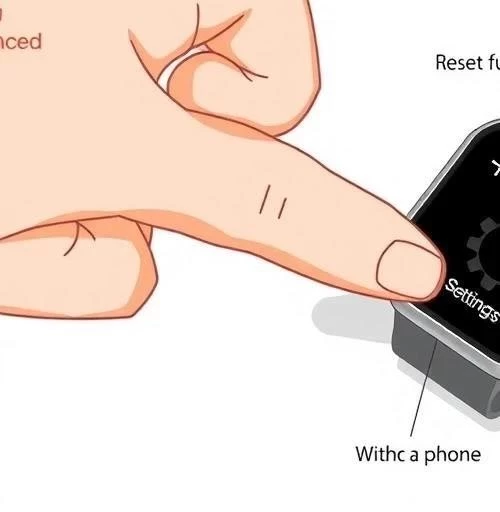
You can erase an Apple Watch directly from the watch, even if your iPhone is lost, unavailable, or no longer paired․ The menu names can vary slightly by watchOS version, but the process is similar․ Before you begin, know that erasing removes the watch’s locally stored content and settings․ It does not, by itself, remove Activation Lock or disconnect the watch from your Apple Account․
Before you erase your watch
- Charge it: Keep the Apple Watch on its charger during the reset, especially if the battery is low․
- Consider your data: If you erase the watch without first unpairing it through an iPhone, you may not create a current backup․ Information that was already synced with iCloud or another service may be available again after setup, but unsynced data could be lost․
- Know your Apple Account details: You may need the Apple Account and password previously used with the watch to set it up again, because Activation Lock can remain enabled․
- Check cellular service: If your watch has a cellular plan, decide whether to keep it or remove it when prompted․ If you are giving the watch away, contact your carrier about cancelling or transferring the plan․
Reset the Apple Watch from Settings
- On the watch, open Settings․
- Tap General, then scroll down and choose Reset․
- Tap Erase All Content and Settings․
- Enter the watch passcode if asked․ Review the cellular-plan prompt, if one appears, and choose the option that suits you․
- Tap Erase All to confirm․ Keep the watch near its charger and wait for the erase process to finish․
The watch will restart and display the setup screen when it is ready․ Erasing removes downloaded apps, media stored on the watch, settings, and payment cards stored in Apple Pay․ It does not erase information from your iPhone or from iCloud․ If you are only troubleshooting a problem and plan to keep using the watch, remember that you will need to set it up again afterward․
If you forgot the passcode
You can erase the watch without knowing its passcode, using its buttons․ This method also requires the watch to be connected to its charger:
- Place the Apple Watch on the charger and leave it there․
- Press and hold the side button until the power controls appear․ On some versions, this screen shows the power button near the upper-right corner․
- Press and hold the Digital Crown until the option to erase all content and settings appears․
- Tap Reset, then tap it again to confirm when prompted․
- Wait for the process to complete without removing the watch from the charger․
Button screens can look different across watchOS versions․ If the erase option does not appear, make sure the watch is charging, restart it if possible, and try again․ Do not confuse this procedure with simply restarting the watch: choose the erase option and confirm before expecting the content to be removed․
Activation Lock and setting up afterward
After an on-watch erase, the watch may still be associated with its previous owner’s Apple Account․ This security feature helps prevent another person from using a lost or stolen watch․ If you are the owner, enter the Apple Account credentials requested during setup․ If you are preparing the watch for someone else, erase it and also remove it from your account using Apple’s Find My service or account settings․ The new owner may otherwise see an Activation Lock screen and be unable to complete setup․
If you cannot remove the watch from the account because you do not know the credentials, contact the account holder or Apple Support and be prepared to provide proof of purchase․ A factory erase does not bypass Activation Lock․ For a watch that is still working and an iPhone becomes available later, unpairing through the Watch app is generally preferable: it erases the watch and can create a backup on the iPhone․
Quick checklist
- Use Settings > General > Reset > Erase All Content and Settings when you can access the watch․
- Use the charger-and-button method if you have forgotten the passcode․
- Allow time for the erase to finish, then follow the on-screen setup instructions․
- Keep the Apple Account password available; erasing does not automatically disable Activation Lock․
In short, an iPhone is not required to erase an Apple Watch․ You do need access to the watch or its physical controls, and you may need the original Apple Account to activate it again․

9 Comments. Оставить новый
The reminder about Activation Lock is especially helpful. Erasing a watch and removing it from an Apple Account are easy to confuse.
I like that the article points out that erasing the watch does not delete information from an iPhone or iCloud.
Helpful guide for when an iPhone is unavailable. The charging and passcode reminders make the process easier to prepare for.
Concise and reassuring. The explanation of what an erase removes—and what it leaves untouched—is particularly valuable.
The steps are easy to follow, and mentioning that menu names can vary by watchOS version sets the right expectations.
The cellular-plan note is a useful addition, particularly for anyone preparing to give their watch to someone else.
This explains the difference between wiping the watch and removing Activation Lock in a straightforward way.
Clear, practical instructions. I appreciate the warning that unsynced data may be lost if you erase the watch without unpairing it first.
A useful reminder to check the cellular plan before resetting, since that decision matters when transferring or giving away a watch.