
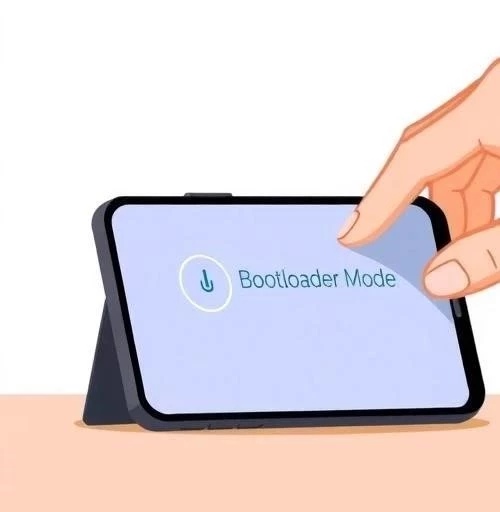
The little Mi Bunny on a Xiaomi screen can look like a warning from a tiny, very serious mechanic. Usually, it is not. Your phone has entered Fastboot, a maintenance mode used for diagnostics, software installation and other advanced tasks. It is not an app running in the background, and there is no ordinary “disable Fastboot forever” switch in Settings. If you only want your phone to start normally, you can usually leave the mode in a few seconds.
Method 1: Force a normal restart
- Disconnect the phone from a computer or USB accessory.
- Press and hold the Power button for about 10–15 seconds. Keep holding it even if the display briefly goes dark.
- Release the button when the Xiaomi logo appears, then let the phone boot.
This forced restart does not erase your photos, apps or other personal data. It simply tells the phone to leave Fastboot and start again. On some models, the screen may go black before the logo appears, so give it a moment rather than repeatedly pressing buttons.
Method 2: Restart from a computer
If the Power button method does not work and you have a computer, Fastboot can accept a restart command. This is a handy exit door, not a request to flash or modify the phone.
- Install Google’s Android Platform Tools on the computer and connect the phone with a reliable USB cable.
- Open a terminal or command prompt in the Platform Tools folder.
- Type
fastboot devicesand press Enter. If the phone is detected, typefastboot reboot.
The phone should restart into Android. If no device appears, try another cable or USB port, and check that the computer has the appropriate Xiaomi/Android USB driver. A missing device listing does not mean you should try random flashing commands.
If the phone returns to Fastboot
When Fastboot reappears after restarting, look for a physical cause before changing software. Xiaomi phones commonly enter this mode when Volume Down and Power are pressed together. A tight case, a jammed button or a button held down while the phone starts can imitate that combination.
- Remove the case and check that Volume Down clicks and springs back normally.
- Make sure nothing is pressing the button, then restart using Power alone.
- If the phone is very low on charge, connect a charger for 20–30 minutes and try again.
If the Volume Down key feels stuck, or Fastboot keeps returning despite a normal restart, the button may need repair. A repair shop can check it without guessing at the phone’s firmware.
Try Recovery only when necessary
If the phone will not leave the screen, you can try Xiaomi Recovery: turn the phone off if possible, then hold Power + Volume Up until the recovery menu appears. Choose Reboot and then Reboot to System if those options are shown. Use the volume keys to move and Power to confirm; menu names can vary by model and MIUI or HyperOS version.
Do not choose “Wipe Data” unless you deliberately want to erase the phone and understand the consequences. A factory reset is not a routine way to exit Fastboot, and it may delete local data that has not been backed up.
Should you disable Fastboot permanently?
For most owners, no. Fastboot is a built-in service mode, not a setting that needs switching off after every use. Leaving it does not mean the bootloader is unlocked or that your phone is being repaired. Just restart into Android and avoid holding Volume Down during startup.
Be especially cautious with advice to lock the bootloader, flash a ROM or run commands copied from a video. Relocking a Xiaomi phone with incompatible or modified software can wipe data or make the device fail to boot. Those procedures are not needed to exit Fastboot. If you intentionally unlocked the bootloader or installed custom firmware, follow instructions made for your exact model and ROM, and back up first.
Quick answer
For the usual stuck-on-the-Bunny situation: remove the case, hold Power for 10–15 seconds, and wait for the Xiaomi logo. If that fails, use fastboot reboot from Platform Tools. If the mode keeps coming back, inspect the Volume Down button. Fastboot is a doorway; most of the time, a long press is all it takes to walk back out.

7 Comments. Оставить новый
A compact rescue plan with good boundaries. It offers the simple button restart first, the computer option second, and sensible cautions throughout—a fine little map out of the Mi Bunny maze.
This reads like a flashlight switched on in a dark repair shop: patient, practical, and reassuring. The reminder to check for a squeezed Volume Down button is especially easy to overlook.
Fastboot gets a proper introduction here: not a ghost app, not a disaster, just a maintenance doorway. The plain-language explanation makes the steps much easier to trust.
The best detail is the pause: let the phone boot instead of hammering the buttons again. Small, thoughtful guidance like that can save a lot of needless panic.
The “tiny, very serious mechanic” image is delightful—and the advice wisely keeps the fix less dramatic than the screen looks. A calm, useful guide for a surprisingly alarming moment.
A refreshingly human troubleshooting guide. It explains the exit without making Fastboot sound like a catastrophe—or tempting readers into risky commands they don’t need.
I appreciate the clear distinction between restarting and flashing. When a phone is stuck in a mysterious mode, knowing which commands not to try can be just as valuable as knowing the right one.