
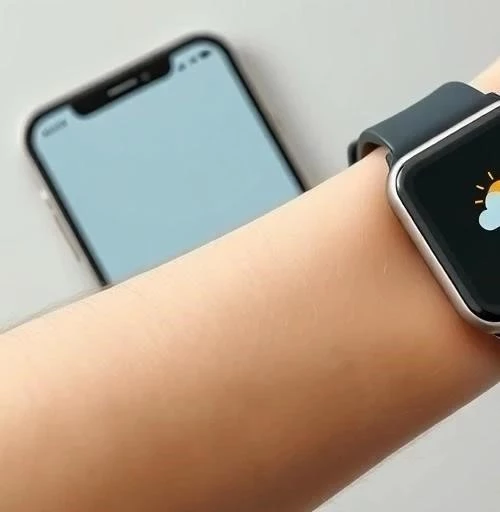
Weather may be missing from an Apple Watch face, fail to load in the Weather app, or show a location or forecast that does not seem current․ These symptoms can have different causes, including location permissions, a weak network connection, an unavailable complication, or a temporary software issue․ The steps below help identify the cause and restore the display․
First, identify what is missing
Open the Weather app on the watch․ If its forecast loads but the watch face does not show weather, the problem is probably with the selected face or complication․ A complication is a small item on a watch face that displays information from an app․ If the app itself is blank, stuck, or unable to find a location, check location access and connectivity first․
Also consider whether the display is simply showing an older update․ Weather information may not refresh continuously, and a complication can take time to update after a location or network change․
Check the watch face and complication
- Press and hold the watch face, then tap Edit․
- Swipe to the complication settings and select the position where weather should appear․
- Choose an available Weather option, such as temperature or conditions, and confirm the change․
Not every watch face supports every complication․ Some faces offer only certain positions or styles, and the available Weather choices can vary by face and software version․ If Weather is not offered for the selected position, try another face or position․ If the complication appears but remains empty, continue with the checks below․
Allow Weather to use your location
Weather needs a location to provide local conditions․ On the paired iPhone, open Settings > Privacy & Security > Location Services and make sure Location Services is on․ Find Weather in the app list and allow location access․ The wording of the available choices can vary by iOS version; select an option that permits Weather to use location when needed․
If available, enable Precise Location when accurate local forecasts are required․ Then open the Weather app on the iPhone and check that the intended location is listed․ If permission was recently changed, open Weather on both devices and allow a little time for the information to update․
Check the selected city
The watch may be displaying a saved city rather than the current location․ In the iPhone Weather app, review the location list and select the correct city․ If the watch face has a city-specific Weather complication, edit that complication and choose the appropriate location․ A city that was removed or renamed may no longer provide the expected display․
When using the current-location setting, location permissions must be available for Weather․ If the watch or iPhone cannot determine a location, the forecast may be missing or may refer to a different place․
Confirm that the devices can connect
Weather data requires an internet connection․ Check that the iPhone can load a webpage or refresh the Weather app․ The watch also needs a working connection, through the paired iPhone, Wi-Fi, or cellular service on supported models and plans․ If the iPhone is nearby, confirm that Bluetooth is on and that the devices remain connected․
Airplane Mode, disabled Wi-Fi or cellular data, poor reception, or a temporary network problem can prevent fresh data from arriving․ Restore the relevant connection and reopen Weather․ If other apps also fail to update, troubleshoot the network before changing Weather settings․
Refresh the app and restart the devices
Close and reopen Weather on the watch, then check the complication again․ If it still does not update, restart the Apple Watch and its paired iPhone․ A restart can clear a temporary software or connection problem without removing personal data․ After both devices start, open Weather on the iPhone first and then on the watch․
If only the complication is affected, remove it from the face and add it again․ You can also switch to another face and back․ These steps can prompt the watch to reload the display configuration․
Install available software updates
Outdated software can contribute to display or synchronization issues․ Check for available iOS and watchOS updates in the devices’ Settings apps, and install them when convenient․ Keep the watch on its charger and follow the on-screen instructions․ Updating is not a guarantee of a fix, but it can resolve known bugs and improve compatibility․
When the problem continues
If Weather still does not appear, check whether other complications work and whether the Weather app can show a forecast on the iPhone․ This helps distinguish a face-specific issue from a broader app, location, or connection problem․ If the service itself is temporarily unavailable, wait and try again later․
As a last resort, contact Apple Support or consult Apple’s official support resources․ Describe whether the app or only the complication is affected, the watch and software versions, and the troubleshooting steps already tried․ Avoid erasing or unpairing the watch unless support recommends it; these steps are more disruptive and are rarely the first solution․

6 Comments. Оставить новый
The reminder that weather information may not refresh continuously helps set realistic expectations while troubleshooting.
The article appropriately notes that complication options can vary by watch face and software version.
The article clearly distinguishes between a missing watch-face complication and a problem within the Weather app, which makes the troubleshooting steps easier to follow.
The instructions are organized into practical checks, beginning with identifying the symptom before changing settings.
The location-permission guidance gives readers a relevant place to start when the Weather app cannot provide local conditions.
The explanation of Weather complications is useful for readers who may not know why the forecast appears in the app but not on the watch face.