
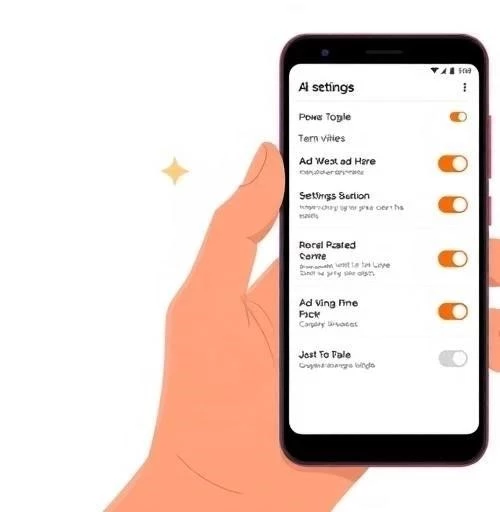
Ads on the Redmi 7 usually come from MIUI’s recommendation services and built-in apps, rather than from one single setting․ You can reduce most of them without rooting the phone or installing extra software․ Menu names may differ slightly depending on your MIUI version and region․
Revoke authorization for MSA
MSA is a system service that can deliver recommendations in MIUI․ Open Settings → Passwords & security → Authorization & revocation, find msa, and switch it off․ Confirm the prompt and wait for the change to take effect․ If the switch fails, connect to the internet and try again later․ Revoking MSA may not remove every promotion, so also check the individual apps below․
Turn off personalized ads
Open Settings → Passwords & security → Privacy or Ad services, then disable Personalized ad recommendations․ This setting limits ads tailored to your activity; it does not necessarily block all advertisements․ It is still worth turning off because it reduces personalization without affecting normal phone functions․
Disable recommendations in Xiaomi apps
- Security: Open the app, tap the gear icon, and switch off Receive recommendations․ Check the settings for Cleaner and other tools too․
- File Manager: Open its menu, go to Settings → About or Privacy, and disable recommendations or online content․
- Downloads: Open the app’s settings and turn off recommended content if that option appears․
- Themes: In the profile or settings page, disable recommendations, notifications, or promotional messages․
- Mi Browser: Open its settings and turn off content recommendations, personalized services, and notifications you do not want․
- GetApps: Open settings and disable recommendations and promotional notifications․ If you do not use the app, you can also turn off its notifications in Android settings․
Settings can be hidden under different labels, so look for words such as “recommendations,” “promotions,” or “personalized services․” Avoid disabling system components just because their names are unfamiliar․
Stop unwanted notifications
When an advert appears as a notification, press and hold it, then open notification settings and turn off that app’s promotional alerts․ Alternatively, go to Settings → Notifications, select the app, and disable notifications or only its marketing category․ This is a practical fix for alerts that continue after in-app recommendations are disabled․
Check the result safely
Restart the Redmi 7 and use the apps normally․ Some screens may still show sponsored content, and third-party apps or websites can display their own ads․ Avoid “ad remover” apps from unknown sources: they may collect data, drain the battery, or create security risks․ Do not root the phone for this task; changing system files can cause instability and complicate updates․
Bottom line: Revoke MSA authorization, disable personalized recommendations, and review each Xiaomi app’s settings․ This combination is safer and more reliable than expecting one switch to remove every ad․


9 Comments. Оставить новый
The advice to check each built-in app is important, since disabling MSA alone may not stop recommendations elsewhere. This gives readers a more complete approach than relying on a single setting.
The note about retrying MSA revocation while connected to the internet is a useful troubleshooting detail. It acknowledges that the setting may not respond immediately instead of implying the process always works.
This is a practical guide because it explains that MIUI ads can come from several places rather than one master switch. The reminder that menu names vary by version is especially useful for Redmi 7 owners.
I appreciate the distinction between turning off personalized ads and removing every advertisement. That sets realistic expectations and helps readers understand why they may still see promotions in individual Xiaomi apps.
This article is useful for people who are unfamiliar with MIUI settings. The examples of labels such as “recommendations” and “promotions” provide a helpful fallback when the exact menu path differs.
The instructions are clear and appropriately cautious about differences between MIUI versions and regions. A brief note to review settings again after a system update could make the guidance even more durable.
The step-by-step layout makes the settings easier to check without requiring root access or additional software. It would also be helpful to remind readers that changing these options should not affect essential phone functions.
This is a sensible, low-risk way to reduce promotions on a Redmi 7. It avoids promising that every ad will disappear and gives readers several specific places to check.
I like that the guide recommends disabling unwanted notifications as well as in-app recommendations. Those are separate sources of interruption, so addressing both can make the phone feel less cluttered.