
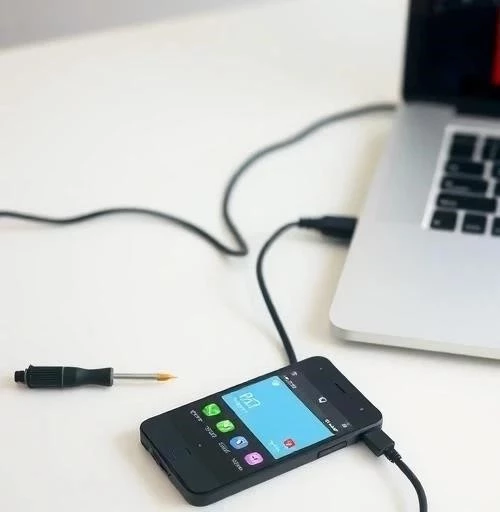
Think of a phone’s firmware as the map its hardware follows. MiFlash can replace that map—but choose the wrong one, or interrupt the journey, and a routine repair can become a costly detour. This guide walks through the usual Fastboot-ROM method for Xiaomi, Redmi and POCO phones. It is not a universal fix: menus, permissions and tools can differ by model and software version.
First, know what MiFlash does
Xiaomi MiFlash is a Windows utility for installing a Fastboot ROM on a compatible device. It is not the same as installing an over-the-air update or a Recovery ROM. A Fastboot installation can erase your data, and it is not a guaranteed way to recover every phone. If Android still works and you only want a normal update, use the phone’s built-in updater instead.
Before you begin: check the map and the risks
- Identify the exact model and codename. “Xiaomi 13” or “Redmi Note” alone is not enough. Match the ROM to the device and its intended region. A package for a similar-looking model may not be compatible.
- Download a Fastboot ROM. Obtain an official package for your exact device from Xiaomi’s official support channels, where available, or a reputable firmware catalogue. Check the package name and model information before proceeding. Do not use a Recovery ROM with MiFlash.
- Back up everything. Photos, chats, authenticator access and files may be lost. Copy important data somewhere outside the phone and make sure you can sign back into your accounts.
- Understand bootloader requirements. MiFlash Fastboot flashing generally requires an unlocked bootloader. Unlocking commonly wipes the phone, may involve Xiaomi’s official unlock process and can require a waiting period. Follow the current instructions for your model and region. Do not use unofficial bypasses.
- Prepare the computer. Use a reliable Windows PC, a good data-capable USB cable and a stable power supply. Charge the phone well beforehand. Install MiFlash and its driver components only from trusted sources.
Important: Flashing can make a phone unusable if the ROM is wrong or the process is interrupted. Regional restrictions, account authorization, anti-rollback protections and model-specific rules may apply. If you are unsure, stop and ask Xiaomi support or a qualified repair technician. This guide cannot guarantee a successful recovery.
The process, one step at a time
- Download and extract the ROM. Fastboot packages are commonly compressed archives, sometimes with a
.tgzextension. Extract the archive, then extract any archive inside it until you can see the ROM folder and its flashing scripts. MiFlash must point to the folder containing those files, not to the compressed download. A short folder path without unusual characters can help avoid Windows path problems. - Install and open MiFlash. Use the installer appropriate for your Windows system, approve driver installation if prompted, then restart the PC if requested. Run MiFlash with administrator permissions when needed. Avoid changing driver-security settings unless the official instructions for your setup require it.
- Enter Fastboot mode. Turn the phone off. On many Xiaomi devices, hold Volume Down + Power until the Fastboot screen appears. Button combinations can vary. Connect the phone directly to the computer; avoid a loose cable or an unreliable USB hub.
- Load the ROM folder. In MiFlash, choose Select and browse to the extracted folder containing the Fastboot files. Click Refresh. The device should appear in the list. If it does not, do not press Flash: check the cable, USB port, driver installation and Fastboot mode first.
- Choose the right data option. MiFlash commonly offers choices such as clean all, save user data and clean all and lock. Names and availability can vary. “Clean all” erases user data and leaves the bootloader unlocked; “save user data” is not a substitute for a backup and may fail or cause problems. Do not choose “clean all and lock” casually. Relocking with a mismatched or unofficial regional ROM can leave the phone unable to boot. Only follow a verified, model-specific official procedure if you fully understand its consequences.
- Flash once, then wait. Recheck the model, ROM folder and selected option. Click Flash and keep the cable connected. Do not shut down the PC, press buttons on the phone or interrupt the process while MiFlash is working. Wait for a clear completion message before disconnecting.
After the progress bar
The first boot can take several minutes—sometimes longer than a normal restart—while Android prepares the system. Leave the phone on a stable surface and give it time. Complete setup, connect to Wi-Fi and check the installed version in Settings. Restore your backup only after confirming that the phone starts and works normally.
If something goes wrong
- No device listed: Re-enter Fastboot mode, try another known-good data cable or USB port, and check the Windows driver. Close and reopen MiFlash, then refresh.
- Flash fails immediately: Recheck that you extracted the complete Fastboot ROM and selected the correct inner folder. Confirm the package matches the exact model and region. Do not keep trying random ROMs.
- Phone does not boot: Wait patiently for the first start. If it remains stuck, consult the official device-specific recovery guidance or a service centre. Some devices require authorized service access; MiFlash cannot bypass every account, bootloader or hardware restriction.
The safest rule
MiFlash is a precise tool, not a magic button. Match the firmware to the phone, preserve a backup, respect bootloader rules and never lock a device on the strength of a guess. When any detail—especially the model, region or ROM type—is uncertain, pause before flashing. A few minutes of verification are cheaper than turning a working phone into a silent paperweight.
Firmware availability and procedures can change. Check current Xiaomi guidance for your specific device before starting.


4 Comments. Оставить новый
The map metaphor makes firmware flashing feel less like button-pushing and more like navigation through risky terrain. I especially appreciate the repeated emphasis on matching the exact model—one small detail that can save a very large headache.
This reads like a careful friend standing beside you at the workbench: clear about what the tool can do, and honest about what it cannot promise. The warning against unofficial bootloader bypasses is especially welcome.
A refreshingly cautious guide in a corner of the internet where “just flash it” is often treated as a plan. The distinction between Fastboot and Recovery ROMs is practical, and the backup reminders are the digital equivalent of checking your parachute.
The strongest feature here is its sense of proportion: MiFlash is presented as a specialized repair tool, not a magic wand. That perspective helps readers pause, verify their device details, and decide whether flashing is even the right route.