
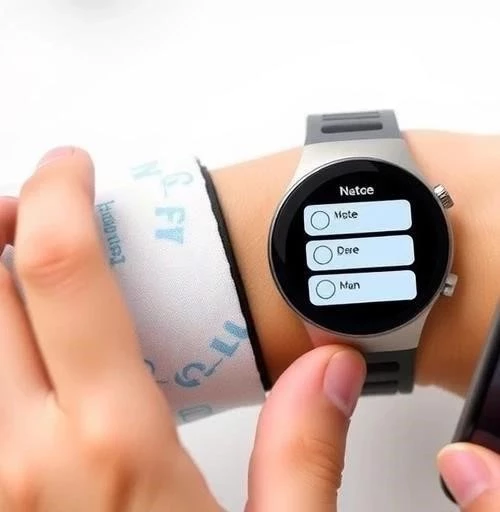
You can use Apple Notes on your wrist to check saved information, dictate a new note, or tick items off a checklist. On supported Apple Watch models, Notes is an Apple app included with watchOS 26 or later. In most cases, you do not need to buy anything or install a separate notes service: update your devices, make sure Notes is syncing, and open the app. If Notes was deleted, you can download it again from the App Store.
Before you begin
- Check compatibility. Notes on Apple Watch requires watchOS 26 or later. Your watch must support that release; compatibility depends on the model. Check Apple’s current watchOS compatibility list if you are unsure.
- Update your iPhone too. The iPhone paired with the watch should be running a compatible iOS version. Updates can require free storage, Wi-Fi, and enough battery power.
- Use the same Apple Account. To see your existing iCloud notes, your iPhone and Apple Watch need to be set up with the account that stores those notes.
Update your iPhone and Apple Watch
First, back up your iPhone and install available software updates. On iPhone, open Settings > General > Software Update and follow the prompts. Keep the phone connected to Wi-Fi and power while the update installs.
To update the watch, place it on its charger, make sure it has at least 50 percent charge, and keep it near the paired iPhone and connected to Wi-Fi. On the iPhone, open the Watch app and tap General > Software Update. You can also check for an update in Settings > General > Software Update directly on the watch; Follow the instructions and wait for the installation to finish; do not restart or remove the watch from its charger during the update.
Check that Notes is syncing
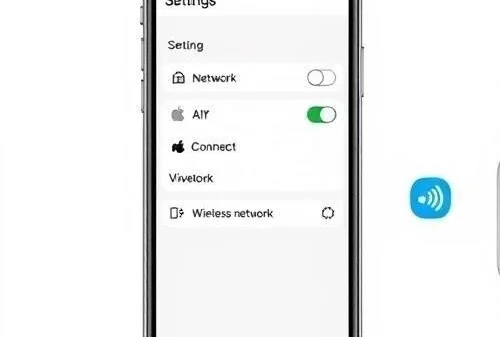
On your iPhone, go to Settings, tap your name, then open iCloud and look for Notes in the list of apps using iCloud. Turn syncing on if you want your iCloud notes to appear on the watch. Also open the Notes app on the iPhone and check that your notes are stored in an account available through iCloud, rather than only in a separate mail account or locally on the phone.
Give the devices a little time to sync. A note that has not uploaded from the iPhone may not yet appear on the watch. Confirm that the iPhone is online and signed in to the correct Apple Account.
Find or download the app
After updating, press the Digital Crown to open the watch’s app view and look for Notes. You can scroll through the apps or use the app search feature, if available. Tap Notes to open it. If you cannot find it, check whether it is hidden in the app view or search the App Store on the watch for Apple’s Notes app.
You can also open the Watch app on your iPhone, choose the My Watch tab, and look through the available apps. If Notes appears in the list of available apps, tap Install. App Store wording and layout can change with software versions. Download only the Notes app published by Apple, and avoid look-alike apps if you specifically want Apple Notes.
If you previously removed Notes, reinstall it from the App Store on the watch or iPhone when it is offered for your devices. If the store says the app is unavailable, check the watchOS version and model: an older watch that cannot update to the required software cannot run the watch version of Notes.
Use Notes on your wrist
Open Notes and choose a note to view it. To make a note, use the on-screen option and dictate your text when prompted. Speak clearly, especially for names, punctuation, and numbers; review the result on your iPhone if accuracy matters. You can also ask Siri to create a note, for example, “Hey Siri, create a note: buy batteries.” Siri’s exact options may depend on your settings and connection.
Notes is useful for short reminders and quick reference, but the watch’s small screen is not ideal for writing or organizing long documents. Create or edit longer notes on your iPhone, iPad, or Mac, then check whether they sync to the watch. Checklist support lets you mark items complete from your wrist when that option is available.
If Notes does not appear or sync
- Confirm that the watch is compatible and updated to watchOS 26 or later.
- Check that Notes is installed, and search the watch’s app list again.
- On iPhone, verify iCloud Notes is enabled and that you are using the correct Apple Account.
- Connect both devices to the internet, keep them nearby, and wait briefly for syncing.
- Restart the iPhone and Apple Watch. If the problem continues, check Apple Support for model-specific guidance before unpairing the watch.
In short: update a compatible Apple Watch, enable iCloud Notes on the paired iPhone, then open Notes or download it again from the App Store. Once set up, you can keep essential notes and checklist items close at hand.


2 Comments. Оставить новый
This is a clear, practical guide. The reminders to check compatibility, use the same Apple Account, and keep the watch charged during an update are especially helpful.
The step-by-step instructions make it easy to get started with Notes on Apple Watch. I appreciate that the article also explains how to check iCloud syncing before troubleshooting.