
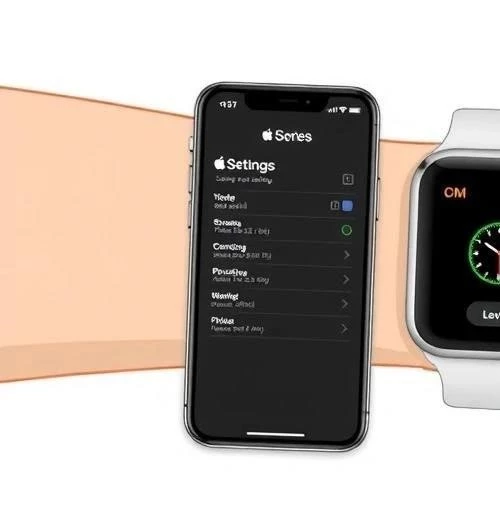
Knowing your Apple Watch model can help you check its features, find compatible accessories, follow the correct support instructions, or decide whether an update is available. The most reliable way to identify it is to look up the model number in the Watch app or in the watch’s settings. The case design alone may not be enough: several generations look similar, and different sizes or finishes do not necessarily mean different series.
Find the model number on your paired iPhone
- Open the Watch app on the iPhone paired with the watch.
- Tap My Watch, then choose General and About.
- Find the entry labelled Model Number. It may initially show a part number beginning with a letter, such as “M”.
- Tap that entry once. It should change to a model identifier beginning with “A” followed by four digits, for example, Axxxx.
Write down the A-number exactly, including all four digits. Search for that number on Apple’s official support pages or use Apple’s model-identification guide to match it to a product name and generation. Check that the result describes the correct case size and connectivity option where those details are listed.
Check directly on the watch
If the iPhone is unavailable, open Settings on the Apple Watch and go to General > About. Find Model Number and tap the displayed part number to reveal the A-number. The exact wording or layout can vary slightly with the software version. You can also look for the serial number on this screen, but the A-number is usually the more useful identifier when the goal is to find the series.
On some older watches, small text on the back of the case includes identifying information. It can be difficult to read, and markings differ by model. If the text is unclear, use the settings method instead. Do not assume that a number printed on a box belongs to the watch unless you have confirmed that the box and device have not been mixed up.
Understand the different identifiers
- Model number (A-number): Identifies a specific hardware model. This is generally the best number to look up when identifying the generation.
- Part number: Often begins with a letter and can vary with region, colour, case size, or sales configuration. Tapping it in About may show the A-number.
- Serial number: Identifies an individual device. It is useful for Apple support and coverage checks, but it is not the same as the series name. Avoid posting it publicly.
- Series name: The product generation, such as Apple Watch Series 9. Apple Watch SE and Apple Watch Ultra are separate product lines, not numbered Series models.
Use the result carefully
After matching the A-number to Apple’s documentation, confirm the displayed product name and any listed size or connectivity details. GPS and GPS + Cellular versions of a generation can have different identifiers. The case size, material, colour, and band are not reliable ways to determine the series on their own: a band may have been replaced, and similar finishes can appear across generations.
For a used watch, check the identifier on the device itself rather than relying only on a seller’s description or a third-party lookup site. A serial-number or IMEI lookup is not required simply to identify the series. Do not share these numbers with strangers. If the number cannot be found, the result is unclear, or the watch’s information does not match its appearance, contact Apple Support or an authorised service provider. They can help confirm the model using the device details.
2 Comments. Оставить новый
The article gives clear steps for finding an Apple Watch model number through either the paired iPhone or the watch itself. The distinction between the part number and the A-number is useful.
The guidance appropriately cautions that case appearance and packaging may not reliably identify a watch. Checking the exact model identifier against Apple’s support information is a practical recommendation.