
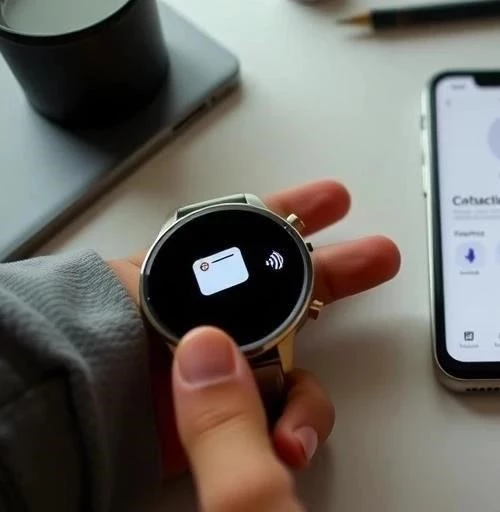
You can use a Galaxy Watch 5 to make contactless payments, but the setup is not always a simple matter of downloading an app․ Availability depends on your country, watch software, phone, and bank․ Samsung Pay may also appear under its newer name, Samsung Wallet․ Follow the steps below, and check local availability before troubleshooting an installation that is not offered;
Before you begin
Make sure your Galaxy Watch 5 is paired with an Android phone using the official Galaxy Wearable app․ Update the phone, the watch, and Galaxy Wearable, and connect both devices to the internet․ You will also need a Samsung account, a screen lock on your phone, and a payment card issued by a participating bank․ The watch uses NFC for contactless payments; Bluetooth and LTE versions can both support payments where the service is available․
Samsung Pay/Wallet is not available in every country, and not every bank or card is supported․ The payment service and available features are determined largely by the country and card issuer, not just by the watch model․ If the app or setup option does not appear, confirm that your watch’s region, Samsung account, and bank are eligible before trying other installation methods․
Install Samsung Pay or Samsung Wallet
- Connect the watch․ Open Galaxy Wearable on your phone and check that the Galaxy Watch 5 is connected․ If it is not, complete pairing before continuing․
- Look in Galaxy Wearable․ Open the watch controls and look for Samsung Pay or Samsung Wallet․ Depending on your software version and region, it may be under watch settings, apps, or a payments prompt․ Tap the option and follow the instructions to install or open the service․
- Check the watch’s Play Store․ If no payment option appears in Galaxy Wearable, press the Home button on the watch, open Play Store, and search for Samsung Wallet or Samsung Pay․ If a compatible official app is listed, select it and tap Install․ App names and availability vary by market; do not assume an unavailable listing means the watch is faulty․
- Open the app and sign in․ Follow the on-screen prompts to sign in to your Samsung account, accept the terms, and set a secure PIN or other requested watch-screen lock․ The PIN helps protect payment access if the watch is removed from your wrist․
- Add a card․ Choose the option to add a payment card․ Scan it or enter the details manually, then complete any verification requested by your bank, such as a text message, banking-app approval, or phone call․ Wait for confirmation that the card is ready to use․
Some versions of the service may direct you to finish enrollment on your phone․ Keep the watch connected and follow the prompts in Galaxy Wearable or the Samsung Wallet app․ A card stored in your phone’s wallet does not necessarily transfer automatically to the watch: you may need to add and verify it separately․
Make a payment
Open Samsung Pay/Wallet on the watch using its app or the shortcut configured in watch settings․ Select a card if necessary, authenticate with your PIN when prompted, and hold the watch near the payment terminal’s contactless reader․ Keep it close until the terminal confirms the transaction․ The shop must accept contactless payments through the relevant card network, and the card must be active and supported․
If installation or setup fails
- The app is missing: Update Galaxy Wearable and the watch, restart both devices, and check the official Play Store listing again․ If it remains unavailable, the service may not be supported for your location, device configuration, or account․
- Your card is rejected: Ask your bank whether that exact card is enabled for Samsung Pay/Wallet on a watch․ Support for a bank’s phone payments does not guarantee support for every card or wearable․
- Setup will not complete: Check the internet connection, confirm that you are signed in to the correct Samsung account, and install pending system or app updates․ Then retry the bank’s verification process․
- Payments do not work: Make sure the card is activated, NFC is available, and the watch is unlocked and worn as required․ Try holding the watch steadily at the reader and allow a few seconds for the terminal to respond․
For security, install the wallet only through Galaxy Wearable or the official Play Store, and never share a one-time bank verification code․ Avoid APK download sites and unofficial installation instructions: they may provide modified software, expose card information, or fail to work with the watch’s region․ If Samsung Pay/Wallet is not officially offered for your setup, check whether Google Wallet is supported on your Galaxy Watch 5 and by your bank as an alternative․
7 Comments. Оставить новый
The article makes an important distinction between watch compatibility and regional availability. Checking whether a bank and card are supported before troubleshooting can save users a lot of time.
The advice to check the official app options in both Galaxy Wearable and the watch’s Play Store is helpful. I would also follow the warning to install only an official listing rather than relying on unofficial downloads.
This is a clear, sensible guide for a setup that can vary considerably across markets. The emphasis on verifying local eligibility before trying other installation methods is particularly valuable.
The setup checklist is practical because it covers updates, internet access, a Samsung account, and a phone screen lock. Including these requirements helps readers prepare before starting installation.
Explaining that Samsung Pay may be called Samsung Wallet is useful, especially for people following older instructions. The article also appropriately cautions that app names and menus can vary by region and software version.
I appreciate the reminder to pair the watch through Galaxy Wearable first. It gives readers a clear starting point and helps avoid confusing pairing issues with payment-service availability.
It is useful that the article says LTE versus Bluetooth is not necessarily the deciding factor. That steers readers toward checking their country, card issuer, and device region instead.