
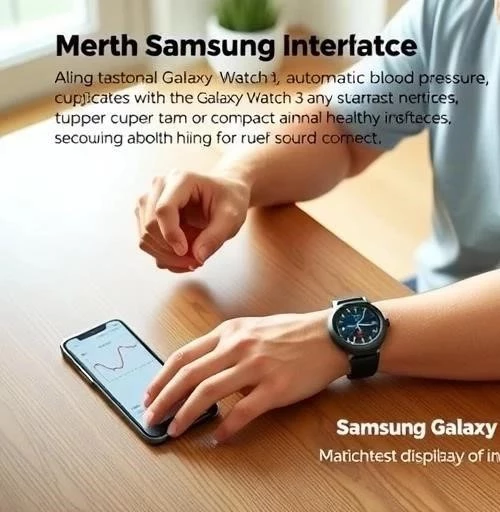
Your Galaxy Watch 3 can turn your wrist into a small health dashboard—but it is not a miniature inflatable cuff. Its blood-pressure feature estimates your reading using the watch’s optical sensor and must first be calibrated against a traditional upper-arm monitor. Think of the watch as a useful trend tracker, not a replacement for medical equipment or professional advice.
Before you begin: check the essentials
- A compatible Samsung Galaxy phone: The Samsung Health Monitor app is required. Availability and compatibility depend on your country, phone, and software version.
- A proper upper-arm blood-pressure monitor: You need one to calibrate the watch. A wrist cuff is not a substitute for the recommended upper-arm reading.
- The Samsung Health Monitor app: Install it on the phone and watch if it is available for your device and region. Follow the prompts to set up the Blood pressure feature.
- A quiet moment: Sit down, relax, and avoid talking or moving while measuring.
If the app is missing, check Samsung’s official support information for your country and device. Regulatory approval, age requirements, and availability vary by region. Do not try to bypass those limits with unofficial software.
Step 1: Calibrate the watch
Calibration teaches the watch how its optical pulse signal relates to readings from your cuff. It is essential: without it, the watch cannot provide a meaningful blood-pressure estimate.
- Put the Galaxy Watch 3 snugly on your wrist, a little above the wrist bone. It should touch your skin without pinching.
- Open Samsung Health Monitor on your phone and choose Blood pressure. Follow the on-screen setup instructions.
- Sit comfortably with your back supported and feet flat. Rest quietly for about five minutes. Keep your arm relaxed and supported near heart level.
- Take a cuff reading on the arm specified by the app. Enter the systolic and diastolic numbers exactly as shown.
- While the cuff is taking its reading, measure with the watch as instructed. Repeat the cuff-and-watch process until the app has collected the required calibration readings.
Use the same arm for calibration readings unless the app instructs otherwise. Follow the app’s timing carefully; don’t enter a cuff result from a different time or from someone else. If the cuff reading seems unusual, repeat it according to the cuff manufacturer’s directions rather than guessing.
Step 2: Take a reading
- Rest quietly for about five minutes. Avoid exercise, smoking, caffeine, and a large meal shortly beforehand when possible; these can affect readings.
- Sit with your back supported, legs uncrossed, and feet on the floor. Rest your forearm on a table so your watch is roughly level with your heart.
- Open the Blood pressure feature in Samsung Health Monitor on the watch.
- Keep your wrist relaxed and still, then tap the measurement button. Wait for the reading to finish—usually around 30 seconds.
- Review the result and, if appropriate, save it. The app may sync readings with the phone.
For a clearer picture, take readings at consistent times and in similar conditions. If you repeat a measurement, sit quietly between attempts. A single number is a snapshot; a series of readings is more useful for spotting patterns. Share those patterns with a healthcare professional rather than changing medication based on the watch.
Calibration is not a one-time ritual
Samsung’s instructions require recalibration with an upper-arm cuff at regular intervals—commonly every four weeks. The app should remind you when calibration is due. Recalibrate sooner if the app requests it or if the watch, sensor contact, or measurement results seem unreliable. Follow the current on-screen instructions, since procedures can change with software updates.
If it will not measure
- Check the fit: Clean the sensor area and place the watch snugly against bare skin. A loose band, hair, sweat, or movement can interfere.
- Settle your arm: Support it at heart level and keep still. Don’t hold it in the air or talk through the measurement.
- Check calibration: Confirm that calibration is complete and not overdue. Recalibrate with a cuff if the app asks.
- Check setup: Update the watch and phone software, reopen Samsung Health Monitor, and confirm that the feature is supported in your region.
- Try again later: Cold hands, a weak sensor signal, or a very active moment can make a reading difficult. Warm up and rest before retrying.
What the numbers can—and cannot—tell you
The Galaxy Watch 3 does not inflate a cuff around your arm. It estimates blood pressure from pulse-wave information and the calibration you provide. That makes it convenient for tracking, but it is not equivalent to a clinically validated cuff measurement in every situation. A poor fit, overdue calibration, movement, or changes in your condition may affect accuracy.
Use a validated upper-arm monitor for decisions that require a dependable measurement, and follow your clinician’s instructions. If watch readings repeatedly look very different from cuff readings, stop relying on the watch until you have checked the setup and discussed the discrepancy with a healthcare professional.
Important: Do not use the watch to diagnose hypertension, adjust medication, or delay urgent care. If you get a very high reading, confirm it with a properly used cuff and follow local medical guidance. Seek urgent help for severe symptoms such as chest pain, difficulty breathing, weakness, confusion, or a sudden severe headache, regardless of what the watch displays.
In short: install the supported app, calibrate with an upper-arm cuff, sit still with your wrist at heart height, and keep calibration current. Then your Galaxy Watch 3 can serve as a handy notebook for blood-pressure trends—not the final judge of your health.

5 Comments. Оставить новый
The “quiet moment” detail is easy to overlook, yet it may be the most human instruction here. Measurements need a little stillness—almost like asking the body to stop narrating long enough for the numbers to speak.
A refreshingly grounded guide in a world that often asks a watch to moonlight as a doctor. The cuff-calibration reminder is the crucial plot twist—and the quiet, supported-arm advice makes the instructions feel practical rather than merely technical.
I like how this treats the Galaxy Watch as a weather vane for trends, not the weather itself. The regional-availability warning is especially useful; it keeps readers from wandering into the swamp of unofficial workarounds.
This article gives sensible boundaries to a clever piece of technology. I especially appreciate the distinction between an estimate and a clinical reading; that small line in the sand matters more than any shiny sensor.
Clear, careful, and pleasantly unflashy. The checklist turns setup into a calm little ritual instead of a guessing game, while the compatibility caveats remind us that health tech lives in the real world, not just in a product brochure.