
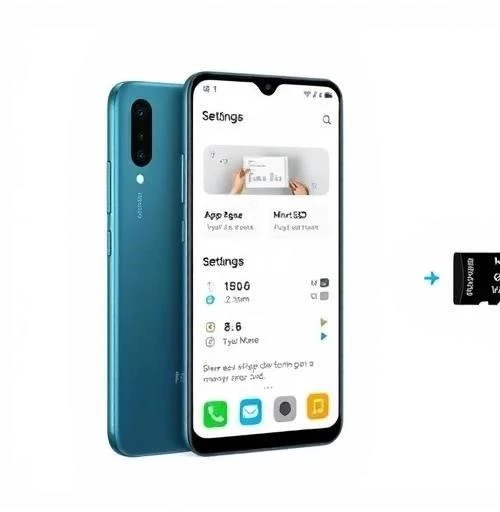
Your Redmi 10 has a little escape hatch for crowded storage: a microSD card. But there is a catch. A memory card can carry photos, downloads and some app data; it cannot always carry an entire app. Whether the “Move” button appears depends on the app, Android version and MIUI or HyperOS build. So before packing your digital suitcase, let’s find out what your phone will actually allow.
First, check the card and make a safe landing
- Back up anything already on the microSD card. Setting it up may erase its contents.
- Turn off the Redmi 10, insert the card into its tray, then switch the phone back on. Check your model’s tray arrangement: SIM and memory-card layouts can differ by version or region.
- Open Settings → About phone → Storage (the wording may vary) and make sure the card is detected.
If Android offers to format the card, choose portable storage if you want to move files between devices. Formatting erases the card, so copy its contents elsewhere first. A card used as portable storage is easy to remove and read on a computer; it is not necessarily a destination for installed apps.
Try the built-in app transfer option
On some Redmi 10 software versions, certain apps can be moved. On others, the option is missing altogether. Check rather than assume:
- Go to Settings → Apps → Manage apps.
- Choose an app that you installed yourself. System apps may not offer storage controls.
- Tap Storage or App storage. If you see Change, Move to SD card or a similar choice, select the card and confirm.
- Wait for the transfer to finish. Keep the card in the phone while the app is in use.
No button? That is a normal result, not a hidden feature you failed to discover. Many MIUI builds based on Android 11 and later do not offer a general-purpose way to move installed apps to a microSD card. Android lets app developers and the phone software decide whether an app can use external storage. Some apps keep essential parts in internal memory even when a transfer is allowed. Updates may also move data back.
Give the card the work it is good at
Even when apps must stay in internal storage, the card can take over bulky files and stop your storage meter from looking like a storm warning.
- Photos and videos: Open Camera settings and look for Save to SD card or Storage location. If the choice exists, enable it. Move existing pictures with File Manager.
- Downloads: In the browser or download app, look for its download-location setting. You can also move finished files using File Manager → Internal storage → Download, then select Move and choose a folder on the card.
- Offline media: Check the storage settings inside music, video, podcast or map apps; Some let you choose a download location; others insist on internal storage.
- Chat attachments: Save old videos and documents to the card when the app permits it. Do not move an app’s private folders by hand: the app may lose track of them.
Make room without breaking anything
Open Settings → About phone → Storage and inspect what is actually full. Clear cache only when useful; avoid “cleaner” apps that promise miracles. Uninstall games you no longer play, remove downloaded episodes, and back up large videos before deleting them. A microSD card expands file space, but it does not magically enlarge the phone’s internal app storage.
What about formatting as internal storage?
Some Android phones can adopt a card as internal storage, but Xiaomi software commonly does not show this option. If your Redmi 10 offers it, read the warning carefully: adoption usually encrypts and ties the card to that phone, erases its contents, and makes removal risky. A slow or failing card can also make apps sluggish. Do not follow random “secret menu” or ADB commands unless you understand the risks; unsupported changes can cause errors, data loss or trouble after an update.
When an app refuses to move
Keep that app in internal storage and move its downloads or media instead. If storage remains critically low, back up important files, uninstall unused apps, or consider a larger-capacity phone. Before removing the SD card, use Android’s eject option in Storage settings, if available, and wait for the phone to finish writing. Treat the card like a tiny suitcase: close it before you pull it from the train.
Bottom line: On a Redmi 10, moving an app is possible only when its app-storage screen explicitly offers the option. If it does not, the reliable workaround is to put supported photos, downloads and offline files on the card while keeping the app itself in internal storage.

6 Comments. Оставить новый
Clear, grounded, and refreshingly free of miracle fixes. I especially appreciate the explanation that a missing transfer option is a software limitation, not a secret menu waiting to be found.
The “digital suitcase” metaphor makes a fussy storage issue feel surprisingly easy to navigate. Best of all, the article tells readers when the Move button simply isn’t coming.
The calm, step-by-step approach feels like a helpful friend checking the tray before a trip. The warning that SIM and card layouts vary is a small detail with big practical value.
A practical guide with the rare gift of lowering expectations before frustration sets in. The reminder to back up the card before formatting may save someone’s entire photo archive.
I like how this separates a memory card’s usefulness from its limits. It’s less “make your phone magically bigger” and more “know which bags Android will let you pack.”
This turns phone-storage folklore into a useful checklist. Portable storage gets its proper spotlight, and the reader leaves knowing what to try—and what not to expect.