
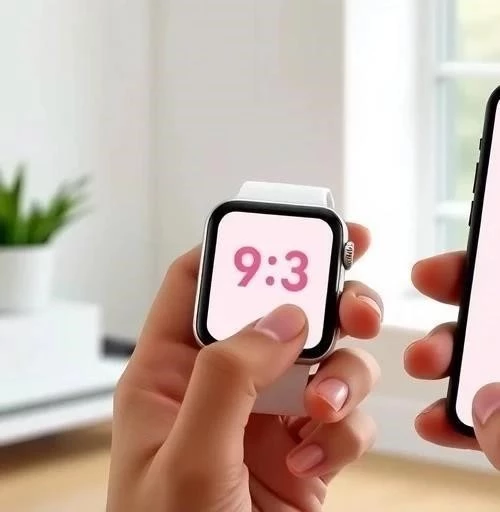
Pairing Apple Watch Series 9 with an iPhone takes only a few minutes in most cases. Before you begin, make sure the iPhone is updated, connected to Wi-Fi or a mobile network, and has Bluetooth turned on. You will also need your Apple Account password if prompted.
Before you start
Check that your iPhone is compatible with the version of iOS required by the watch. Keep both devices close together, and charge the watch if its battery is low. If the watch has already been used, check whether it is still paired with another iPhone. It may need to be erased before you can set it up.
Pair the devices
- Put Apple Watch on your wrist. Press and hold the side button until the Apple logo appears, then wait for the welcome screen.
- Unlock your iPhone and hold it near the watch. A pairing message should appear on the phone. Tap Continue. If it does not appear, open the Watch app, tap All Watches, then choose Add Watch.
- When the watch displays a moving pattern, position it in the frame shown on the iPhone screen. Keep the devices steady until the phone confirms that pairing is complete. If the camera cannot scan the pattern, choose the option to pair manually and follow the instructions.
- Tap Set Up as New Apple Watch or restore from a backup if one is available. A backup can bring back supported settings and data from an earlier watch.
Complete setup
Follow the prompts on the iPhone and watch. You may be asked to sign in to your Apple Account, create a passcode, review location and privacy settings, and choose which wrist you wear the watch on. A passcode helps protect information on the device; set one if you want to use features that require it.
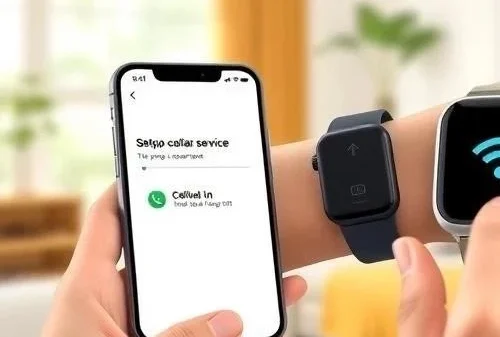
You can also configure Apple Pay, health and activity options, emergency contacts, and notifications. These choices can be changed later in the Watch app or in Settings on the watch. Select the apps and alerts you want rather than enabling everything at once. If your iPhone supports a cellular plan and your watch model has cellular, setup may offer an option to add the watch to your plan.
Keep the devices near each other while the watch syncs. The time required depends on the amount of information being transferred and the network connection. The watch may show a progress indicator; avoid restarting either device during this process. When the watch face appears, the initial setup is complete.
If pairing does not work
- Confirm that Bluetooth and Wi-Fi are on, Airplane Mode is off, and both devices are charged and close together.
- Restart the iPhone and Apple Watch, then open the Watch app and try pairing again. Install available iOS updates if the phone requests them.
- If the camera method fails, use manual pairing. If the watch shows a face instead of the pairing screen, it may already be paired; erase it only if you are ready to remove its existing content and settings.
- If a message says the watch is locked to another Apple Account, the previous owner must remove it from their account before you can activate it. A reset alone does not remove Activation Lock.
Check the connection
After setup, open the Watch app on your iPhone to review the watch’s status, installed apps, and settings. A connected watch can exchange information with its paired iPhone when the devices are nearby. Some features depend on the iPhone, network access, region, or account settings. If the connection drops, bring the devices together and check Bluetooth and Wi-Fi before repeating setup.


3 Comments. Оставить новый
The instructions are organized into clear stages, making it easy to follow the pairing process from preparation through setup.
The guidance covers useful troubleshooting, including what to do if the pairing prompt does not appear or the camera cannot scan the watch.
The article gives a balanced overview of setup choices and notes that privacy, notifications, and other settings can be adjusted later.