
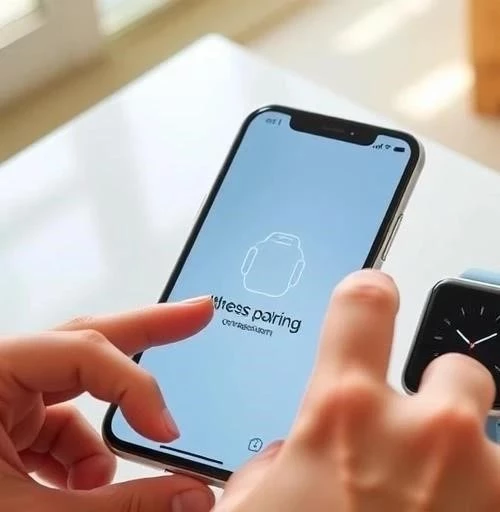
The Huawei Watch Fit 3 pairs with a smartphone through the Huawei Health app. The app manages the connection and can sync activity, health measurements, notifications and settings. The steps are similar on Android and iPhone, although the way you install Huawei Health may differ. Keep the watch and phone close together while pairing, and make sure both have enough battery.
Before you start
- Check that your phone’s operating system is supported by the current version of Huawei Health. Update the phone if needed.
- Charge the Watch Fit 3 and turn it on. If it has already been set up, pairing is still possible, but removing an old connection may be necessary.
- Enable Bluetooth on the phone. Allow location access if Android requests it for Bluetooth scanning; this does not mean the watch needs continuous location access for every feature.
- Install Huawei Health from an official source. On Android, availability varies by country and phone: use Huawei AppGallery or Huawei’s official website where appropriate. On iPhone, look for Huawei Health in the App Store.
Avoid installing the app from an unfamiliar download site. If prompted, sign in with a Huawei ID or create one. The account may be needed for data synchronisation and certain services, but the available features can vary by region and phone.
Pair the watch using Huawei Health
- Open Huawei Health, accept the relevant terms and grant the permissions needed for setup. Keep Bluetooth switched on and the app open.
- Open the Devices tab. Tap the option to add a device, then choose the Watch Fit 3 from the list. If the watch is not listed, use the scan option if available.
- When the app finds the watch, select it and confirm that the pairing code shown on the phone matches the code on the watch. Tap the confirmation button on both devices when asked.
- Follow the remaining instructions in the app. The watch may request permission to receive notifications or synchronise data. Review each request and allow only the features you want to use.
- Wait for setup or any required update to finish. Keep the devices near each other and do not close Huawei Health or restart either device during an update.
If the watch is new, it may display a language selection or a pairing screen as soon as it starts. Select a language, then follow the instructions in Huawei Health. If a QR code appears, scan it with the app when that option is offered; the app may instead find the watch through its device list.
Android and iPhone settings
On Android, battery-saving settings can restrict Huawei Health in the background. If notifications or syncing stop when the app is closed, allow background activity for Huawei Health and, where available, set battery use to unrestricted or exclude the app from optimisation. Menu names differ between manufacturers. Also check that Bluetooth and any requested nearby-device permissions are enabled.
On iPhone, open Settings and check Bluetooth access and notification permissions for Huawei Health. If notification mirroring is wanted, enable the relevant options in both iOS settings and Huawei Health. A paired watch can remain connected when the app is not on screen, but background syncing depends on iOS permissions and system behaviour.
If the watch does not appear or connect
- Move the phone close to the watch, turn Bluetooth off and on, and reopen Huawei Health. Restart both devices if the watch still cannot be found.
- Check that the watch is not currently connected to another phone. If it was paired before, disconnect it from the old phone or remove its old pairing in Huawei Health.
- If the phone’s Bluetooth menu shows the watch, do not rely on that menu alone to complete setup. Remove an incomplete or old pairing there, then start again from Huawei Health > Devices.
- Update Huawei Health from its official source and install available watch or phone updates. Confirm that permissions have not been denied and that the phone has an internet connection where required.
- If pairing repeatedly fails, use the watch’s settings to reset it to factory settings, then pair it again in Huawei Health. A reset can erase data stored on the watch, so sync anything important first if possible.
After pairing
Once connected, check the device page in Huawei Health to choose which notifications reach the watch, configure health and activity settings, and review synchronisation. Some features require additional permissions, a Huawei ID, or particular phone and regional support. The watch may also need to reconnect through Huawei Health after a phone change or reset.
To confirm that setup is complete, open Huawei Health and verify that the Watch Fit 3 appears as connected. Then wear the watch briefly and check whether new activity data syncs to the app. If it does not, keep Bluetooth enabled, open Huawei Health and check the connection status before repeating the pairing process.

1 Comment. Оставить новый
The guide gives a clear overview of pairing the Huawei Watch Fit 3 and appropriately notes that setup details and app availability can vary by phone and region.