
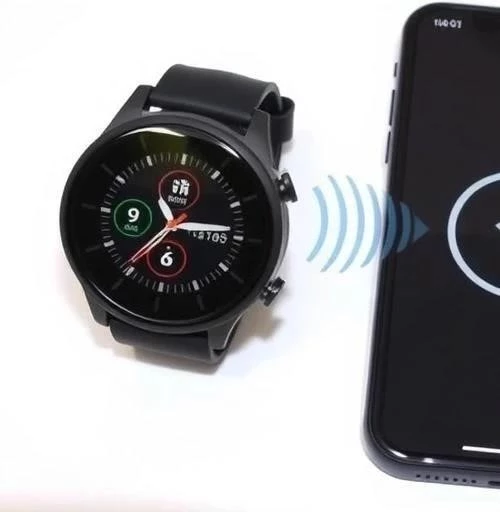
The Redmi Watch 2 Lite is paired with a phone through Xiaomi’s companion app. Initial setup requires a compatible Android phone or iPhone, Bluetooth, and an internet connection. Pairing through the app is recommended; connecting the watch only in the phone’s Bluetooth settings may not complete setup or enable all features.
Before you begin
- Charge the watch and turn it on by pressing and holding its side button.
- Enable Bluetooth on the phone and make sure it has internet access.
- Install Mi Fitness from Google Play or the Apple App Store. Depending on the region or app version, it may appear under a related Xiaomi Wear name. Use the official store listing.
- Keep the watch and phone close together during pairing.
Pair the watch with Android or iPhone
- Open Mi Fitness and sign in to a Xiaomi account if the app requests one. Follow the on-screen prompts to choose your region and accept the required permissions.
- Allow Bluetooth access and, when requested, notifications or other permissions needed for the features you want. On some Android phones, location permission or location services may be required for Bluetooth scanning. The exact prompts vary by operating system.
- Open the app’s device section and tap the option to add a device. Choose the Redmi Watch 2 Lite from the list, or use the app’s scan function if offered.
- When the watch displays a pairing request, check that the code shown on the watch matches the phone’s prompt, then confirm on both devices. If no code appears, follow the app’s instructions to select the watch and approve the connection.
- Wait while the app completes setup. Keep both devices nearby, leave Bluetooth enabled, and avoid closing the app. The watch may download settings or a software update before setup is finished.
After pairing, Mi Fitness can synchronize activity and health data, manage watch faces, configure notifications, and adjust other supported settings. Available options depend on the phone, software version, and region. Check the app’s device page to confirm that the watch is connected and to review synchronization settings.
If pairing does not work
- Confirm that Bluetooth is on, the watch is charged, and the phone is within a few metres. Close and reopen Mi Fitness, then try scanning again.
- If the watch was previously paired, remove its old entry in Mi Fitness. If it is also listed in the phone’s Bluetooth settings, select “Forget” or “Unpair,” then restart both devices and pair from the app again.
- Check that Mi Fitness is up to date and has the permissions requested by the operating system. On Android, battery-saving restrictions may interrupt setup; temporarily allow the app to run without restrictions.
- If the watch is already linked to another phone, disconnect or unpair it there first. A factory reset may be necessary before setting it up with a new phone. A reset erases data stored on the watch; synchronized information in the account may remain available.
Once connected, keep Bluetooth enabled for regular synchronization and notifications. If the connection drops, open Mi Fitness and allow it time to reconnect. Menu names can differ slightly between app versions, but adding the watch through the app remains the standard setup method.
9 Comments. Оставить новый
It is helpful that the instructions cover both Android and iPhone while noting that permission prompts can vary by operating system.
The article briefly outlines what users can manage after pairing and appropriately notes that available features may vary.
The instructions are organized in a straightforward sequence, from preparing the devices to completing setup in the app.
The preparation checklist is useful, particularly the reminders to charge the watch and keep it close to the phone during setup.
The guidance about checking the pairing code on both devices adds a practical verification step.
The article provides a clear overview of the initial pairing process and emphasizes using the companion app rather than relying only on the phone’s Bluetooth settings.
Mentioning that a software update may occur during setup helps set expectations about how long pairing can take.
The notes about app permissions and possible location access on Android provide useful context for troubleshooting discovery.
The article explains why pairing through Mi Fitness is recommended and identifies some common setup requirements.