
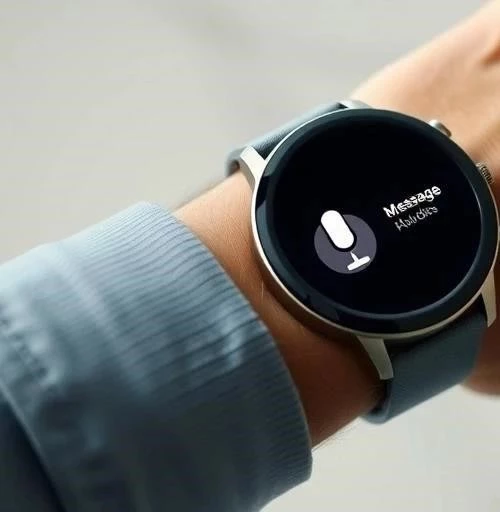
Your phone is a busy little planet: messages arrive‚ orbit for a moment‚ and disappear into the day. The HUAWEI WATCH GT 4 lets you catch some of them without reaching for your phone. You can read notifications and‚ when your phone‚ app‚ settings‚ and watch software support it‚ send a quick reply from your wrist. Here’s how to set it up and use it.
First‚ know what the watch can—and can’t—do
The GT 4 is not a miniature phone with a full messaging app. It displays notifications from your connected smartphone and offers reply options for supported message types and apps. Depending on your phone and configuration‚ replies may include preset phrases or text entered with the watch’s input method. Availability can vary by operating system‚ app‚ region‚ and software version.
In general‚ Android offers the broadest reply options. On iPhone‚ notifications may be available‚ but replying from a third-party wearable can be restricted by iOS. If you don’t see a reply button‚ it doesn’t necessarily mean the watch is broken: the notification or phone platform may not allow a response.
Set up message notifications
- Install or update HUAWEI Health on your phone and pair the WATCH GT 4.
- Open HUAWEI Health‚ tap Devices‚ and select your watch.
- Open Notifications and switch on notifications for Messages or SMS.
- Enable the apps you want to hear from‚ such as WhatsApp‚ Telegram‚ or another supported messenger.
- Allow HUAWEI Health to access notifications when your phone asks. Keep the app’s background permissions enabled so it can pass alerts to the watch.
Menu names can differ slightly between phone models and versions of HUAWEI Health. If an app is missing from the list‚ check that it is installed‚ can show notifications on the phone‚ and has permission to do so. Also make sure Bluetooth is connected and the watch is not in a mode that silences alerts.
Reply from a notification
- When a message arrives‚ raise your wrist or tap the notification to read it. Tap the alert to open more of the message if only a preview is shown.
- Swipe upward on the notification to look for a reply option; On some screens‚ swiping left may reveal additional actions.
- Choose a suggested response‚ or tap the keyboard/input icon if it appears.
- Enter or select your reply‚ check it‚ and tap the send icon.
The exact controls depend on the notification. Some alerts are read-only; others offer quick replies. A reply sent from the watch goes through the phone and the messaging app‚ so the phone generally needs to remain connected. If you open the message but cannot find a reply control‚ try the swipe gesture on the notification itself rather than inside its expanded view.
Customize quick replies on Android
Preset replies are the watch equivalent of keeping a few useful notes in your pocket—only the pocket is on your wrist. In HUAWEI Health‚ open Devices > your WATCH GT 4 > Notifications and look for Quick replies or a similar option. If it is available‚ edit the suggested phrases to suit the way you actually speak.
Useful options include “I’ll call you soon‚” “On my way‚” and “Can’t talk right now.” Keep them short: the smaller the reply‚ the easier it is to spot and send while walking between meetings. If the quick-reply setting does not appear‚ update HUAWEI Health and the watch software‚ reconnect the watch‚ and check again. The feature may not be offered for every phone‚ app‚ or software combination.
Typing‚ voice‚ and the lower button
Where supported‚ the watch’s input screen can provide a compact keyboard or another built-in text-entry method. It is useful for a short custom answer‚ though a phone remains much easier for a long message. Voice input or voice replies should not be assumed: available input methods vary‚ and some configurations offer only preset responses.
You can also make opening a favorite tool quicker. Press the upper button to open the app list‚ then go to Settings and find the option for customizing the lower button or its shortcut. If your software offers it‚ assign a frequently used app. This shortcut can save a few taps‚ but it does not itself enable replies—the notification and phone permissions still need to be set up.
If replies refuse to appear
- Check the platform: confirm that your phone and messaging app allow replies from the watch.
- Check permissions: allow notifications for both the messaging app and HUAWEI Health.
- Check the connection: reconnect Bluetooth and open HUAWEI Health once on the phone.
- Check the alert: some message types or group notifications may not expose a reply action.
- Refresh the setup: update the app and watch‚ then restart both devices if the problem persists.
A small reply‚ a little more freedom
The best way to use the WATCH GT 4 is not to turn your wrist into a tiny office. Let it handle the quick moments: acknowledge a message‚ send a short status‚ and return your attention to the real world. Set up notifications first‚ personalize the replies you use most‚ and remember that the options depend on your phone and app. When the reply control is available‚ a few taps can close the loop—without your phone ever leaving your pocket.


4 Comments. Оставить новый
A helpful little bridge between wrist and phone. I especially like that the article explains the limits before promising instant replies—technology is less frustrating when its boundaries are marked clearly.
A clear map for getting messages onto your wrist, with welcome honesty about app and software differences. I’d happily follow this guide—though the final instruction seems to trail off just as the next step begins.
This reads like a calm troubleshooting companion, not a sales pitch. The reminder to check permissions, Bluetooth, and background access is the sort of small detail that can rescue a whole afternoon.
The “busy little planet” opening gives a practical guide a spark of orbiting charm. The Android-versus-iPhone distinction is useful, too; it saves readers from blaming their watch for rules set by their phone.