
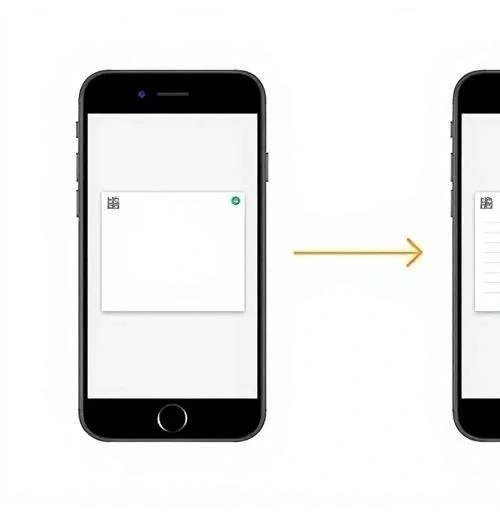
Xiaomi Notes can contain anything from quick reminders to important work records, so copying them safely matters․ The best method depends on whether you are moving to another Xiaomi phone, backing up selected notes, or saving everything somewhere outside the Notes app․ Do not assume that signing in on a new phone automatically creates a complete copy: synchronisation, backup and export are different processes․ For important information, use a method that you can verify before erasing or replacing your old device․
Method 1: Sync notes through Xiaomi Cloud
If your phone and software version support Notes synchronisation with Xiaomi Cloud, this is usually the simplest way to transfer many notes between Xiaomi devices․ It keeps notes associated with your Xiaomi Account and can update them across signed-in devices․ Availability and menu names may vary by region, MIUI or HyperOS version, and account settings․
- Connect the old phone to Wi-Fi and sign in to the Xiaomi Account you intend to use on the new phone․
- Open Settings and look for Mi Account, Xiaomi Account, or Xiaomi Cloud․ You can also check the Notes app settings for a sync option․
- Enable synchronisation for Notes, if the option is available․ If offered, start a manual sync and leave the phone online until it finishes․
- On the new Xiaomi phone, sign in to the same account, enable Notes synchronisation and open Notes․ Give the app time to download the content․
- Check several notes, including recent and older ones, and confirm that any attachments or formatting you need are present․
This approach is convenient, but synchronisation is not the same as an independent archive․ Deleting a synced note on one device may delete it on other devices too․ Before cleaning up the old phone, confirm that the notes are visible on the new one and, for anything irreplaceable, keep a separate export or backup․ If Notes synchronisation is missing, do not assume the notes are being uploaded; use one of the alternatives below․
Method 2: Share or export selected notes
For a small number of notes, exporting them individually is often the clearest and most portable option․ It also works when you are moving to a different Android brand or want a readable copy on a computer․ Xiaomi Notes versions do not all offer the same export formats, so check the actual menu on your device rather than relying on a particular button being present․
- Open a note in the Xiaomi Notes app and tap Share or the three-dot menu․
- Choose an available format or destination․ Depending on the version, you may be able to share text, create an image, or save or print a document as PDF․
- Save the result to a known location, such as Files, Google Drive, email, or a computer․ Use a descriptive filename and, if useful, organise files into folders․
- Open the saved copy and check that the text, images and layout are readable before deleting the original․
If the app has no PDF export button, try Print from the share menu and select Save as PDF, if that option is offered by Android․ For a simple text note, copying its contents into a document or email is a practical fallback․ An image can preserve appearance, but it is harder to search and edit; text or PDF is usually better for notes you may need to reuse․
Method 3: Copy and paste notes manually
Manual copying is dependable for a few short notes and does not require cloud syncing․ Open a note, select its text, tap Copy, then paste it into another notes app, a document, or a message to yourself․ Save the destination and reopen it to check the result․ This method may not preserve checklists, colours, handwriting, attachments or formatting, so use it mainly for plain text․ For a long note, work in sections and check that nothing was left out․
Method 4: Transfer to a new phone
During phone setup, Xiaomi’s transfer utility, often called Mi Mover or shown as a phone-transfer tool, may offer to copy apps and data from an old device․ Its options depend on the phone models and software versions․ Treat it as a useful convenience, not proof that every private app database or note has transferred․ After the transfer, open Xiaomi Notes and inspect the notes themselves․ If they are absent, use cloud sync or export from the old phone while it is still available․
Android or Google device backup may also restore some app data, but support varies by app and backup configuration․ A successful phone restore does not necessarily mean that Xiaomi Notes content was included․ Verify the notes directly and retain the old phone until the copy is complete․
Copying notes to a computer
For individual notes, share or export them to email, cloud storage or a file location accessible from a computer․ You can also connect the phone by USB and copy exported files from its storage, if they were saved there․ Simply connecting by USB does not normally expose the Notes app’s private database, and copying random folders is not a reliable way to transfer notes․ Prefer files created using the app’s Share or Export function․
If notes are missing or not syncing
- Check that both phones use the same Xiaomi Account and that Notes sync is enabled on each one․
- Confirm the old phone has internet access and allow the sync to finish․ Check the app’s sync status or account settings for errors․
- Update the Notes app and phone software only if appropriate, then reopen the app․ Menu names and cloud features can differ by region and version․
- Look in archived, hidden or deleted notes if the app provides those sections․ Private or locked notes may require their original password or unlock method․
- Do not clear app data, sign out, reset the phone or uninstall Notes until you have verified a separate copy․
Which method should you choose?
For a Xiaomi-to-Xiaomi move, start with Xiaomi Cloud if Notes sync is available, then verify the result․ For a few notes or a move to another brand, export or share them one by one․ For a valuable collection, combine methods: sync the notes and export the most important ones as readable files․ This takes longer than trusting a single transfer button, but it gives you a way to detect omissions and a copy that is not dependent on one account or phone․ Keep the original device unchanged until the new phone or saved files contain everything you need․
9 Comments. Оставить новый
The steps are practical without assuming every Xiaomi phone has the same menus. Mentioning regional and software-version differences makes the guidance more reliable.
The distinction between syncing and keeping an independent archive is important. It is easy to mistake seeing notes on a new phone for having a backup that can be recovered later.
The instructions are easy to follow, and the caveat about not assuming notes are uploaded if the sync option is missing is a valuable detail.
The advice to use a separate export or backup for irreplaceable notes is sound. Cloud access is convenient, but an independent copy provides another layer of protection.
This guide sets realistic expectations by noting that account sign-in alone may not move everything. Its emphasis on confirming the transfer before replacing the old phone is responsible advice.
The warning about synced deletions is particularly useful. Readers should verify their notes on the new device before removing anything from the old one.
I like that the article recommends testing both recent and older notes. Checking a few examples is a sensible way to catch incomplete syncing before relying on the new phone.
I appreciate the reminder to check attachments and formatting, not just whether the note titles appear. A transfer can look successful while still leaving useful details behind.
This is a clear explanation of when cloud synchronisation is convenient and why it should not be treated as a complete backup. That distinction can prevent avoidable data loss.