
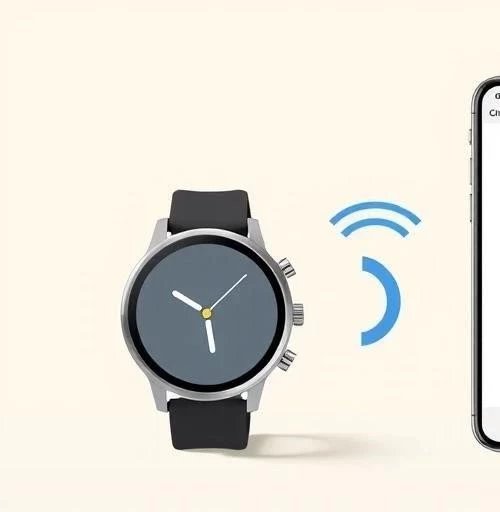
The Xiaomi Mi Watch Lite can work with an iPhone, but the reliable way to set it up is through Xiaomi’s companion app—not by pairing it from the iPhone’s Bluetooth menu alone․ The app links the devices and handles settings such as notifications, activity data and watch-face options․ Follow the steps below in order; this helps avoid a connection that appears active but is not fully set up․
Before you begin
- Charge the watch and keep it close to your iPhone during setup․
- Turn on Bluetooth on the iPhone․ Allow the app to use Bluetooth when iOS asks․
- Connect the iPhone to the internet and check that iOS is up to date․
- Install Xiaomi Wear Lite from the App Store․ App names and availability can vary by region, so check that the listing is the official Xiaomi app and supports Mi Watch Lite․
Pair the watch step by step
- Switch on the Mi Watch Lite․ If it has already been set up, open its settings and reset it to factory defaults before pairing it with a different phone․ A reset erases data stored on the watch․
- Open Xiaomi Wear Lite on the iPhone, sign in or create an account if prompted, and grant the permissions needed for setup․
- Choose the option to add or pair a device, then select Mi Watch Lite․ Keep the watch beside the phone while the app searches․
- When the watch appears, tap its name․ If a pairing code or confirmation appears on both screens, make sure the details match and approve the request on the watch and iPhone․
- Wait for setup and any initial synchronisation to finish․ Keep the app open and the devices nearby; the first connection or update may take a few minutes․
If the watch displays a QR code during initial setup, follow the app’s on-screen instructions to scan it․ Otherwise, select the watch from the device list․ Do not try to use a random QR-scanning app in place of Xiaomi Wear Lite․
Enable notifications and health features
After pairing, open the watch’s device page in the companion app to choose which phone alerts can appear on your wrist․ On the iPhone, review the app’s Bluetooth and notification permissions in Settings․ Allow notifications for the apps you want, and check that their alerts are enabled in iOS too․ Some alerts may not show if the iPhone is unlocked or if Focus settings silence them․ Health and activity features may also request separate permissions; approve only the access you want to use․
If pairing does not work
First, make sure Bluetooth is on and the watch is not connected to another phone․ Close and reopen the app, restart both devices, and try adding the watch again․ If it still fails, remove an old Mi Watch Lite entry from the iPhone’s Bluetooth settings, then start pairing from Xiaomi Wear Lite․ If the watch was previously paired, reset it and repeat setup․ Also check for app or watch updates once connected․
Important note
For setup and ongoing syncing, use the companion app rather than relying on the iPhone’s Bluetooth page․ Once paired correctly, the watch should reconnect automatically when it is nearby and Bluetooth is enabled․ Features can vary with the app version, iOS permissions and region, so check the app’s device page if an option is missing․


5 Comments. Оставить новый
This is a practical setup guide because it covers preparation as well as pairing. Keeping the watch nearby, allowing Bluetooth access and waiting for synchronisation to finish are sensible details that can prevent common connection problems.
The guide is helpful for first-time setup and for moving a watch to another phone. It could be even more complete with a short troubleshooting section, but its advice about resetting, permissions and initial syncing is sound.
The step-by-step structure makes this guide easy to follow, especially the advice to use Xiaomi Wear Lite rather than relying on the iPhone’s Bluetooth menu. The reminder that a factory reset erases stored data is also useful.
I appreciate the caution about checking that the app is the official Xiaomi listing, since app names and availability can differ by region. The instructions are clear without assuming that every iPhone user will see exactly the same screens.
The article explains the difference between pairing through the companion app and simply connecting through Bluetooth settings. That distinction is important, and the ordered steps make the process easier to troubleshoot.