
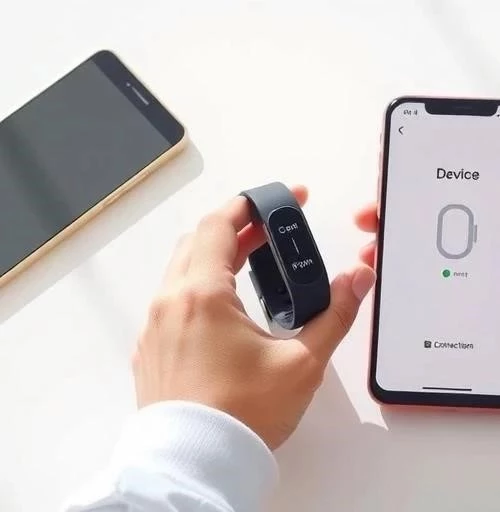
Pairing a Xiaomi Smart Band 8 with a phone is usually quick: install Xiaomi’s companion app, turn on Bluetooth, and follow the pairing prompts. The band is designed to connect through Mi Fitness (also called Xiaomi Wear in some regions). App names, availability, and menu wording can vary by country, so use the official app listed for your location in Google Play or the Apple App Store.
Before you begin
- Charge the band. If it is new or has been stored for a while, connect it to its magnetic charger first. A very low battery can interrupt setup.
- Check your phone’s compatibility. Update the phone’s operating system if possible, and check the Mi Fitness store listing for the current Android or iOS requirements.
- Enable Bluetooth. Keep the phone and band close together during setup. Internet access may be needed to sign in, download updates, or finish configuring the app.
- Have your account details ready. Mi Fitness may ask you to sign in to a Xiaomi account or create one. Follow the prompts shown in your region;
Pair the band using Mi Fitness
- Install the official app. Search for “Mi Fitness” in your phone’s app store and check that the publisher is Xiaomi before installing. Avoid unofficial download sites.
- Open Mi Fitness and grant permissions. Sign in if requested, choose your region, and allow the permissions the app needs for setup. Bluetooth access is essential; notifications, health data, and background activity can be configured according to your preferences.
- Start adding a device. In the app, open the device section and tap the option such as Add device or the plus sign. Choose Band, then select Xiaomi Smart Band 8 if it appears.
- Let the phone search. Keep the band awake and nearby. If the app asks you to select a device from a list, choose the Smart Band 8. You may also be able to scan a QR code displayed on the band; use whichever method the app offers.
- Confirm the pairing request. A confirmation prompt should appear on the band and/or phone. Check that the code or device name matches, then tap the check mark or confirm button on the band and approve the request in the app.
- Finish setup. Wait while the app syncs and installs any offered firmware update. Keep the band close to the phone and avoid closing Mi Fitness or switching off Bluetooth during an update. Set preferences such as notifications, goals, and health monitoring afterward.
If the band does not appear
First, check that Bluetooth is on and that the band has battery power. Move the devices close together, wake the band, and try searching again. Close and reopen Mi Fitness; if necessary, restart both the phone and the band. On Android, check that Mi Fitness has the nearby-devices or Bluetooth permission requested by your version of the operating system. Some phones also restrict background activity or battery use, so temporarily allow Mi Fitness to run without aggressive battery limits.
If the band was previously paired with another phone, disconnect or remove it from that phone’s Mi Fitness app first. A band that remains linked to an old account may not pair normally with a new one. If you cannot access the old phone or account, use the band’s on-screen settings to look for a factory reset, if available. A reset can erase data stored on the band, so use it only when simpler fixes fail. Then try adding the band again through Mi Fitness rather than pairing it directly from the phone’s Bluetooth settings.
Already paired, but not syncing?
Open Mi Fitness and check that the band is shown as connected. Keep Bluetooth enabled, allow the app to run in the background, and open it occasionally so data can sync. If connection drops, toggle Bluetooth off and on, bring the devices together, and reopen the app; Do not repeatedly remove the band unless needed; you may have to pair it again and review your settings.
After connection
Use Mi Fitness to customize watch faces, notification alerts, activity goals, and available health features. Some options depend on the phone, app version, region, and permissions. If setup still fails, update Mi Fitness, consult Xiaomi’s support information for your country, and note the exact message shown by the app. With the correct app and a confirmed pairing request, the Smart Band 8 should be ready to use.


3 Comments. Оставить новый
Well organized and easy to follow. The troubleshooting-minded advice to charge the band and keep it nearby is a welcome touch.
Clear, practical instructions that make the pairing process feel manageable. I especially appreciate the reminder to install the official app.
A helpful guide for first-time users. The notes about regional app names and permissions add useful context without making the steps confusing.