
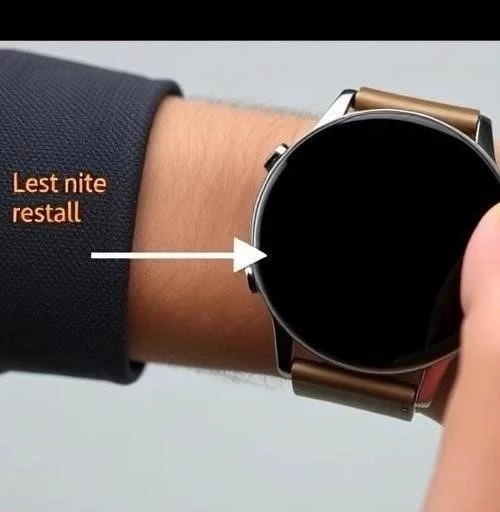
Restarting a Galaxy Watch 5 can resolve minor problems such as a frozen screen‚ an app that will not open‚ delayed notifications‚ or a temporary connection issue․ A restart turns the watch off and starts it again without deleting your apps‚ settings‚ or personal data․ The steps below apply to the Galaxy Watch 5 and Watch 5 Pro․
Restart the watch using its buttons
- Locate the two physical buttons on the side of the watch: Home (also called the Power button) and Back․
- Press and hold both buttons at the same time․ Keep them held for about seven seconds‚ or until the screen shows “Rebooting” or the Samsung logo․
- Release the buttons and allow the watch to start․ The screen may go dark briefly before the startup logo appears․
This is the recommended method when the watch is responsive or when its screen has stopped responding․ Do not release the buttons after only a quick press; the restart prompt may take several seconds to appear․ Once the watch has restarted‚ unlock it if required and check whether the original issue has cleared․
Restart from the Quick panel
If the touchscreen is working‚ you can use the on-screen controls instead:
- From the watch face‚ swipe down from the top edge to open the Quick panel․
- Tap the Power icon․ If you do not see it‚ swipe through the available Quick panel pages․
- Choose Power off and wait until the display turns off․
- To turn the watch back on‚ press and hold the Home button until the Samsung logo appears․
This method shuts the watch down first‚ so it is not exactly the same as an immediate restart․ If you only need to refresh the system‚ the two-button method is usually quicker․ Menu wording or Quick panel layout can vary slightly with the installed software version․
If the watch is frozen
If taps and swipes do not work‚ press and hold Home and Back together for longer than seven seconds․ Continue holding until the watch begins to reboot; do not repeatedly press the buttons separately․ If nothing happens‚ connect the watch to its charging dock and let it charge for a while‚ then try the button combination again․ A very low battery can prevent the display from responding or the watch from starting․
If the watch restarts but becomes unresponsive again‚ check for software updates in the Galaxy Wearable app on the connected phone or in the watch’s Settings․ You can also close an app that appears to be causing the problem and check that the watch has enough battery․ If the buttons are physically damaged or the watch cannot start even after charging‚ contact Samsung Support or an authorized service provider․
Restarting is not a factory reset
A restart does not erase the watch or unpair it from your phone․ A factory reset is different: it removes data and returns the watch to its initial setup state․ Do not select Reset in Settings as a troubleshooting shortcut unless you intend to erase the device and have considered backing up important information first․
Quick summary
- Normal restart: hold Home and Back together until “Rebooting” or the Samsung logo appears․
- Using the screen: open the Quick panel‚ tap Power‚ choose Power off‚ then hold Home to turn the watch on again․
- Frozen or unresponsive: keep both buttons held for at least seven seconds; charge the watch if it does not respond․
After the restart‚ give the watch a short time to reconnect to your phone and restore notifications․ If a temporary glitch was responsible‚ normal operation should resume without any change to your stored settings․

7 Comments. Оставить новый
The explanation of the Quick panel option makes clear that powering off and turning the watch back on differs from an immediate restart.
The article is organized into distinct sections, so readers can find the method that fits the watch’s current condition.
The article clearly distinguishes between restarting the watch with its buttons and powering it off through the Quick panel.
The instructions identify the Home and Back buttons and explain how long to hold them, which makes the button method easy to follow.
The troubleshooting section addresses an unresponsive screen and gives a practical reminder not to press the buttons separately.
The note that menu wording and Quick panel layouts may vary by software version provides helpful context for following the steps.
It is useful that the article notes a restart does not delete apps, settings, or personal data.