If an app started crashing‚ draining battery‚ or changing in an unwanted way after an update‚ you may be able to roll it back. The right method depends on whether it is a pre-installed system app or an app you installed yourself. Xiaomi menus vary between MIUI‚ HyperOS‚ and Android versions‚ so treat the names below as guides rather than exact labels.
Remove updates from a pre-installed app
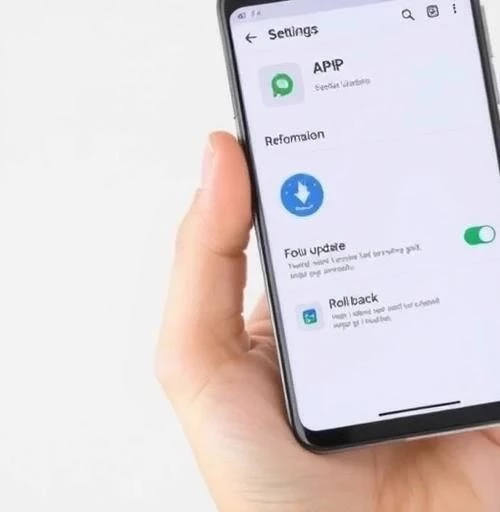
- Open Settings and tap Apps‚ then Manage apps.
- Find and open the app you want to roll back.
- Tap the three-dot menu in the upper-right corner and choose Uninstall updates‚ if that option appears.
- Confirm the action. The app should return to the version that came with the phone or its system image.
On some Xiaomi phones‚ you can reach the same screen by long-pressing the app icon‚ tapping App info‚ and opening the menu. The option is normally available only for certain built-in apps‚ such as some Google or Xiaomi apps. If you do not see it‚ that app’s updates cannot be removed through the standard interface. Do not remove a system component just because its name is unfamiliar; other features may depend on it.
What about apps installed from Google Play?
For most third-party apps‚ Android does not provide an Uninstall updates button. You can uninstall the app and install it again‚ but the store usually supplies the latest compatible version‚ not an older one. Before uninstalling‚ check whether the app syncs its data or offers a backup: removing it may erase locally stored files‚ settings‚ or account information.
Installing an older APK from outside the Play Store is possible in some cases‚ but it carries risks. A file may be modified or contain malware‚ and an older release may have known security flaws or stop working with the service. If you choose this route‚ use a reputable source‚ verify the exact app and version‚ and avoid granting unnecessary permissions. Android may require you to allow installation from that source. Turn that permission off again afterward.
Stop the app from updating again
In Google Play‚ open the app’s page‚ tap the three-dot menu‚ and turn off Enable auto update. To change the general setting‚ tap your profile picture‚ then Settings → Network preferences → Auto-update apps. Xiaomi’s System app updater may manage built-in apps separately; open it and review its settings if the app updates again. Disabling updates indefinitely is not ideal‚ because updates often fix security and reliability problems. Recheck later for a corrected release.
If rollback is unavailable
First try restarting the phone and clearing the app’s cache through Settings → Apps → the app → Storage. Clearing cache does not remove an update‚ while clearing data can delete saved information‚ so use it only after backing up. You can also report the issue to the developer and wait for a fix. Avoid unofficial “rollback” tools‚ rooting‚ or flashing system packages unless you understand the risks: a mistake can cause data loss‚ instability‚ or a phone that will not start.
In short: use Uninstall updates for an eligible pre-installed app. For ordinary apps‚ there is usually no simple built-in downgrade; protect your data‚ weigh APK risks‚ and keep security updates in mind.