
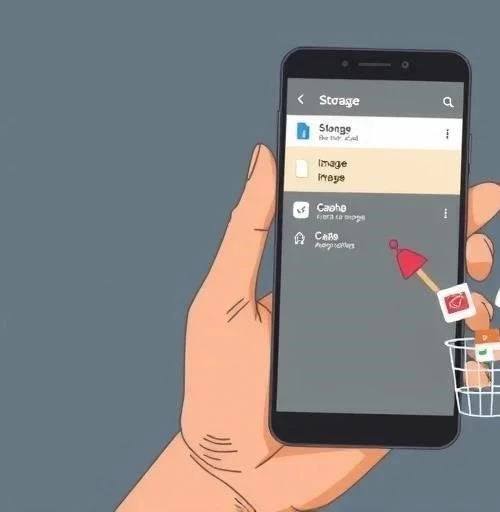
On a Xiaomi Redmi phone, Other or Other files is a storage category, not a single folder․ It can include app data, downloaded archives, temporary files, offline content, and files Android cannot identify by type․ Some of it is safe to remove; some is essential to apps or your personal data․ The safest approach is to find what is taking up space and delete it selectively—not to erase unfamiliar system folders․
Check what is using storage
Open Settings > About phone > Storage (the wording may differ by MIUI or HyperOS version)․ Review the categories and note how much space is listed as Other․ You can also open Security > Cleaner or the built-in Cleaner app․ Let it scan, inspect the suggested items, and remove temporary files you recognize․ Menu names and available tools vary by Redmi model and software version․
Use File Manager to find large files
Open Xiaomi’s File Manager and look in categories such as Downloads, Documents, APKs, Archives, and Videos․ Sort by size if that option is available․ Delete old installation files (such as APKs) only if you no longer need them, along with duplicate downloads or archives you can replace․ Check the Trash or Recently deleted folder afterward; items there may continue to occupy storage until permanently removed․
Do not delete folders merely because their names look unfamiliar․ Avoid clearing folders such as Android/data or Android/obb by hand: they may contain app content, and newer Android versions restrict access to them․ Removing files there can break an app or erase downloaded content․
Clear app caches and offline downloads
For apps that use a lot of space, go to Settings > Apps > Manage apps, choose an app, then open Storage․ Use Clear cache to remove temporary data․ Cache is usually recreated when needed․ Do not choose Clear data unless you understand the consequences: it can sign you out, reset settings, or delete locally stored files․
Check apps with their own storage controls․ Messaging apps may keep large videos, voice notes, and forwarded files; streaming and map apps may store offline media or maps․ Remove downloads from inside the relevant app, and review chat media before deleting it․ For cloud services, confirm that important files are backed up and accessible before removing local copies․
Review downloads and browser data
Check your browser’s Downloads list and delete files you no longer need․ You can clear a browser’s cache in its app settings, but clearing cookies or site data may sign you out of websites․ Also review screen recordings, Bluetooth transfers, and files saved by social media apps․ If you are unsure what a file is, search its name online or move it to a computer temporarily rather than deleting it immediately․
Restart and check the result
After cleaning, restart the phone and revisit Storage․ The numbers may take a little time to refresh․ Keep some free space for updates and normal operation; a phone that is nearly full may slow down or fail to install updates․ If Other remains unusually large, update your apps and system, then inspect the largest apps individually․ Avoid third-party “one-tap cleaner” apps that request broad access or promise to remove all unknown files․
Before deleting anything
- Back up photos, documents, and important chats․
- Delete only files you recognize or can restore․
- Prefer an app’s own cleanup controls over manual folder removal․
- Do not remove system files or reset the phone just to reduce the Other category․
A factory reset is a last resort, not a routine cleanup method․ If you consider one, verify your backup first: a reset erases the phone’s local data․ In most cases, removing old downloads, app caches, and offline media safely frees space without risking the Redmi’s system or personal files․


8 Comments. Оставить новый
Useful explanation for Redmi users. Menu names can vary so much between software versions that noting this upfront helps set realistic expectations.
The step-by-step approach makes it easier to find large files without risking important app content. Checking the Recently deleted folder is a good tip too.
A straightforward guide that explains what “Other” can include. The caution about APKs and archives is useful for freeing space without affecting personal files.
Good overview of the safest places to look first. It would be easy to damage app content by deleting unfamiliar folders, so the warning is well placed.
This is a helpful reminder that “Other” is a broad storage category, not a folder you can safely delete wholesale. The warning about Android/data is especially useful.
Clear and practical advice. I appreciate the distinction between clearing an app cache and clearing its data, since those options can have very different consequences.
I like that this focuses on selective cleanup rather than recommending a factory reset or a questionable cleaner app. Safe and sensible guidance.
The advice to review Cleaner suggestions before deleting anything is important. Some people may otherwise remove downloads or files they still need.