
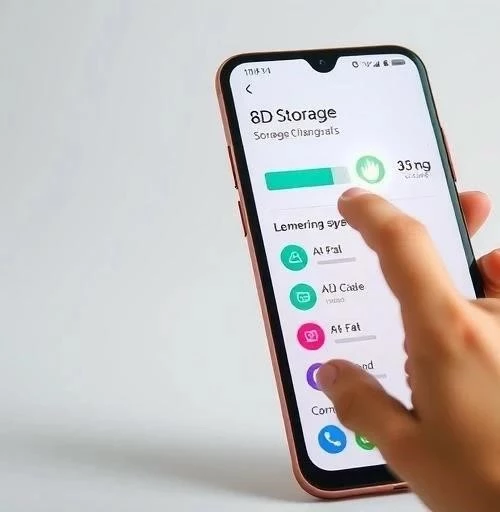
When a Xiaomi, Redmi, or POCO phone reports that “Other” is taking up a lot of storage, it is tempting to look for one folder and delete everything inside it. That is rarely the safest or most effective approach. “Other” is a broad category, not a single file: depending on the phone, Android version, and MIUI or HyperOS release, it can include app data, temporary files, downloads, archives, message attachments, and data that the system has not yet classified. Some of it is disposable; some is necessary for apps or the operating system.
The sensible goal is therefore not to make “Other” equal zero. System and app files will always occupy space, and the category may be calculated differently after an update. Instead, identify large items you no longer need, remove them using the app or system feature that created them, and check that important files are backed up before deleting anything. The steps below start with low-risk options and move gradually to more drastic ones.
Before you start: check what is actually using space
- Open Settings > About phone > Storage. On some versions, the route is Settings > Storage or Settings > Battery & performance followed by the storage tools. Names and locations vary by model and software version.
- Look at the categories and note how much space is used by apps, images, videos, system files, and “Other.” If a category seems inaccurate, give the phone a few minutes to update its calculation, then check again.
- Make sure your photos, documents, and other valuable files are backed up. Check the backup itself rather than assuming that sync has finished.
Storage totals can lag behind deletions, and an update can temporarily change the reported figures. A large “Other” figure is a reason to investigate, not proof that the phone contains a dangerous or unnecessary hidden folder.
Use Xiaomi’s built-in Cleaner
Start with the built-in tool because it is designed to identify common temporary files without requiring you to browse system folders manually; Open the Security app and tap Cleaner or Clean up. Review the proposed items before confirming. The tool may find cached files, residual installation files, or other data that its current software version considers safe to remove.
Do not tap every suggested option automatically. Read the labels, especially when the screen offers to remove large files, old downloads, or app data. A “large files” result can include a video, an exported document, or an archive you still need. Select only items you recognize and no longer want. If the app asks for permissions, grant only those needed for the cleanup you intend to perform.
Empty the Gallery and File Manager trash
Deleting an image does not always free its storage immediately. Xiaomi Gallery may keep deleted items in a trash or recently deleted album for a retention period. Open Gallery, find Albums or Recently deleted, inspect the contents, and permanently delete only what you are certain you do not need. Also check whether the Gallery app is syncing to a cloud service: deleting a synced item may affect other devices or the cloud copy.
File Manager can have its own trash or recycle-bin feature, depending on the version. Open File Manager and check its menu or settings for deleted items. Emptying a bin is usually permanent, so review it first. Afterward, revisit Storage; the displayed amount may take a short time to refresh.
Remove APK files, archives, and old downloads
Installation packages downloaded from a browser or shared in a chat can remain after an app is installed. In File Manager, open the Downloads folder and look for files ending in .apk or .apks. An installer is not the installed app itself, so removing an APK usually does not uninstall the app. Still, keep it if you intentionally use it to reinstall an app or if it is the only copy of something important.
Also inspect large ZIP, RAR, and other archive files, as well as duplicate documents and videos. Sort by size if File Manager offers that option. Do not delete folders simply because their names look unfamiliar. In particular, avoid removing items from Android, data, obb, or MIUI system directories by guesswork. Those folders can contain app resources, saved content, and data the phone needs.
Clear app cache, not app data, unless you understand the difference
Apps can build up cached images, previews, and temporary files. To check an app, go to Settings > Apps > Manage apps, select the app, and open Storage or Clear data. The exact labels differ between MIUI and HyperOS. Choose Clear cache when available. Cached files are generally temporary and can be recreated, though the app may load content more slowly the next time you use it.
Clear all data is a different operation. It can sign you out, remove downloaded content, reset preferences, or erase locally stored conversations and files. Before using it, confirm that the app has a working account backup and that you know the login details. If an app is large because it stores offline maps, music, videos, or work files, use that app’s own download-management screen to remove only content you no longer need.
Check messaging and social apps
Messaging apps often store more than is obvious from the main chat list. Photos, videos, voice messages, stickers, and forwarded files may occupy substantial space. In WhatsApp, Telegram, and similar apps, look for Storage and data, Manage storage, or Data and storage in the app’s settings. Review large files and frequently forwarded media, then delete selected items from inside the app.
This approach is safer than deleting a chat folder through File Manager because the app can manage its own records and may offer per-chat selection. Check whether media is backed up and whether you want to keep it before removing it. You can also reduce future growth by changing automatic media downloads or limiting how long the app keeps downloaded files, if those controls are available.
Review browsers, streaming apps, and offline content
Browsers may retain cached pages, downloaded files, and website data. Use the browser’s privacy or storage settings to remove cache and unwanted downloads. Be cautious with options such as clear browsing data: selecting cookies, site data, or saved passwords can sign you out or remove information you intended to keep. Read the selection screen before confirming.
Streaming, music, navigation, and reading apps can save offline content that does not appear in Gallery. Open each app’s downloads section and remove films, playlists, maps, podcasts, or books you no longer use. This is often more effective than clearing a general cache because offline files may be counted as app data rather than temporary storage.
Restart and let Storage recalculate
After cleanup, restart the phone and check storage again. A restart can help Android and MIUI or HyperOS refresh storage information, but it does not itself erase personal files. If “Other” still looks large, inspect the biggest apps individually rather than repeatedly running a cleaner. The category may include data that the system cannot neatly assign elsewhere, so the total does not always fall in proportion to the files you removed.
What not to do
- Do not delete random hidden folders. A folder being hidden or unfamiliar does not mean it is junk. Removing app or system files can break features or erase data.
- Do not confuse cache with data; Clearing data can have consequences that clearing cache does not.
- Avoid untrusted “one-tap cleaner” apps. They may request broad access, show misleading warnings, or offer little benefit beyond built-in tools.
- Do not root the phone just to clear storage. Root access makes critical files easier to damage and is unnecessary for ordinary storage maintenance.
- Do not expect the “Other” category to disappear. The operating system and installed apps require storage, and category estimates can change between software versions.
When a factory reset is worth considering
A factory reset is a last resort, not a routine cleanup method. Consider it only if storage remains inexplicably full after you have checked large apps and files, and if you are prepared to set the phone up again. A reset erases local data. Back up photos, documents, messages, authenticator access, and app-specific content; verify that you can sign in to your accounts; and make sure the backup is complete before proceeding. Then use the reset option in Settings and restore selectively. Restoring every old app and file immediately may bring the storage problem back.
A practical order of operations
- Check Storage and identify the biggest categories or apps.
- Run Xiaomi Security’s Cleaner, reviewing each proposed deletion.
- Empty Gallery and File Manager trash after checking their contents.
- Remove unwanted APKs, downloads, archives, and offline media.
- Clear cache for selected apps; use in-app storage controls for messages and downloads.
- Restart, wait for the storage figures to refresh, and check again.
In short: the safest way to clear “Other” on a Xiaomi phone is to remove identifiable temporary or unused content through the built-in tools and the apps that created it. Do not treat the label as a folder to erase wholesale. Careful review takes a little longer, but it is far less likely to cost you photos, conversations, account access, or app data you meant to keep.



5 Comments. Оставить новый
Starting with built-in tools is a sensible, low-risk approach. The article also sets a realistic goal: reducing unnecessary data rather than trying to make the “Other” category disappear completely.
I appreciate that the article recommends checking storage categories before taking action. Since menus differ across MIUI and HyperOS versions, noting that paths may vary makes the instructions more realistic.
The reminder to verify backups before deleting files is practical. Sync can take time, and users may otherwise assume that photos or documents are safely stored when they are not.
It is helpful to explain that storage totals may lag after deletions or updates. This can keep readers from repeating cleanup steps or removing useful files just because the displayed number has not changed yet.
The advice to treat “Other” as a broad category rather than a single folder is important. It helps prevent users from deleting files blindly and potentially disrupting apps or the system.