
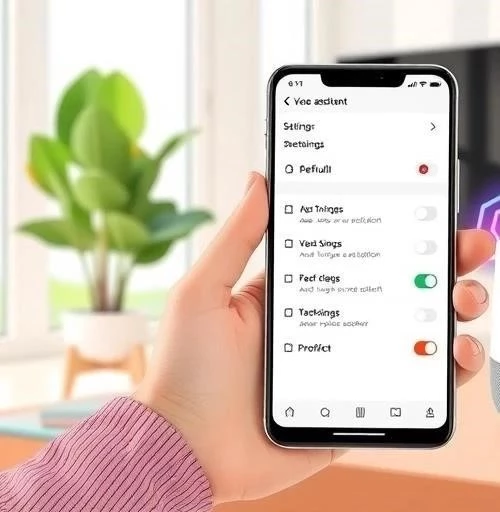
You can use Yandex’s Alice instead of Google Assistant on many Xiaomi phones, but the exact menu names depend on your Android or HyperOS version. Install the official Yandex app (or another Yandex app that includes Alice) first, sign in if prompted, and make sure Alice works when you open the app. Then try setting Yandex as the phone’s default digital assistant.
Install and prepare Yandex
- Open Google Play, search for the official Yandex app that includes Alice, and install or update it. If Play Store is unavailable, use an official Yandex download source. Avoid unknown APK sites.
- Open the app and allow microphone access when asked. Test Alice by tapping the voice button and asking a question.
- Check that the app is up to date and that your phone has an internet connection. Voice requests generally need internet access.
Set Alice as the default assistant
On many Xiaomi phones, open Settings and use the search box to look for Default apps, Digital assistant app, or Assist app. If you find the option, open it, choose the assistant or digital-assistant entry, and select Yandex. Confirm any permission prompt. Depending on your software version, the path may look like Settings → Apps → Manage apps → Default apps → Assist & voice input, or Settings → Additional settings → Button shortcuts.
Not every Xiaomi model or software region offers Yandex in the assistant list. If it is missing, update the Yandex app and restart the phone, then check again. You can also search Settings for “assistant” because Xiaomi changes menu labels between MIUI, HyperOS, and Android releases.
Choose how to launch Alice
After changing the default, test the usual assistant shortcut: press and hold the power button, use the navigation gesture, or hold the Home button, depending on your phone’s settings. Some models let you assign an assistant to a button under Settings → Additional settings → Button shortcuts. Select the available assistant action and choose Yandex if it appears.
Setting a default assistant does not always replace Google’s “Hey Google” wake phrase. That phrase may continue to open Google Assistant, or voice activation may not work from the lock screen. Use Alice’s microphone button or configure voice activation inside the Yandex app if that feature is available for your device and region.
Allow Alice to keep working
If Alice opens but stops responding in the background, Xiaomi’s battery controls may be restricting Yandex. Open Settings → Apps → Manage apps → Yandex → Battery saver and choose an unrestricted or less restrictive option if available. You may also need to allow background activity or autostart. The names and choices vary, and allowing background operation can use more battery.
If Yandex is not listed
- Update the Yandex app and your phone software, then restart the device.
- Check whether your Android version provides a third-party default-assistant setting. Some versions or regional builds limit the available choices.
- Use Alice inside the Yandex app with its on-screen voice button if the system will not let you assign it as the default.
What about a Xiaomi smart speaker?
A Xiaomi phone and a Xiaomi smart speaker are different cases. On a phone, you may be able to select Yandex as the system assistant. A Xiaomi speaker designed for Google Assistant or Xiaomi’s own ecosystem generally cannot be converted into an Alice speaker simply by changing a phone setting. Check the speaker’s exact model, supported services, and region before buying or attempting a reset. Do not install unofficial firmware unless the manufacturer provides it.
In short
Install Yandex, look for the default digital-assistant setting in Xiaomi Settings, and choose Yandex if it is offered. Then test the shortcut and adjust battery restrictions if needed. If the option is unavailable, Alice can still be used from the Yandex app, but Google’s wake phrase and some system shortcuts may remain tied to Google Assistant.



4 Comments. Оставить новый
Clear, practical steps. I especially appreciate the advice to install the app from an official source.
The reminder to check the settings search is useful, since Xiaomi menu names vary between software versions.
Good explanation of why the exact setup can differ by phone model and software version.
Helpful guide for anyone trying to set up Alice on a Xiaomi phone. The troubleshooting tips are a nice touch.