
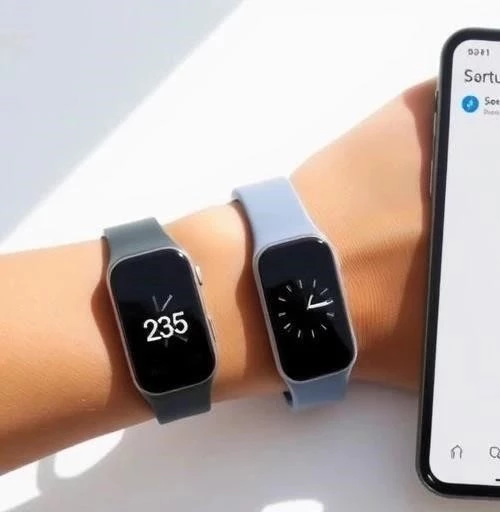
The Xiaomi Mi Band 6 does not have a manual clock-setting option. It gets the time, date and time zone from the phone it is paired with, so the simplest way to set the band is to correct your phone’s clock and sync the devices. The time should update automatically within a short while.
Before you begin
- Charge the band enough to keep it switched on.
- Turn on Bluetooth on your phone and keep the band nearby.
- Check that your phone has the correct time, date and time zone. Automatic date and time settings are usually the easiest choice.
- Use the app currently paired with your band. Depending on your region and setup, this may be Mi Fitness or Zepp Life, formerly called Mi Fit.
Set the time and sync the band
- Correct the phone clock. On Android, open Settings and look for Date & time or System > Date & time. Turn on automatic time and time-zone options, or enter the correct values manually. On an iPhone, go to Settings > General > Date & Time and enable Set Automatically, if available.
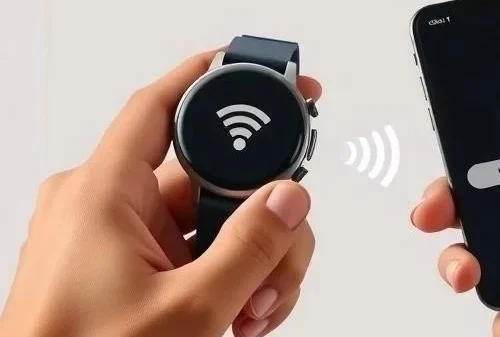
- Open the companion app. Sign in to the account used when the band was first paired. Make sure Bluetooth is on and approve any connection or nearby-device permissions the app requests.
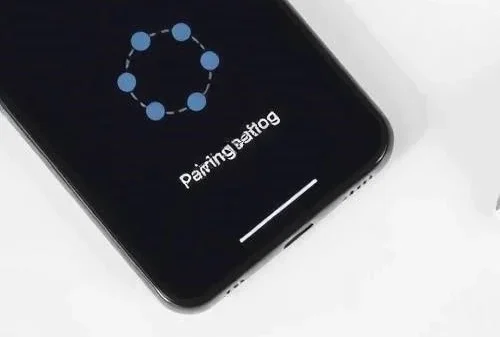
- Connect to the Mi Band 6. In the app, open the device page and check that the band appears as connected. If it is disconnected, tap the connection or sync option and keep the phone close to the band.
- Wait for synchronization. Pull down on the app’s home or device screen to refresh, or use its sync control if shown. The band normally takes its clock information from the phone during connection and synchronization. Check the display after the sync finishes.
You do not need to enter the time on the band itself. If the phone shows the correct local time but the band does not, reconnect and sync it again. A restart of the band or phone can also help refresh the connection.
Choose a 12-hour or 24-hour display
The clock format is generally controlled by the phone’s language, region or time-format preference, rather than by setting the clock directly on the band. On many Android phones, the 12/24-hour option is under Settings > Date & time. On an iPhone, check Settings > General > Date & Time for 24-Hour Time. Menu names can vary by operating-system version.
After changing the format, reopen the companion app and sync the band. If the display does not change immediately, wait a moment, then reconnect. Some watch faces present the time differently, so try another face if the format still looks unexpected.
If the time is wrong or will not update
- Check the time zone. A phone can show a seemingly reasonable time while using the wrong zone. Verify the zone and automatic daylight-saving adjustment, where applicable.
- Confirm the correct band is paired. If the app is connected to another wearable, select the Mi Band 6 in the device list.
- Refresh the connection. Turn Bluetooth off and on, reopen the app, and bring the phone close to the band. Ensure the app is allowed to use Bluetooth and run in the background.
- Update the app. Install the latest compatible version of Mi Fitness or Zepp Life. If the app offers a band firmware update, keep the phone nearby and the band charged while it installs.
- Restart both devices. Restart the phone and, if its menu allows, restart the band. Then open the app and sync again.
- Re-pair only as a last resort. First try ordinary syncing. If you remove the band from the app or factory-reset it, you may need to pair it again and some unsynced data or settings may be lost.
Important notes
Changing the clock on the phone is the reliable way to change the Mi Band 6 time; the band is not an independent time-setting device. Keep it paired periodically so that it can receive updated time information and upload activity data. If the band still shows the wrong time after a successful sync, check the phone’s region settings, try the other official companion app only if it supports your device and account, and contact Xiaomi support if the issue persists.
4 Comments. Оставить новый
A straightforward answer to a common question. The advice to check the phone’s date, time, and time zone first should help prevent unnecessary troubleshooting.
The step-by-step layout is easy to follow, and the Android and iPhone directions are a nice touch. It would be useful to include the remaining clock-format instructions.
Helpful troubleshooting steps for syncing the Mi Band 6. Mentioning both Mi Fitness and Zepp Life makes the guide useful for people with different app setups.
Clear, practical instructions. I especially appreciate the reminder that the band gets its time from the paired phone rather than having a manual clock-setting option.