
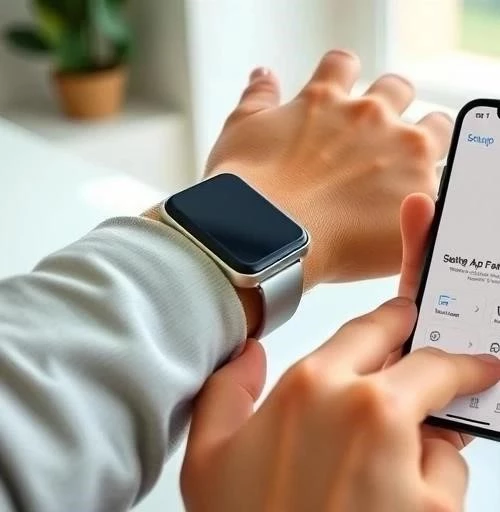
The ECG app on a compatible Apple Watch can record a single-lead electrocardiogram and help you notice certain heart-rhythm patterns. Setting it up is straightforward, but availability depends on your watch model, software, location, and age. An ECG reading is not a diagnosis and cannot replace medical care.
Check compatibility first
- Watch: ECG is available on Apple Watch Series 4 or later, except Apple Watch SE models. The Ultra lineup also supports it. Keep watchOS up to date;
- iPhone: Your watch must be paired with a compatible iPhone running a current version of iOS. Install available updates on both devices before setup.
- Location: The feature is not offered in every country or region; Availability can change, so check Apple’s current list for your location.
- Age and health: Apple’s ECG app is intended for people aged 22 and older. It is not designed for people who have been diagnosed with atrial fibrillation to monitor that condition.
Set up the ECG app
- On your iPhone, open the Health app.
- Tap Browse, then Heart.
- Choose Electrocardiograms (ECG) or Set Up ECG App. Follow the prompts, including entering your date of birth if requested, and read the information about what the app can and cannot detect.
- When setup is complete, the ECG app should appear on your Apple Watch. If it does not, open the Watch app on your iPhone, tap My Watch, and check the available apps and heart settings. You can also search for “ECG” in the App Store or on the watch, depending on your software version.
If you cannot find the setup option, confirm that the watch is a supported model, both devices are updated, and the feature is approved in your region. Check that the watch is paired correctly and that the Health app is using the right Apple Account. Restart both devices and look again. If the app remains unavailable, contact Apple Support rather than installing an unofficial substitute.
Take a recording
- Wear the watch snugly on the wrist you selected during setup. The back of the watch should sit against your skin; the band should be comfortable, not painfully tight.
- Sit down and rest your forearms on a table or in your lap. Keep your watch arm still and relax.
- Open the ECG app on the watch. Place a finger from your other hand lightly on the Digital Crown. Do not press or turn it.
- Stay still and keep your finger on the crown until the 30-second recording finishes. The app will display a result.
For a clearer recording, make sure your skin and the watch are clean and dry. Avoid taking an ECG while the watch is charging. Movement, a loose fit, moisture, or poor contact can lead to an inconclusive result or a message that the recording was poor. Try again after adjusting the band and settling your arms.
Understand the result
The app may classify a recording as sinus rhythm, atrial fibrillation (AFib), inconclusive, or poor recording. Sinus rhythm means the app did not detect AFib during that particular recording; it does not rule out every heart problem or guarantee that your rhythm is normal at other times. An inconclusive result can have several causes, including a heart rate outside the range the app can classify. Follow the guidance shown in the app, and ask a healthcare professional about repeated unusual results or any concerns.
The ECG feature is not intended to detect a heart attack, blood clots, stroke, or all other heart conditions. If you have chest pain, shortness of breath, fainting, or another severe or urgent symptom, seek emergency medical help immediately instead of relying on a watch reading.
View or share your ECG
On your iPhone, open Health, tap Browse, then Heart, and open Electrocardiograms (ECG). Select a recording to review its waveform and result. Use the option to export or share a PDF if you want to show it to a clinician. Share it through a trusted channel and remember that a PDF is supporting information, not a substitute for professional assessment.
Keep the feature useful
Update watchOS and iOS when practical, wear the watch consistently, and record only when you can remain still. Do not change treatment or medication based solely on a watch notification or ECG classification. If the app stops working after an update, check compatibility and regional availability again, restart the devices, and consult Apple Support. For medical interpretation, discuss the recording and your symptoms with a qualified healthcare professional.
3 Comments. Оставить новый
A well-organized overview for Apple Watch users who are new to the ECG feature. The age and health limitations are important details that are easy to overlook.
The troubleshooting tips are helpful, particularly checking regional availability and updating both devices. It would also be useful to include a note about discussing concerning readings with a healthcare professional.
This is a clear, practical guide to checking compatibility and setting up the ECG app. I especially appreciate the reminder that an ECG reading is not a diagnosis.