
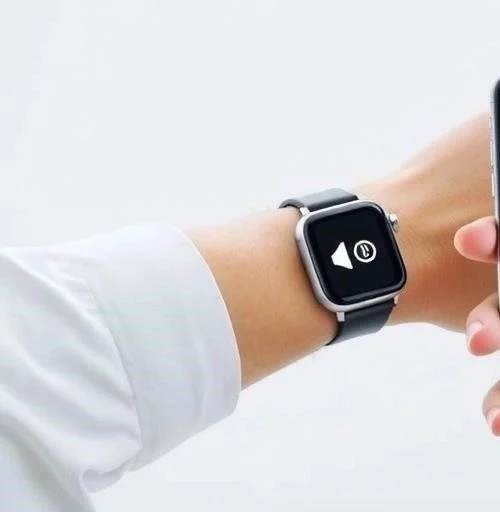
“Watch Call” can refer to a calling feature‚ an app‚ or a particular watch model. The exact menu names therefore vary. In most cases‚ you can make calls either by connecting the watch to a phone through Bluetooth or by activating cellular service on a compatible LTE watch. Check the watch’s manual or manufacturer’s support page if the instructions on your screen differ.
Before you begin
- Charge the watch and install any available system updates.
- Turn on Bluetooth on your phone and keep the devices close together.
- Install the watch’s official companion app on the phone.
- Check that your watch and phone are compatible. Some features require a particular operating system or phone model;
- If you want calls when your phone is not nearby‚ confirm that the watch supports cellular service and that your carrier offers a compatible plan.
Pair the watch with your phone
- Open the official companion app on your phone and choose the option to add or set up a new watch.
- Turn on the watch. If prompted‚ select your language and region.
- Follow the pairing instructions in the app. You may need to confirm that a code on the watch matches a code on the phone.
- Allow the requested Bluetooth and device permissions. Keep the app open until setup is complete.
- Install any offered updates‚ then restart the watch if prompted.
If the watch has already been paired with another phone‚ it may need to be unpaired or reset before it can connect to a new one. A reset can erase data‚ so check whether your information is backed up first.
Enable calls through Bluetooth
After pairing‚ open the companion app and look for settings such as Calls‚ Phone‚ Bluetooth calling‚ or Connected devices. Turn on call support if it is not enabled automatically. On some watches‚ calling uses a separate Bluetooth connection from the one used for notifications. If the phone displays a request to connect to the watch for calls‚ accept it.
Check that the watch is allowed to access contacts and call history if you want to browse names on its screen. Permission labels differ between phones. You can usually change them later in the phone’s settings under the companion app’s permissions. To place a call‚ open the phone or contacts app on the watch‚ choose a person or enter a number‚ and tap the call button. Use the watch’s microphone and speaker‚ or connect compatible Bluetooth headphones.
Set up cellular calling‚ if supported
An LTE watch may require a separate plan‚ an eSIM‚ or a carrier service that shares your phone number. In the companion app‚ find Mobile network‚ Cellular‚ or a similar option and follow the carrier’s activation steps. The watch may need to be connected to Wi-Fi or Bluetooth during activation. Charges‚ eligibility rules‚ and number-sharing options depend on the carrier. A Bluetooth-only watch cannot make independent calls when it is away from its paired phone‚ though some models can use internet-based calling over Wi-Fi.
Test the setup and fix common problems
Make a short test call while the watch is connected to the phone. Check that you can hear the other person and that they can hear you. If calls do not work‚ try these steps:
- Confirm that Bluetooth is on and the watch shows as connected in the companion app.
- Make sure call-related permissions are enabled and the watch is not in Airplane‚ Silent‚ or Do Not Disturb mode.
- Restart both devices‚ then test again. Install pending updates if the problem continues.
- If the watch connects for notifications but not calls‚ check its separate calling connection in Bluetooth settings or the companion app.
- For cellular calls‚ check the plan’s activation status and signal. Contact the carrier if the watch cannot register on its network.
Menu names and capabilities differ by manufacturer‚ model‚ phone‚ and region. Use the official instructions for your specific watch‚ and avoid installing an unfamiliar “Watch Call” app unless the manufacturer or carrier identifies it as genuine.
1 Comment. Оставить новый
The guide clearly distinguishes Bluetooth calling from cellular service and gives useful setup precautions. Naming a few common companion apps could make it easier for readers to find the right instructions for their watch.