
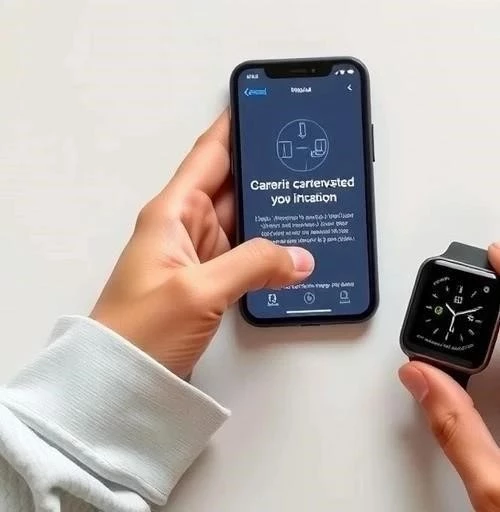
Apple Watch SE can use a mobile network only if it is the GPS + Cellular model. The GPS-only version has no cellular modem, so an eSIM plan cannot be added to it. Check the model name on the watch or its box before beginning. A cellular watch uses a digital SIM; there is no card to insert. Once activated, it can make calls, send messages and use data when the paired iPhone is not nearby, subject to coverage and your plan.
What you need
- An Apple Watch SE GPS + Cellular and a compatible iPhone, updated to supported software versions.
- A mobile operator that supports Apple Watch service in your country or region. Not every carrier or plan is eligible.
- An active eligible account with the operator. In most cases, the iPhone and watch must use the same carrier, and the operator must provision a companion watch plan.
- A working connection to Wi-Fi or cellular data during setup, and Bluetooth enabled on the iPhone.
Availability, pricing, plan requirements and supported features vary by operator and location. Check with the carrier before subscribing. The watch generally shares the iPhone’s number through the carrier’s service; it does not normally receive a separate public number for everyday use.
Set up cellular service
- Pair the Apple Watch with the iPhone using the Watch app. Follow the on-screen instructions, sign in when asked, and complete the initial setup.
- Keep the watch near the iPhone. Open the Watch app on the iPhone and tap My Watch.
- Choose Cellular, then tap Set Up Cellular or Add a New Plan. The wording can vary with software and carrier.
- Follow the carrier’s sign-in or activation screens. Review the plan and any charges, then confirm activation. The carrier may ask you to verify your account or accept terms.
- Wait for activation to finish. In the Watch app, the Cellular screen should show the plan or its status. On the watch, open Control Center to check the cellular icon and signal.
Do not scan an arbitrary phone eSIM QR code with the watch. Apple Watch cellular plans are normally added through the Watch app and a participating carrier’s activation process. If your operator specifically provides different instructions for your region, follow those instructions or contact its support team.
If activation does not work
- Confirm that the watch is the Cellular model and that the carrier supports Apple Watch for your exact plan and region.
- Update iOS and watchOS, restart both devices, and make sure the iPhone has an active carrier line and internet access.
- Open Watch > My Watch > Cellular again. If a plan is listed as pending, allow time for provisioning; avoid repeatedly adding duplicate plans.
- If setup reports that the account is ineligible, contact the carrier. It may need to enable watch service, correct account details, or resolve a restriction.
After activation, test the watch away from the iPhone and Wi-Fi, in an area with coverage. Cellular use can increase battery consumption. International roaming and emergency calling depend on the watch model, carrier, plan and destination, so verify availability before relying on them.
Removing or changing a plan
To remove service, use the Cellular section in the Watch app and follow the displayed removal steps. Removing a plan from the watch may not cancel billing: ask the carrier whether the subscription must be cancelled separately. If you replace the iPhone or reset the watch, check the carrier’s instructions for transferring or reactivating the plan.



9 Comments. Оставить новый
The checklist of requirements provides a practical overview of what to confirm before activation.
The information is organized into requirements and setup steps, making it straightforward to find the relevant details.
The setup steps are easy to follow, especially the directions for locating the cellular settings in the Watch app.
The distinction between GPS-only and GPS Cellular models is clearly explained and helps readers check compatibility before starting.
It is helpful that the article explains how the watch generally shares the iPhone’s number rather than receiving a separate public number.
The article sets realistic expectations by pointing out that compatible hardware alone does not guarantee carrier support.
The instructions to keep the watch near the iPhone and check activation status make the process easier to verify.
Clarifying that the watch uses a digital SIM rather than a physical card is useful for people new to cellular watches.
The article appropriately notes that carrier availability and plan requirements can vary by location.