
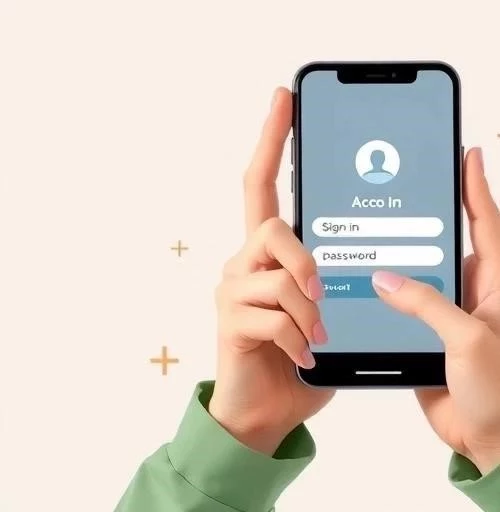
A Xiaomi Account connects your phone with Xiaomi services, including cloud backup, device location, contacts and other synced data. The menu names can differ slightly between MIUI, HyperOS and Android versions, but the sign-in process is similar. Before you start, connect to the internet and make sure you can access the phone number or email address linked to your account.
Sign in through Settings
- Open Settings on your Xiaomi, Redmi or POCO phone.
- Tap Xiaomi Account, usually shown near the top of the screen. On some phones, open Account or search Settings for “Xiaomi Account.”
- Choose Sign in if prompted. Enter the mobile number, email address or Xiaomi Account ID associated with your existing account.
- Enter your password, then tap Sign in. If the screen offers verification by SMS or email instead, request a code and enter it in the app.
- Complete any additional security check. Once signed in, review the services you want to sync.
Use the country or region code that matches the number on your account. If you enter a phone number without its country code, the system may not recognise it. A Xiaomi Account ID is not necessarily the same as your phone’s model name or Google account address.
Sign in during phone setup
On a newly reset or first-time setup, follow the on-screen instructions until you reach the Xiaomi Account page. Select the sign-in option and enter your account details. You can often skip this step and sign in later through Settings, although some Xiaomi services will remain unavailable until you do. If the device asks for the account previously used on it after a reset, this is an anti-theft protection check. Use the previously linked account; a new account will not remove that requirement.
If you do not have an account
On the sign-in page, tap Create account or Sign up. Follow the prompts to register with a phone number or email address, choose your region, and create a strong password. Xiaomi may send a verification code to confirm that you control the contact method. Enter the code only in the official sign-up screen. Keep your recovery email and number current so that you can regain access if you forget your password.
Forgot your password or cannot receive a code?
- Tap Forgot password? on the sign-in screen and follow the account recovery instructions. Choose the email or phone number you can access.
- Check that the contact details are typed correctly, including the country code. Look in your email’s spam folder and confirm that your phone can receive messages.
- Wait briefly before requesting another code. Repeated requests may trigger a temporary limit. Never share a verification code or password with another person.
- If you no longer have access to the registered email or number, use Xiaomi’s official account recovery or support process. Be ready to provide information that proves ownership.
Common sign-in problems
If sign-in fails, check your Wi-Fi or mobile data, then try again. Confirm that the password is correct and that the device’s date and time are set automatically. Restarting the phone or updating the system may help. If the account is locked after too many attempts, wait and use the recovery page rather than repeatedly guessing. A service outage can also prevent sign-in, so try again later.
If the account details are rejected despite being correct, check whether you selected the right region and whether you are using the same email or number originally registered. Avoid unofficial apps or websites that claim to unlock accounts. For further help, contact Xiaomi Support through an official regional website or service channel.
After you sign in
Open Settings > Xiaomi Account to check your account details, security options and sync settings. Enable only the services you want, such as Xiaomi Cloud or device finding, and review what data is being backed up. Keep your password private and add recovery methods. Before selling, giving away or resetting a phone, back up important files and sign out of the Xiaomi Account as instructed; removing it can affect cloud access and device protection.


4 Comments. Оставить новый
The explanation of the account check after a reset is useful. It clearly distinguishes anti-theft protection from ordinary sign-in.
Helpful reminder to use the correct country code. That small detail can save a lot of frustration when trying to verify an account.
The step-by-step instructions make signing in through Settings easy to follow, especially with the note that menu names can vary across devices.
Clear and practical overview for Xiaomi, Redmi, and POCO users. I appreciate that it also explains when signing in can be skipped during setup.