
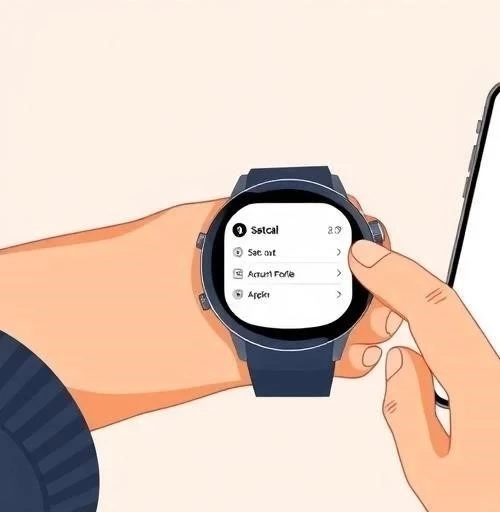
Important: Apple Watch does not have a separate “Sign Out” button for its Apple Account (formerly Apple ID). The usual way to disconnect an account is to unpair the watch from the iPhone it is paired with. Unpairing erases the watch‚ removes its Activation Lock‚ and creates a backup on the iPhone. If you are preparing the watch for someone else‚ this is generally the safest method.
Before you start
- Keep the Apple Watch and its paired iPhone close together‚ with Bluetooth and Wi-Fi enabled.
- Make sure both devices have enough battery power. If possible‚ connect them to power.
- Have the password for the Apple Account used on the watch ready. You may need it to turn off Activation Lock.
- If you use a cellular model‚ decide whether to keep or remove its mobile plan. Contact your carrier if you are giving away the watch and need to cancel or transfer service.
Unpair Apple Watch using your iPhone
- On the paired iPhone‚ open the Watch app.
- Tap My Watch‚ then tap All Watches at the top of the screen.
- Find the watch you want to disconnect and tap the info (i) button beside it.
- Tap Unpair Apple Watch‚ then confirm. If you have a cellular model‚ choose whether to keep or remove its plan. If you are transferring ownership‚ ask your carrier about the appropriate choice;
- Enter the password for the Apple Account associated with the watch if prompted. This disables Activation Lock and lets another person set up the device.
- Wait for the unpairing process to finish. The iPhone attempts to create a current backup of the watch before erasing it.
When the process is complete‚ the watch displays the setup screen. You can pair it again with your own iPhone or leave it ready for its next owner. Keep the iPhone nearby until the Watch app confirms that unpairing is finished.
Erase the watch without the iPhone
If you no longer have the paired iPhone‚ you can erase the watch directly. This removes personal data from the device‚ but does not by itself remove Activation Lock.
- On the watch‚ open Settings.
- Tap General‚ then Reset (on some software versions‚ choose Transfer or Reset Apple Watch).
- Tap Erase All Content and Settings and confirm. Enter the passcode if requested.
- For a cellular model‚ choose whether to keep or remove the plan. Removing a plan from the watch does not necessarily cancel the carrier subscription.
After the erase‚ remove the watch from the account using Find My or the Apple Account device list. Sign in with the account that owns the watch‚ select the device‚ and choose the option to remove it from the account. Menu names can vary by software version. If Activation Lock remains‚ the owner must remove it; a new user cannot bypass it with a reset.
If you cannot use the passcode
Place the watch on its charger. Press and hold the side button until the power controls appear‚ then press and hold the Digital Crown until the erase option appears. Follow the on-screen instructions. This procedure erases the watch‚ but you may still need the original Apple Account and password to activate it afterward.
Signing out for a different reason
If you are keeping the watch and only want to change which Apple Account is used‚ there usually is no independent account switch on the watch. Unpair it‚ sign in to the desired account on the iPhone‚ then pair and set up the watch again. Some account information and services are managed through the paired iPhone‚ so check that the phone is using the account you intend to keep.
For a watch set up for a family member‚ use the iPhone that manages the family member’s watch in the Watch app. If you cannot access that iPhone‚ the family organizer or original account holder may need to remove the watch through Find My. Do not erase a watch you do not own unless you have permission and the account holder can clear Activation Lock.
Before giving away or selling the watch
- Unpair it through the Watch app whenever possible; this is the recommended way to make a backup and clear the lock.
- Confirm that the watch has been removed from the previous owner’s account. Erasing alone is not enough.
- Remove or transfer the cellular plan as needed‚ and take off any physical accessories or bands you are not including.
- Do not share your account password. The new owner should set up the watch with their own iPhone and account.
In short: To sign out‚ unpair the Apple Watch from its iPhone and authenticate with the account password when asked. If the phone is unavailable‚ erase the watch and separately remove it from the account to clear Activation Lock.



3 Comments. Оставить новый
The step-by-step instructions make it clear that unpairing through the iPhone is the best option when preparing an Apple Watch for someone else. The reminder about Activation Lock is especially helpful.
This is a practical guide with sensible preparation tips, including keeping the devices nearby and checking their battery levels. The clear sequence should help readers avoid unnecessary setup problems.
I appreciate the distinction between erasing the watch directly and unpairing it with the paired iPhone. Mentioning the cellular plan and carrier is a useful detail people might otherwise overlook.