
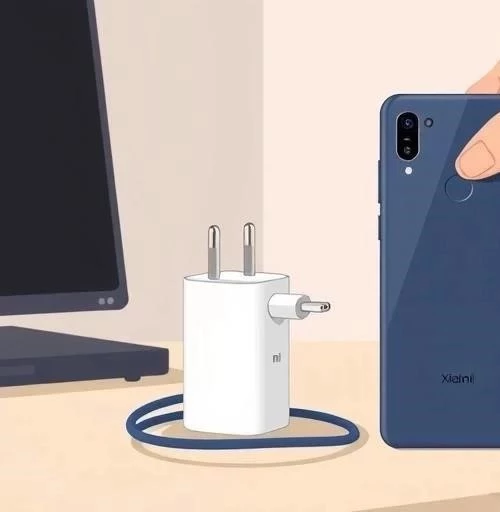
The Redmi Note 8 Pro supports wired fast charging, rated at up to 18 W with a compatible charger. Some Xiaomi phones have a switch for fast charging, but the Note 8 Pro’s MIUI version may not offer one. If you cannot find a charging-speed setting, you are probably not overlooking it: on many versions of this model, charging speed is controlled mainly by the power adapter and cable.
Check whether your phone has a charging toggle
- Open Settings and tap Battery (the name or location can vary by MIUI version).
- Look for options such as Additional features, Charging settings, or Boost charging speed.
- If a fast-charging switch is available, turn it off and reconnect the charger. Check the battery screen or lock screen to confirm the change.
Menu names and features differ between MIUI releases and regions. You can also use the Settings search bar and search for “fast charging” or “charging speed.” If no relevant option appears, your installed software does not expose a switch for this function. Updating MIUI is unlikely to add a control that is not supported for your particular model.
Use a lower-power, reputable charger
The simplest workaround is to charge with a compatible standard USB charger that supplies less power than the fast charger. For example, a reputable 5 V, 1 A adapter will usually charge more slowly than an 18 W fast charger. A standard 5 V, 2 A adapter may also be slower, though the actual rate depends on the adapter, cable, phone, battery level, and temperature.
- Unplug the fast charger from the wall and the phone.
- Connect the phone to a good-quality, certified 5 V USB charger using a sound USB-A-to-USB-C cable.
- Check that charging starts normally and that the adapter and phone do not become unusually hot.
A USB port on a computer or a powered USB hub can also charge more slowly, but output varies by device and port. It may charge very slowly, or stop charging if the computer sleeps. Do not rely on a particular port as a guaranteed charging limit.
What not to do
- Do not use damaged, counterfeit, or unbranded chargers. A low price or low stated output does not make an adapter safe. Choose a reputable manufacturer and a product designed to meet applicable electrical-safety standards.
- Do not modify cables or chargers. Avoid homemade adapters, cut cables, resistors, and questionable “slow-charge” accessories. They can cause overheating, unstable power, or damage.
- Do not install an app that claims to disable fast charging. Ordinary apps cannot reliably change the phone’s charging hardware behavior. Apps that request unnecessary permissions or promise a hidden system control should be treated cautiously.
- Do not confuse battery-saving settings with charging controls. Battery Saver limits some phone activity; it does not necessarily reduce the power supplied by the charger.
If the phone still charges quickly
Charging speed is not constant. The phone may draw more power when the battery is low and reduce it as the battery fills or warms up. A charger’s label gives its possible output, not a fixed rate that the phone must always use. Try a different reputable, lower-output adapter and cable, then compare the charging time under similar conditions. Remove a thick case if the phone feels warm and charge it on a hard, ventilated surface.
If the phone becomes excessively hot, the battery swells, charging repeatedly disconnects, or you notice a burning smell, unplug it and stop using that charger. Do not open the phone or attempt a battery repair yourself; contact a qualified repair service.
Does slower charging protect the battery?
Reducing charging power can reduce heat in some situations, but it does not guarantee a longer battery life. Heat, very frequent full-to-empty cycles, and leaving a phone hot while charging can also affect battery aging. Use a safe charger, avoid covering the phone during charging, and unplug it if it gets unusually warm. The Note 8 Pro does not support wireless charging, so a wireless pad is not an alternative method for this model.
In short
First check Settings > Battery for a fast-charging control; it may not exist on your MIUI version. If it is absent, use a reputable standard 5 V charger and suitable cable instead of the 18 W fast charger. This is the practical way to slow charging on the Redmi Note 8 Pro. Avoid unsafe accessories, and remember that charging speed varies with battery level, temperature, and equipment.
4 Comments. Оставить новый
This is a clear and practical explanation. The reminder that charging speed depends on the adapter and cable is especially helpful.
The lower-power charger suggestion is a useful workaround, and the safety advice about avoiding unusual heat is important.
Well organized and easy to follow. Mentioning that USB ports vary in output makes the alternative charging options more realistic.
I appreciate the model-specific caveat about MIUI settings. It saves readers from searching for a toggle that may not exist on their phone.