
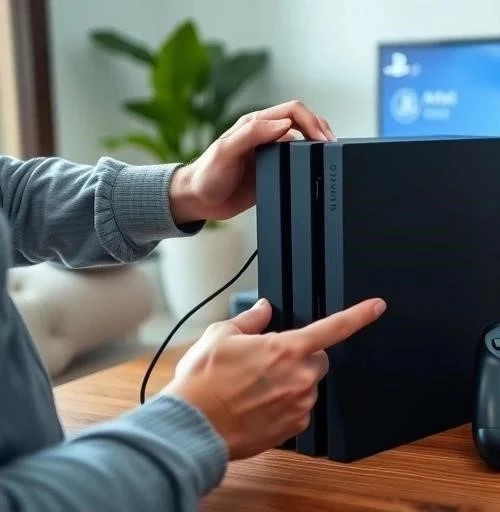
A used PS4 can be a brilliant little time machine—or a handsome black box with a failing fan, a drifting controller, and a past it would rather not discuss. Whether you are inspecting a console before buying it or diagnosing one you already own, do not judge it by its glossy shell. Give it a proper test, step by step.
Identify the console before you inspect it
Find the model number on the rear or underside label. It usually begins with CUH, followed by a series of digits and letters. The original PS4, PS4 Slim, and PS4 Pro differ in size, shape, ports, and performance. Check the number against Sony’s official support information if you need to confirm the exact model or regional version. A Pro is larger and has three stacked sections; the Slim has a softer, rounded profile; the original model has a more angular shape.
Also check the serial number and make sure the label has not been removed or obviously altered. If you are buying the system, compare the number on the console with the box or receipt when available. A mismatch is not proof of a problem, but it is a reason to ask questions. The label tells you what the machine claims to be; the tests tell you how it feels about that claim.
Read the outside like a map
- Inspect the casing. Look for cracks, deep dents, missing feet, damaged seams, or signs that someone has forced the case open. Scuffs are cosmetic; broken plastic around a port can be more serious.
- Check every socket. Examine HDMI, USB, Ethernet, and power connections with a light. Bent pins, a loose HDMI port, or a plug that slips out easily deserve attention. Never force a cable into a port.
- Look through the vents. Dust is common, but thick mats of grime, corrosion, or a burnt smell may point to neglect or damage. Do not poke tools into the vents.
- Check the power cable. It should be undamaged and fit securely. Use the correct cable for the model and your local power supply.
A console can be dusty without being doomed. The warning signs are combinations: heavy dust plus loud, constant fan noise; a damaged port plus a wobbly image; or a burnt odor plus unexplained shutdowns.
Start it up—and listen
Place the PS4 on a firm, open surface with room around the vents. Connect it directly to a known-working outlet and a reliable display. Turn it on and watch the light, screen, and startup sound. A normal boot should lead to the home screen without repeated beeps, flashing error messages, or an endless restart loop.
Listen to the fan. During a demanding game, a PS4 can become noticeably loud; that alone does not prove a fault; But a grinding, rattling, or scraping sound is not normal, and a fan that roars immediately while the console is idle deserves investigation. Check that air can flow freely and that the machine is not sitting on fabric or inside a cramped cabinet. If it shows an overheating warning or switches itself off, stop the test rather than repeatedly powering it back on.
Put the picture and ports through their paces
A home screen is only the opening scene. Leave the console running for several minutes, then launch a game or another demanding application. Watch for flickering, colored specks, sudden black screens, image dropouts, or “no signal” messages. Gently check that the HDMI cable sits snugly—do not wiggle it aggressively. If possible, repeat the test with another HDMI cable and display. This helps separate a console problem from a faulty television or cable.
Try both USB ports with a controller cable or a USB drive, and check Ethernet if you can; A loose port may charge unreliably or disconnect during play. Test Wi-Fi by connecting to a network and loading an online feature. If a network test fails, remember that router settings, service outages, and weak signal can imitate a console fault; try another network before drawing a verdict.
Give the disc drive a real audition
If the model has a disc drive, use a clean, known-good game disc. Insert it gently and check that the console recognizes it, installs or starts the game, and can read it again after you eject and reinsert it. Listen for repeated clicking, grinding, or long, unsuccessful attempts to read the disc.
Test more than one disc if possible: a scratched disc can make a healthy drive look guilty. Also test a DVD or Blu-ray only if you have one handy, keeping in mind that playback features and regional restrictions may vary. Do not use a disc with cracks or severe damage just to “see what happens.”
Test the controller, not just the console
A DualShock 4 can hide its problems in a menu. Move each stick slowly and check whether the cursor drifts when you let go. Test every button, both triggers, the touchpad, the Options and Share buttons, and the D-pad in a game. Try the controller wirelessly and through USB. Check that it charges and that the light bar responds.
Watch for sticky buttons, a loose charging socket, a rattling battery, or sticks that feel unusually worn. If a second controller is available, compare them. A fault in one controller does not necessarily mean the PS4 is faulty—but replacing a controller still belongs in your budget.
Check storage, software, and account status
Open the system settings and confirm that the PS4 reports its storage correctly. Install or launch a game, then see whether loading is unusually slow, installation fails, or the system freezes. One slow download may be caused by the internet; repeated crashes across different games are more concerning. Check that the system software can reach the update screen, but do not start a factory reset or software reinstallation unless you understand that it can erase data.
If buying from someone, ask them to deactivate the console as their primary PS4 and sign out of their account before the handover. Do not accept a system that is still locked behind someone else’s login or parental controls. Ask the seller to demonstrate that online features work. A ban or account restriction can limit online use, and no ordinary hardware inspection can guarantee that a console will never face a later network issue. Be wary of promises that a ban can be “fixed” with a quick setting change.
Make a calm buying decision
- Ask to see the console powered on, not merely plugged in.
- Test a game, the disc drive, controller, HDMI output, and at least one USB port.
- Let it run long enough to reveal heat-related problems.
- Confirm what is included: cables, controller, stand, box, or games.
- Agree on the price only after testing, and get a receipt or written record where possible.
Never open the console or attempt repairs during a quick inspection. The power supply can be hazardous, and opening the case may damage parts or affect warranty coverage. If the system smells burnt, sparks, has liquid damage, or repeatedly shuts down, unplug it and consult a qualified repairer.
The final verdict
A healthy PS4 does not need to be silent, spotless, or showroom-perfect. It should boot reliably, display a stable picture, read a good disc if equipped, respond to its controller, and stay on during a game without alarming noises or shutdowns. Treat each test as a small question, not a courtroom accusation. When the answers are clear, that old console can leave the inspection table and return to its proper life: turning ordinary evenings into one more mission, race, or “just one last match.”

6 Comments. Оставить новый
I like the article’s “read the outside like a map” approach. It turns a secondhand console inspection into a small detective story, where a loose port or altered label can speak louder than a polished shell.
I appreciate the calm tone. Dust is not treated like a death sentence, and cosmetic wear is kept separate from genuine red flags—a refreshing antidote to panic-driven buying advice.
A practical checklist with a little detective-noir atmosphere. I can almost picture someone shining a phone light into the vents, searching for the console’s past without letting curiosity turn into a screwdriver.
This guide gives sensible weight to the tiny details: missing feet, a wobbly HDMI socket, even a cable that refuses to sit snugly. In used-tech shopping, those quiet clues can be the loudest warnings.
The best reminder here is that a model number makes a claim, but a hands-on test gives the verdict. That distinction could save a buyer from trusting a box, a seller, or a glossy coat of plastic too quickly.
The line about the label telling you what the machine claims to be is wonderfully sharp. It captures the whole secondhand-shopping puzzle: trust the evidence, not the story wrapped around it.