
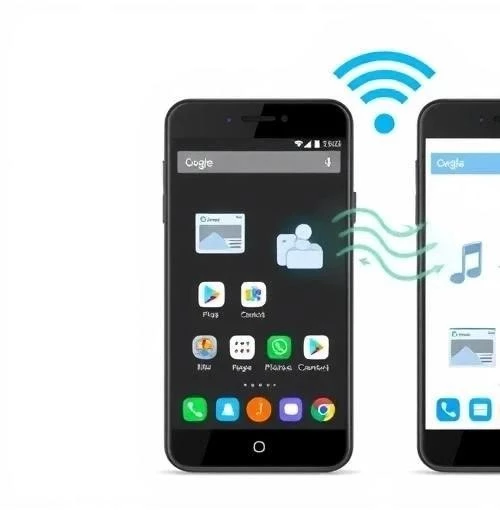
Moving to a new Xiaomi should feel less like moving house and more like opening a door: your photos, contacts, and familiar apps arrive with you․ The trick is choosing the right route, preparing both phones, and checking the new one before the old one disappears from the scene․
Before the transfer: prepare both phones
Charge both devices, connect them to Wi-Fi, and update them if you can․ Keep the old Xiaomi nearby and unlocked․ Check that the new phone has enough storage for everything you want to bring over․ If it is already set up, remember that some transfer options appear only during initial setup; using them later may require a reset․ Back up anything important before resetting a device․
- Make sure you know your Google account password and Xiaomi account details, if you use one․
- Check that photos, contacts, and other important files are present on the old phone․
- Keep your SIM in the old phone until calls and messages work on the new one․
- Do not erase or trade in the old phone until you have checked the copied data․
Method 1: Use Xiaomi Mi Mover
Mi Mover is Xiaomi’s phone-to-phone transfer tool․ Its name or location can differ by model and software version, and some newer devices may offer a similar transfer option during setup․ Search Settings or the app list for Mi Mover, Transfer data, or Set up device․ If the tool is not available, use the Google or cable method below․
- Open Mi Mover on both Xiaomi phones․ If prompted, install or update the app only through a trusted source or the phone’s official store․
- On the new phone, choose the option indicating that it is the recipient or new device․ On the old phone, choose sender or old device․
- Follow the on-screen instructions to connect the phones․ They may create a direct wireless connection and display a QR code to scan․
- Select the categories you want to transfer, such as contacts, messages, photos, videos, documents, and supported apps․
- Start the transfer and keep both phones close, unlocked, and powered․ Wait for the completion message before closing the tool․
Available categories vary by device and software version․ Some app data, secure folders, payment details, and protected content may not transfer․ An app icon arriving on the new phone does not guarantee that its account or saved data has moved with it․
Method 2: Copy during Android setup
If the new Xiaomi is still at its welcome screen, choose the option to copy apps and data from another device․ Depending on the models, you may be able to connect the phones wirelessly or use a compatible USB cable and adapter․ Follow the setup prompts, unlock the old phone when asked, and choose what to copy․ This route can bring over a useful mix of Google account data, apps, contacts, and media․
For a wireless copy, keep the phones near each other and connected to power․ For a cable copy, use a reliable data cable—not a charge-only cable—and accept any confirmation prompts on the old phone․ If the connection fails, try another cable or switch to wireless transfer․
Method 3: Restore from a Google backup
On the old phone, open Settings and look for Google, Backup, or a similarly named option․ Turn on the backup you need and run a fresh backup over Wi-Fi․ On the new Xiaomi, sign in with the same Google account during setup and choose the available backup to restore․
This is especially useful when the old phone is not beside you, but it is not a perfect clone․ What returns depends on the backup settings, app support, Android version, and available cloud storage․ Photos may be handled separately through Google Photos, so check that photo backup is enabled if you want your library online․
What often needs a separate move?
- WhatsApp: Use WhatsApp’s own chat transfer or backup-and-restore instructions․ Confirm the phone number and account, and check that chats appear before removing the old installation․
- Banking and authenticator apps: These may require a fresh sign-in, identity check, or account-specific migration․ Follow each app’s instructions and preserve recovery codes․
- Passwords and secure files: Confirm that your password manager syncs, and move private files using its supported method․
- SIM or eSIM: A physical SIM can usually be moved when you are ready․ An eSIM may require a carrier transfer or a new activation QR code․
Verify first; wipe later
On the new phone, open your contacts, gallery, messages, and essential apps․ Check a few older photos and files, not just the newest ones․ Test calls, mobile data, Wi-Fi, and two-factor authentication․ If something is missing, keep the old phone untouched and repeat the relevant backup or transfer step․
When everything important works, sign out of accounts on the old device if appropriate, then use its Settings menu to perform a factory reset before selling or giving it away․ The safest migration is not the fastest one: it is the one that leaves you with a working new Xiaomi and a verified copy of what matters․


2 Comments. Оставить новый
A good phone transfer is a bridge, not a leap of faith—and this guide wisely keeps the old device standing until the new one is checked. The practical reminders about storage, passwords, and waiting to move the SIM turn a potentially stressful swap into a much calmer handoff.
I like that the guide treats Mi Mover as one route rather than the only road into a new phone. Mentioning model differences and trusted download sources is especially helpful; a tiny bit of preparation can save a whole afternoon of wondering where the photos went.