
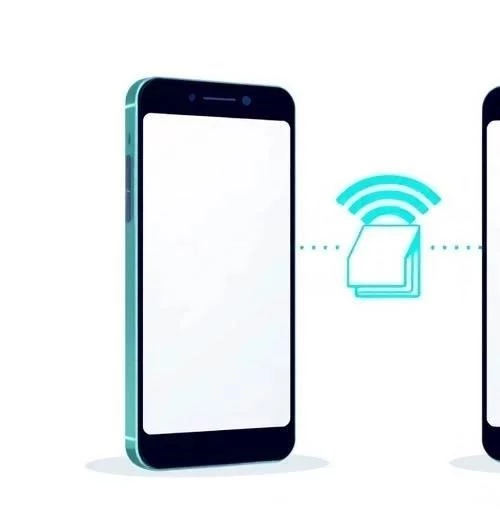
Moving to a new Xiaomi phone does not have to mean losing your notes. The best method depends on where your notes are stored and which version of Xiaomi’s Notes app you use. In many cases, syncing both phones with the same Xiaomi Account is quickest. If cloud sync is unavailable, you can try a phone-to-phone transfer or export notes manually.
Before you start
- Connect both phones to Wi-Fi and charge them, especially if you have many notes or attachments.
- Update the Notes app and system software if updates are available. Menu names can vary by MIUI or HyperOS version, region, and app version.
- On the old phone, open Notes and check that the notes you need are visible. Pay special attention to notes stored in folders, archived notes, and notes with images or voice recordings.
- Do not erase or reset the old phone until you have checked the notes on the new one.
Method 1: Sync Notes with your Xiaomi Account
This is usually the simplest option when Xiaomi Notes supports cloud synchronization on your device and in your region.
- On the old phone, open Settings and sign in to the Xiaomi Account you want to use. If you are already signed in, verify that it is the correct account.
- Look for Accounts & sync, Xiaomi Account, or Mi Cloud. The exact path differs between software versions.
- Open the sync or cloud settings and enable synchronization for Notes, if that option is offered. You may need to open Settings > Mi Account > Xiaomi Cloud and select the Notes service.
- Open the Notes app, keep the phone online, and allow synchronization to finish. If there is a sync button, tap it. Check that the latest notes appear in the cloud or account sync status.
- On the new Xiaomi phone, sign in with the same Xiaomi Account. Enable Notes synchronization in the corresponding cloud settings, then open Notes and wait for the notes to download.
Important: Cloud services and available sync options can differ by country, account settings, and app version. Some phones may not offer Xiaomi Cloud sync for Notes. If you cannot find the option, do not assume that the notes have been backed up; use another method below.
Method 2: Use Mi Mover for a phone-to-phone transfer
Mi Mover is Xiaomi’s transfer tool for moving data from an old phone to a new one. Its available data categories vary, so check whether Notes are included before relying on it.
- Install or open Mi Mover on both phones. On some Xiaomi devices it is already available under Settings > Additional settings or in the Tools folder.
- On the new phone, choose the option indicating that it is the new device. On the old phone, choose the old-device option.
- Follow the on-screen instructions to connect the phones. This may involve scanning a QR code or creating a direct wireless connection.
- When the data list appears, select Notes if it is offered. Start the transfer and keep both phones nearby, unlocked, and connected until it finishes.
- Open Notes on the new phone and inspect several recent and older entries, including attachments;
Mi Mover may transfer other information without transferring every note, depending on the models and software. If Notes is not listed, or the notes do not appear afterward, use cloud synchronization or manual sharing instead.
Method 3: Share or export notes manually
For a small number of notes, manual export is often the most dependable fallback. Open a note on the old phone, tap the menu or share icon, and choose an available format or destination. Depending on the app version, you may be able to share the note as text, an image, or a file. Send it to the new phone using Bluetooth, a messaging app, email, Nearby Share/Quick Share, or a computer.
Repeat this for each note you need. A text export may not preserve the original layout, checklist formatting, colors, reminders, or attachments. If a note contains photos or audio, confirm that those items are included in the shared file; otherwise, save and transfer them separately. On the new phone, open the received content and copy it into Notes if you want it to become an editable note.
If the Notes app offers Export or Backup, use that feature and follow its instructions. Save the resulting files somewhere accessible, such as a computer or cloud drive, then import them on the new phone if the app provides an import option. Do not rename or edit backup files unless the app’s instructions say it is safe.
Can Google backup transfer Xiaomi Notes?
Google backup can restore certain phone settings and app data, but it does not necessarily include Xiaomi Notes or guarantee that notes will be restored in the same form. Check Google backup status under Settings > Google > Backup, but treat it as an additional safeguard rather than the only transfer method. If your notes are in Google Keep or another app with its own account sync, install that app on the new phone and sign in to the same account.
Troubleshooting missing notes
- Check the account: Make sure both phones use the same Xiaomi Account, including the same account region where applicable.
- Check sync settings: Turn Notes sync on, connect to Wi-Fi, and allow background data. Then reopen the app and wait.
- Check the app and folders: Look through archived, hidden, or other folders and confirm that the new phone has the relevant Notes app.
- Restart and retry: Restart both phones and check synchronization again. Avoid clearing app data on the old phone while troubleshooting.
- Keep a second copy: Export important notes or share them to a safe location before resetting either device.
Which method should you choose?
Use Xiaomi Account sync when it is available and you want ongoing access across devices. Try Mi Mover for a convenient initial transfer, but verify that it actually includes your notes. For a few essential entries or when cloud sync is unavailable, export or share them manually. The safest approach is to make a backup first, transfer the notes, and compare the result on the new phone before wiping the old one.




5 Comments. Оставить новый
This makes the process feel straightforward without assuming every Xiaomi phone has the same menus. Good advice to keep both phones charged and connected to Wi-Fi.
Helpful explanation of the Xiaomi Account method. Including alternative transfer options would make the guide even more complete.
The reminder to verify notes on the new phone before resetting the old one is especially helpful. It’s an easy step to overlook.
Clear and practical guide. I appreciate that it explains cloud syncing may vary depending on the device, region, and software version.
The preparation checklist is useful, especially the advice to check archived notes and attachments before starting the transfer.