
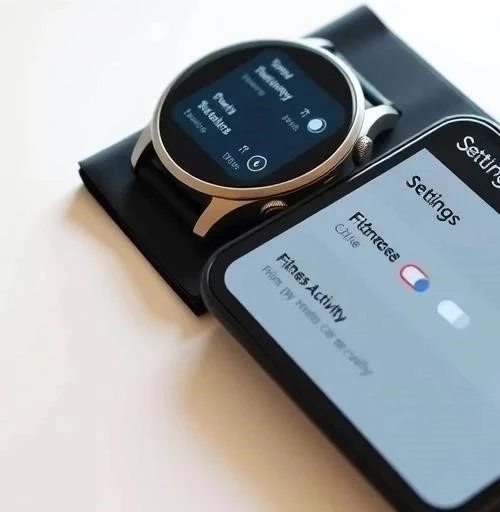
Your Apple Watch can be a tiny coach, cheering from your wrist. If you want a quieter companion—or a break from rings, move goals, and workout nudges—you can switch off Fitness Tracking without unpairing the watch or deleting your Apple account.
Turn off Fitness Tracking
- Open the Watch app on the iPhone paired with your watch.
- Tap My Watch, then Privacy.
- Switch Fitness Tracking off.
This setting stops the watch from collecting and sharing fitness-tracking data with apps, including Activity measurements. Depending on your software version, the wording or menu layout may vary slightly. If you cannot find the switch, check that your iPhone and watch are updated, then look again under Privacy in the Watch app.
Silence the reminders, too
Turning off tracking is not quite the same as turning off every fitness prompt. To stop Activity notifications, open the Watch app on your iPhone, tap Notifications, then Activity. Turn off the alerts you do not want, such as stand, goal, or coaching notifications. You can also open Settings on the watch, choose Activity, and adjust reminders there.
For workout-start or workout-end prompts, find Workout in the watch’s Settings and switch off the automatic reminders. Menu names can differ a little between watchOS versions, like signposts on a familiar trail moved by a season.
What changes—and what does not
- Your Activity rings and fitness measurements may stop updating while tracking is disabled.
- Other features, such as timekeeping and notifications, continue to work.
- This does not necessarily disable every health sensor or every app’s access. Review app permissions separately in the iPhone’s privacy settings.
To resume tracking, return to Watch app → My Watch → Privacy and turn Fitness Tracking back on. If your goal is only a notification-free day, leave tracking enabled and silence Activity alerts instead. That way, the data can keep a quiet diary while your wrist stops acting like a motivational speaker.

8 Comments. Оставить новый
A useful little map for anyone whose wrist has become a very small gym instructor. The note about menu differences across software versions saves readers from blaming themselves.
The guide treats privacy and peace of mind as separate settings, which is exactly right. It’s like choosing whether to close the observatory or simply dim its blinking lights.
I like the distinction between switching off tracking and simply muting reminders. It turns a confusing settings hunt into a choice between keeping the quiet diary and silencing the tiny coach.
Helpful reminder that one privacy switch is not a universal invisibility cloak. Checking app permissions separately is the small detail that makes this advice genuinely useful.
The “signposts moved by a season” image is spot-on for software menus. A practical guide with just enough poetry to make troubleshooting feel less like wandering a maze.
This gives permission to take a break without making the watch sound like it needs to be abandoned entirely. Sometimes a device can keep time without keeping score.
Concise instructions, thoughtful caveats, and a lovely closing image. This article makes the settings feel less like a test and more like choosing the volume of your own day.
Clear, calm, and refreshingly free of the “optimize every minute” attitude. I especially appreciate the option to preserve tracking while turning down the motivational megaphone.