
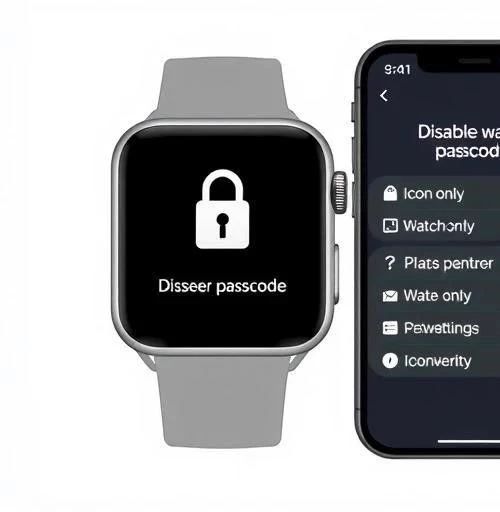
If you know your Apple Watch passcode, you can turn it off in a few steps․ If you have forgotten it, you cannot simply bypass or disable the code: you must erase the watch and set it up again․ These are different situations, so use the instructions that match yours․ Removing the passcode also does not necessarily remove Activation Lock, which may still require the Apple Account previously linked to the watch․
If you know the current passcode
You can turn off the passcode either on the watch or through its paired iPhone․ Keep the watch nearby and unlocked, and make sure you know the code before starting․
- On Apple Watch: Open Settings, tap Passcode, then tap Turn Passcode Off․ Confirm your choice and enter the current passcode if prompted․
- On iPhone: Open the Watch app and tap My Watch․ Go to Passcode and choose Turn Passcode Off․ Follow the on-screen instructions․
Menu wording can vary slightly by watchOS version․ If the option is unavailable, check whether the watch is managed by an employer or school, or whether a configuration profile or other security policy requires a passcode․ Contact the administrator before changing managed settings․
What changes when you turn it off?
A passcode helps protect personal information if your watch is lost or taken off your wrist․ Turning it off reduces that protection․ Apple Pay and other features that require a passcode may stop working, and you may lose the convenience of securely unlocking your iPhone with your watch․ If you are removing the code only because entering it is inconvenient, consider keeping it on and using the options below instead․
- In the Watch app, open Passcode and enable Unlock with iPhone, if available․ With the watch on your wrist, unlocking your iPhone can unlock the watch too․
- Review Wrist Detection in the Passcode settings․ Turning Wrist Detection off can affect security and some watch features, so check the on-screen explanation before changing it․
- Choose a passcode that is easier for you to remember, while avoiding obvious numbers such as repeated digits or a birthday․
If you forgot the passcode
There is no supported way to reveal, recover, or bypass a forgotten Apple Watch passcode․ Erasing the watch removes its passcode and data, after which you can set it up again and restore a backup if one is available․ Erasing does not guarantee that Activation Lock is removed․
Erase it using the paired iPhone
- Keep the iPhone and watch close together, then open the Watch app․
- Tap My Watch, then General > Reset․
- Choose Erase Apple Watch Content and Settings and confirm․ If asked, enter your Apple Account password․
- Wait for the erase to finish, then pair the watch again and follow the setup prompts․
Exact menu labels may differ between software versions․ If you can still unlock the watch but cannot use the iPhone method, unpairing it from the Watch app is another option․ Unpairing normally erases the watch and creates a backup on the iPhone; follow the prompts and keep the devices together until the process completes․
Erase the watch without the iPhone
If you cannot use the paired iPhone, place the Apple Watch on its charger․ Press and hold the side button until the power controls appear․ Then press and hold the Digital Crown until the erase option appears․ Tap Reset, tap it again to confirm, and wait for the process to finish․ The exact controls may vary by watchOS version․ If this method is not offered on your model, use Apple’s current instructions or contact Apple Support․
Erasing permanently removes content and settings stored on the watch․ You may be able to restore some information from an iPhone backup, but do not assume every item is backed up․ If possible, unpair through the Watch app before erasing, and make sure the iPhone has a recent backup․
Activation Lock is different from the passcode
The passcode locks the watch screen․ Activation Lock is an anti-theft feature linked to the Apple Account used with the watch․ After an erase, setup may ask for that account’s email address and password․ This is expected and does not mean the erase failed․ If the watch belongs to you but you cannot remember the account details, recover your Apple Account through Apple’s official recovery process․ If you bought the watch used, ask the previous owner to remove it from their account; only that owner can normally do so․
Before you begin
- Do not repeatedly guess the passcode; incorrect attempts can lock the watch temporarily․
- Do not use unofficial “unlock” services or tools that promise to bypass Activation Lock․ They cannot legitimately remove the owner’s account and may put your data or money at risk․
- If the watch is managed by an organization, contact its administrator․ If the erase fails or the watch will not start, contact Apple Support or an authorized service provider․
In short: use Settings > Passcode > Turn Passcode Off when you know the code․ If you have forgotten it, erase the Apple Watch, then set it up again with the Apple Account associated with it when prompted․

8 Comments. Оставить новый
A straightforward guide that explains both how to change the setting and what might stop working afterward. I would have liked to see the forgotten-passcode steps as well.
I’m glad the article points out that a work- or school-managed watch may have passcode requirements. Checking with an administrator is sensible advice.
I appreciate the reminder that removing the passcode does not necessarily remove Activation Lock. That could save someone a lot of confusion during setup.
The security trade-offs are worth mentioning. It is useful to know that disabling the passcode can affect Apple Pay and other features before making the change.
Helpful and easy to follow. The warning that turning off Wrist Detection can affect security and watch features encourages readers to consider the consequences first.
The distinction between turning off a known passcode and erasing a watch when it is forgotten is especially helpful. It makes the options clear right away.
Clear, practical instructions for both the watch and the iPhone. The note about menu wording changing between watchOS versions is helpful too.
The alternatives for making unlocking easier are a nice addition. Keeping the passcode enabled while using Unlock with iPhone may be a better fit for many people.