
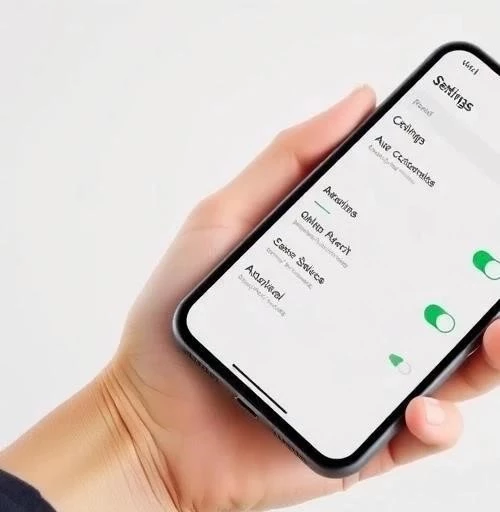
Xiaomi, Redmi, and POCO phones can sync data with Xiaomi Cloud, Google, and individual apps. Sync may keep contacts, photos, notes, and other information available across devices, but it can also use mobile data, battery power, or cloud storage. If you want to stop it, first identify which kind of sync you mean: Xiaomi Cloud, Google account sync, Gallery backup, or automatic background syncing in general.
Menu names and locations differ slightly between MIUI and HyperOS versions, and may also vary by region. If the path below does not match your phone, use the Settings search box and search for Sync, Accounts, or Xiaomi Cloud.
Turn off automatic syncing for all accounts
This is the broadest option. It stops many apps from automatically refreshing account data in the background. The names can vary, but try one of these paths:
- Open Settings.
- Go to Accounts & sync, Passwords & accounts, or Additional settings > Accounts & sync.
- Find Auto-sync data or Automatically sync data.
- Turn the switch off and confirm if your phone asks you to do so.
On some MIUI versions, the switch appears directly under Settings > Accounts & sync. On newer HyperOS releases, account controls may be grouped under Passwords & accounts or displayed separately for each account. You can also open Settings and search for “auto-sync” to locate the control.
Turning off automatic syncing does not usually sign you out or erase information already stored on the phone or in an account. However, new changes may not appear on other devices until you sync manually or switch the setting back on. Email, calendar events, contacts, and app data may update less often, so check important information directly in the relevant app.
Disable Xiaomi Cloud sync
Xiaomi Cloud is separate from Google sync. It may be used for items such as contacts, notes, messages, call history, and Gallery data, depending on your phone, account, region, and software version. To disable selected Xiaomi Cloud categories:
- Connect to the internet and open Settings.
- Tap your Xiaomi Account or account profile at the top of Settings. Sign in if prompted.
- Open Xiaomi Cloud.
- Choose Sync, Sync app data, or a similar option.
- Turn off the switches for the data types you no longer want to sync.
If you want to stop all Xiaomi Cloud syncing, turn off each available category. Some versions provide an overall cloud-sync switch; use it if shown. You can also open Settings > Accounts & sync > Xiaomi Account and review the sync controls there.
Switching off a category generally stops future uploads and updates; it does not necessarily delete the copies already in the cloud. Read any confirmation carefully. Avoid choosing an option such as Delete from cloud or Remove cloud data unless deletion is what you intend. If you later re-enable sync, the phone may upload local changes or download existing cloud information, depending on the service and the choices shown.
Stop Gallery and photo synchronization
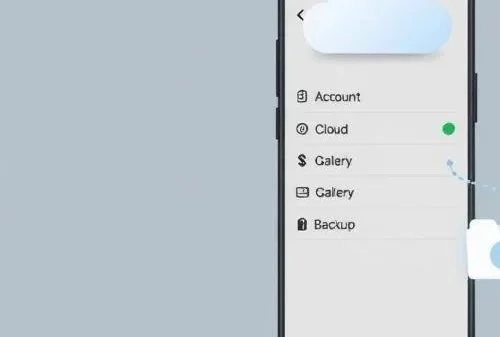
Photo backup is often controlled separately from general account sync. To stop Xiaomi Gallery from uploading pictures, open the Gallery app and look for Settings, Cloud sync, or Backup. The option may also be available through Settings > Xiaomi Account > Xiaomi Cloud > Gallery. Turn off Gallery sync or cloud backup.
If your pictures are backed up through Google Photos instead, open Google Photos, tap your profile picture, then go to Photos settings > Backup and switch Backup off. This is independent of Xiaomi Cloud: disabling one service does not automatically disable the other.
Before turning off photo sync, check whether the original photos are stored on the phone. Cloud thumbnails or optimized copies may not be full-resolution local files. Open a few important images while connected to the internet and verify that they are available at their original quality. Download anything you need to keep locally before changing cloud settings. Also check the service’s instructions before clearing its data or emptying its trash.
Turn off sync for one account or app
If you only want to stop a particular account from updating, avoid disabling automatic sync for the entire phone. Go to Settings > Accounts & sync (or Passwords & accounts), select the account, and open its sync settings. Turn off only the categories you do not need, such as contacts or calendar. The available categories depend on the account and installed apps.
Some apps manage syncing within their own settings rather than through the Android account screen. Open the app and look for options such as Sync, Backup, Cloud, or Background refresh. For example, a mail app may have a separate sync schedule, while a notes app may use its own cloud account. Disabling an app’s background activity is not always the same as turning off its cloud sync, so check the wording carefully.
Pause mobile-data syncing
If the problem is mobile-data use rather than syncing itself, you may be able to keep sync enabled on Wi-Fi only. Check the relevant service’s settings for Sync over Wi-Fi only, Use mobile data, or similar controls. Xiaomi Cloud and photo apps may offer separate network preferences. You can also review app-specific data access in Settings > Apps > Manage apps > [app] > Data usage; the precise path varies by version.
Be cautious about restricting background data for communication apps. Messages, mail, calendar reminders, or other updates may arrive late when the app is not open. If you are troubleshooting delayed notifications, restoring background access for the affected app may be more useful than enabling every sync service on the phone.
What changes after sync is disabled?
- Updates stop flowing automatically. A contact edited on the phone may not be updated in the cloud or on another device.
- Some data remains online. Turning off sync is not necessarily the same as removing stored cloud copies.
- Backups may become outdated. New photos, notes, or other changes may not be recoverable from the cloud if the phone is lost or reset.
- Manual refresh may still be possible. Many account pages and apps let you start a sync manually, even when automatic sync is off.
- Battery and data savings vary. The effect depends on how many services were syncing and how often they run.
If you are selling, giving away, or resetting the phone, turning off sync alone is not enough to protect your account or personal information. Back up anything you need, sign out of your Xiaomi and Google accounts as appropriate, and follow the phone’s reset instructions. Do not remove cloud data simply to stop background activity.
How to turn syncing back on
Return to the same menu and re-enable the overall Auto-sync data switch, the relevant account categories, or the specific Xiaomi Cloud or photo-backup setting. If you disabled only one category, you do not need to turn everything on again. Keep the phone connected to a reliable network while the first sync runs, and review any prompts about merging, replacing, or deleting data before you confirm.
Quick checklist
- For broad background syncing: Settings > Accounts & sync and switch off Auto-sync data.
- For Xiaomi services: open your Xiaomi Account > Xiaomi Cloud and disable the relevant categories.
- For Gallery uploads: check Gallery or Xiaomi Cloud settings; for Google Photos, turn off Backup inside Google Photos.
- For one account or app: change only that account’s or app’s sync settings.
- Before deleting anything: confirm that important files are available locally and read the warning on screen.
In short: choose the narrowest setting that solves the problem. Disable one cloud category if you only want to stop photo uploads; turn off global auto-sync only if you want to pause automatic updates across accounts. This helps avoid unintended interruptions or loss of access to information you still need.
Further reading
- Xiaomi Cloud sync and backup guide
- Xiaomi Gallery sync and photo recovery
- Sync settings in MIUI 12

8 Comments. Оставить новый
Good advice to check important information in the relevant app after changing sync settings. That practical detail is easy to overlook.
The distinction between Xiaomi Cloud and Google sync is helpful. It makes it easier to find the right setting without accidentally disabling everything.
A clear, practical guide. Mentioning Settings search is especially useful since menu names can vary across MIUI and HyperOS versions.
The explanation of how disabling sync affects updates on other devices is straightforward and easy to understand.
I appreciate the note that turning off auto-sync usually does not delete data already on the phone or in the account. That reassurance matters.
This article does a nice job explaining the trade-offs, including possible effects on background updates, battery use, and mobile data.
The step-by-step instructions are concise, and the alternative menu paths should help people using different software versions.
Useful overview of the different kinds of syncing, especially the reminder that Gallery backup may have its own controls.