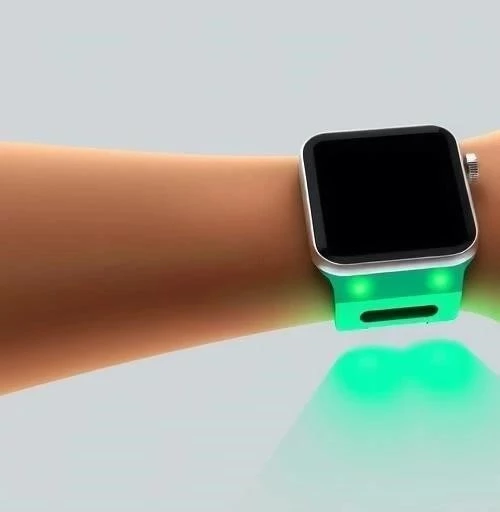
A tiny green glow beneath your Apple Watch can look like a secret signal from a very small spaceship. Usually, it is much less mysterious: the green LEDs on the back of the watch help its optical heart sensor estimate your pulse. They shine through your skin, while light-sensitive sensors measure changes in blood flow. When the watch checks your heart rate, green light is part of the process.
So, if your Apple Watch Series 3 flashes green while you are wearing it, that is generally normal. It may happen during a workout, during a background heart-rate check, or when you open the Heart Rate app. The lights can also blink briefly after you take the watch off, as a reading finishes or the sensor activity winds down. The important distinction is whether the glow appears occasionally or stays on persistently when the watch is not on your wrist.
Turn off heart-rate measurements
If you are comfortable giving up heart-rate readings, you can disable the feature. On the watch, open Settings, then choose Privacy, Health, and Heart Rate. Switch off Heart Rate. On the paired iPhone, open the Watch app, tap My Watch, go to Privacy, and turn off Heart Rate there.
Menu names may vary slightly depending on the watchOS version installed on your Series 3. If you cannot find the setting on the watch, use the iPhone app; it often provides the clearest route through older software. After changing it, give the watch a moment to finish its current sensor check. The green LEDs should no longer be used for routine heart-rate measurements.
Check workouts and Fitness Tracking
A workout can keep the heart sensor busy for longer than an occasional background reading. If the green light appears during or after exercise, open the Workout app and make sure a session has not been left running. End any active workout normally. If you do not want the watch to track activity in the background, open the Watch app on your iPhone, tap Privacy, and review Fitness Tracking. Turning it off reduces activity tracking, but also limits related fitness features.
Some workouts offer a Power Saving Mode that can reduce heart-rate measurements during exercise. On the iPhone, look under Watch > My Watch > Workout for the available option. This is not the same as switching off the heart sensor everywhere: it is intended to save battery during workouts. If the green light is the problem in every situation, use the Heart Rate privacy setting instead.
Try these quick checks if the glow continues
- Take the watch off and wait. A brief flash may simply be the final part of a measurement. Place it sensor-side up on a clean surface and see whether the light stops.
- Close the Heart Rate app. If it is open, press the side button to leave it, then wait a few seconds. A running workout should be ended from the Workout app rather than merely dismissed.
- Restart the watch. Hold the side button, use the on-screen power control to switch it off, wait briefly, and turn it back on. If the screen is frozen, Apple’s restart instructions for your watchOS version are the safer guide.
- Check for software updates. Install an update only if one is available for your Series 3 and your paired iPhone. Older models may not support the newest watchOS, so do not assume every current update applies.
- Inspect the back of the case. Wipe away sweat or grime with a soft, lint-free cloth. Do not scrape the sensor, use sharp objects, or put cleaning liquid into openings.
Can you switch off only the green LEDs?
There is no separate “green light” switch designed to preserve every other heart-sensing feature while disabling only the visible LEDs. The practical control is to disable heart-rate measurement, which also removes heart-rate readings and features that depend on them. This trade-off may affect workout statistics, heart-rate notifications, and other health information. If you rely on those features, consider leaving the sensor enabled and simply checking whether a workout or app is responsible for the glow.
Wrist Detection is sometimes suggested as a workaround, but it is not the best first choice. Turning it off can affect automatic locking and other watch functions, and it is not a dedicated sensor-light control. Start with the Heart Rate setting; change other privacy or security settings only if you understand what else they do.
When a green light may need attention
If the LEDs remain brightly lit for a long time while the watch is off your wrist, after you have disabled Heart Rate, and after a restart, something may be stuck or malfunctioning. Check whether an app or workout is still active. If the behavior continues, contact Apple Support or an authorized service provider and explain exactly when the light appears. Avoid opening the case or trying to cover the sensor with tape: the back contains delicate components, and blocking it while wearing the watch will not repair a fault.
For health concerns, remember that a watch reading is not a diagnosis; Disabling the sensor stops routine measurements; it does not treat a medical condition. If you have symptoms or need reliable monitoring, speak with a healthcare professional before turning off health features.
The short version
Green light on an Apple Watch Series 3 is usually the heart-rate sensor doing its job. To stop routine flashes, open Settings > Privacy > Health > Heart Rate on the watch, or use Watch > My Watch > Privacy > Heart Rate on the iPhone, and switch the feature off. If it glows continuously off your wrist even afterward, restart the watch and seek support. The little green beacon is normally a measurement in progress—not a warning that your watch is about to take off.