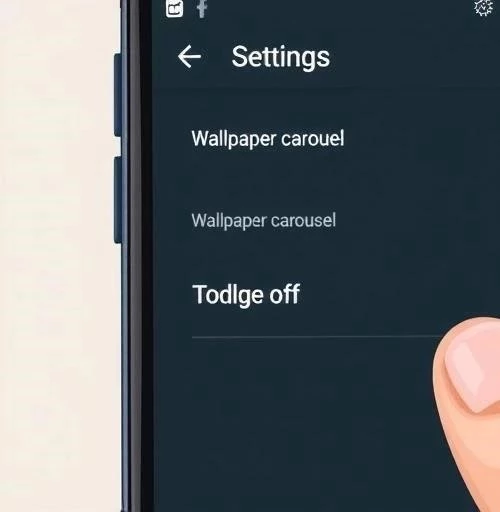
The Wallpaper Carousel can show changing pictures, headlines, or other recommendations on your Xiaomi lock screen. If you prefer a fixed image, want fewer distractions, or are trying to reduce background activity, you can usually turn the feature off in Settings. The exact labels vary between MIUI and HyperOS versions, phone models, and regions, so try the routes below in order. Disabling the carousel does not normally affect your home-screen wallpaper or the rest of the phone.
Method 1: Switch it off in Settings
- Open Settings.
- Tap Lock screen. On some versions, the relevant menu is called Always-on display & Lock screen.
- Look for Wallpaper Carousel, Glance for Mi, or a similarly named option.
- Open it and switch off Turn on, Enable, or Show on Lock screen.
Check the lock screen after changing the setting. If it now displays one image instead of cycling through pictures or cards, the feature is off. This is the cleanest approach because it uses Xiaomi’s own control and is easy to reverse later.
Method 2: Find the setting through the search bar
Menu organization changes across software releases, and a guide for another Xiaomi model may show a different path. Rather than searching every submenu, open Settings and use the search field. Try terms such as Wallpaper Carousel, Carousel, or Glance. Open the matching result and disable the lock-screen option.
If search finds nothing, that does not necessarily mean the feature is absent. It may be named differently, unavailable in your region, or controlled through an app. Continue with the next method.
Method 3: Turn it off in the carousel app
On some phones, the carousel is managed by a separate app. Open the app drawer and look for Wallpaper Carousel or Glance. If you find it, open its settings and turn off the option that displays content on the lock screen. You can also open Settings > Apps > Manage apps, select the relevant app, and check whether it offers an in-app settings button.
App controls differ by version. If the app has no obvious switch, first use Settings search and check the lock-screen menus again. Avoid disabling unrelated apps just because their names sound like wallpaper services.
Remove the current carousel image
Switching off the feature may leave the last carousel picture on the lock screen. To replace it, open Settings > Wallpaper or press and hold an empty area on the home screen and choose Wallpaper. Select a built-in image or one from your gallery, preview it, and apply it to the Lock screen. Choose the lock-screen destination carefully if you want to keep a different home-screen background.
If the carousel keeps returning
- Restart the phone. This can make a changed lock-screen setting take effect.
- Check the switch again. A software update or a change of lock-screen theme can restore or alter an option.
- Review app permissions and notifications. If the carousel app remains installed, disable its lock-screen notifications or recommendations if those controls are available. This can reduce interruptions, but it may not stop the wallpaper itself from changing.
- Clear the app’s cache if needed. In Settings > Apps > Manage apps, select the carousel app and choose Clear cache, if shown. Cache clearing is different from clearing data: the latter may reset the app’s preferences.
Can you uninstall it?
If the feature is a normal downloadable app, Xiaomi may let you uninstall it from its app-info page or the app drawer. Some devices instead offer only Uninstall updates, Disable, or no removal option at all. Prefer the built-in off switch; it is safer and easier to undo. Do not use ADB commands or remove system packages unless you understand the consequences. Disabling the wrong component can affect lock-screen functions or other system features.
Why the instructions may not match your phone
Xiaomi’s software differs between MIUI and HyperOS, and the names and availability of lock-screen services can vary by model, region, and installed version. Some regions may not include the same carousel service. Therefore, treat menu paths in online guides as alternatives rather than universal instructions. Start with Settings search, confirm that the switch refers specifically to lock-screen content, and avoid changing unrelated display or security settings.
In short
Search Settings for Wallpaper Carousel or Glance, then turn off its lock-screen switch. If the menu is missing, check Lock screen and the carousel app’s own settings. Finally, set a static lock-screen wallpaper if the old image remains. These steps address the usual cause without requiring a reset or risky removal of system components.