
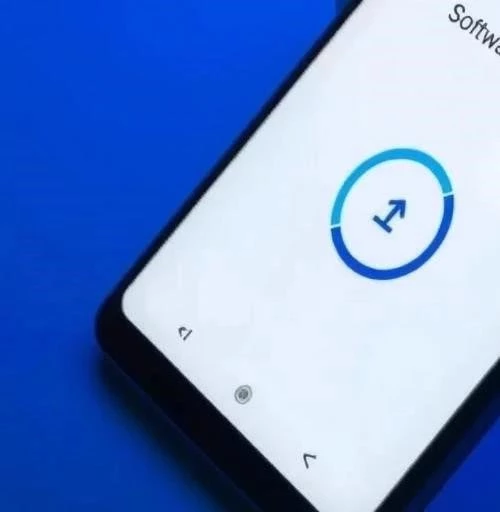
Updating Android on a Xiaomi phone can provide new features, security fixes and improvements to system stability. Depending on the model and software version, the update may be described as an Android, MIUI or HyperOS update. Menu names can vary slightly, but the usual process is similar. Before starting, check that the update is intended for your exact device and region.
Check for an official update
- Connect the phone to a reliable Wi-Fi network. Updates can be large, so using mobile data may incur charges or take longer.
- Open Settings and tap About phone. On many models, the current MIUI or HyperOS version appears near the top of this screen.
- Tap the system version tile or the update option. The phone will check Xiaomi’s update service and show whether a package is available.
- If an update is offered, review its version and release notes, then tap Download or Download and install.
- When the download finishes, choose Reboot, Install or the equivalent prompt. Keep the phone powered on while installation completes.
Some versions show a three-dot menu on the updater screen. It may include options such as checking for updates or downloading the latest package. Use these options only when they are available in the official updater; labels and features differ between devices.
Prepare before installation
Back up important photos, contacts and files to a trusted location. An official update is not intended to erase personal data, but a backup protects against unexpected problems. Make sure the battery is sufficiently charged; connecting the phone to its charger is sensible, particularly for a large update. Also leave enough free storage for the downloaded package and installation process. If storage is low, remove unneeded downloads or apps before proceeding.
Read the on-screen notes and allow time for the restart. The phone may reboot more than once, show an installation screen or take longer than usual to start. Do not force it to shut down or remove the SIM card during installation. Once the home screen appears, wait briefly for apps and services to finish loading.
If no update appears
A message saying the system is up to date does not necessarily mean that the phone will never receive another release. Xiaomi distributes updates in stages, and availability depends on the model, region, carrier and software branch. Some devices may receive security updates without moving to a newer Android version. Check again later using the built-in updater, and consult Xiaomi’s official support information for the exact model.
Restarting the phone and checking the network connection may resolve a temporary updater issue. If a download repeatedly fails, confirm that there is enough free space and try a stable Wi-Fi connection. Avoid unofficial updater apps, modified packages and files intended for a different model or region: installing incompatible software can cause errors or make the device unusable.
Manual installation and troubleshooting
Manual installation is not necessary for most users. If Xiaomi provides an official package and instructions for the specific phone, follow them exactly and verify the model and regional version before proceeding. Do not unlock the bootloader or install custom firmware merely to obtain a routine update unless you understand the risks and requirements. Such changes may erase data, affect security or warranty coverage, and prevent normal updates.
If an update fails or the phone does not start normally afterward, keep it charged and refer to Xiaomi support or an authorized service provider. Do not repeatedly attempt to install random packages. In short, the safest approach is to use Settings, install only an update offered for the device, prepare a backup and let the phone complete the process without interruption.
9 Comments. Оставить новый
The backup advice is sensible and appropriately explains that preparation can help protect important files.
This is a straightforward guide that covers both the update steps and several useful precautions.
The article gives a clear overview of the official update process and emphasizes checking that the update matches the device.
The step-by-step structure makes it easy to follow the usual update route through the phone settings.
The caution about using only options in the official updater is a useful point for readers considering manual update features.
The article sets reasonable expectations by mentioning that installation may take time and the phone can restart more than once.
The reminders about Wi-Fi, battery charge and storage make the guidance practical for preparing to install an update.
The advice to review release notes and confirm the update is intended for the exact device and region is especially relevant.
It is helpful that the article notes menu names may differ between Xiaomi models and software versions.