Think of Recovery as a tiny workshop hidden inside your Xiaomi: it can restart a troubled phone, install an official update, or erase the device when nothing else works. It is not a magic repair button, and one option—factory reset—can permanently delete your personal data. Choose the route that matches the problem.
Before you begin
- Charge the phone: Aim for at least 50% battery, or keep it connected to a reliable charger.
- Back up what matters: Copy photos and files to a computer or cloud storage if the phone still starts. A reset erases data stored on the device.
- Know your account details: After a reset, Android or Xiaomi may ask for the Google or Mi Account previously linked to the phone. Recovery does not remove account verification.
- Use official software: Menu labels and features vary between Xiaomi, Redmi, and POCO models and MIUI/HyperOS versions.
Open the Recovery menu
- Power the phone off completely. If it is frozen, hold the Power button until it shuts down or restarts; the exact hold time can vary.
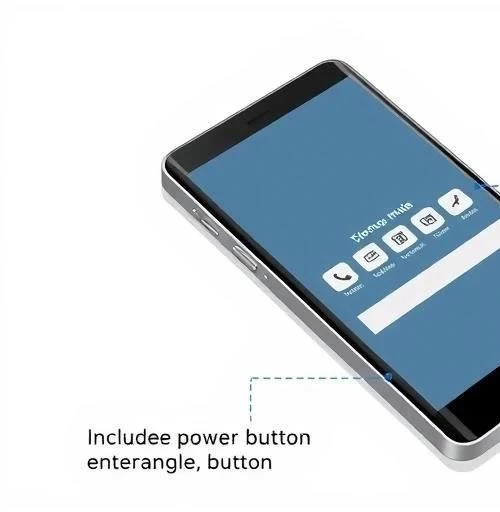
- With the phone off, press and hold Volume Up + Power together.
- When the Xiaomi, Redmi, or POCO logo appears, release Power but keep holding Volume Up briefly, until the Recovery screen shows.
- Navigate with the volume buttons and confirm with Power. Some newer menus also support touch.
If the phone simply boots normally, turn it off and try again, pressing both buttons at the same time. If it still will not open Recovery, check the instructions for your exact model; button timing and available functions can differ.
Choose the least destructive fix
If the menu offers Reboot, select it first when the phone is stuck at startup. This restarts the system without intentionally erasing your files. If you entered Recovery by accident, choose Reboot to System or the closest equivalent.
For an official update, use an update or Mi Assistant option only when it is presented by your device and you have the correct, official package or computer tool. Do not install a file intended for another model or region. An incompatible package can leave the phone unable to start.
Factory reset: the last resort
If repeated restarts fail and you accept losing local data, select Wipe Data, then Wipe All Data if that confirmation appears. Read every warning before confirming. When the process finishes, return to the main menu and choose Reboot to System. The first startup may take several minutes. Set up the phone and sign in with the account it requests.
If Recovery does not solve it
Do not repeatedly wipe the phone hoping to fix a hardware fault. A device that loops at the logo, will not charge, or cannot enter Recovery may need a model-specific software repair or professional service. Avoid random “unlock” tools and unofficial ROMs: they can damage the installation or expose your data.
Quick rule: reboot first, update only with verified files, and wipe only when you understand the data and account consequences. Recovery is a useful workshop—but the safest repair is the one that changes the least.